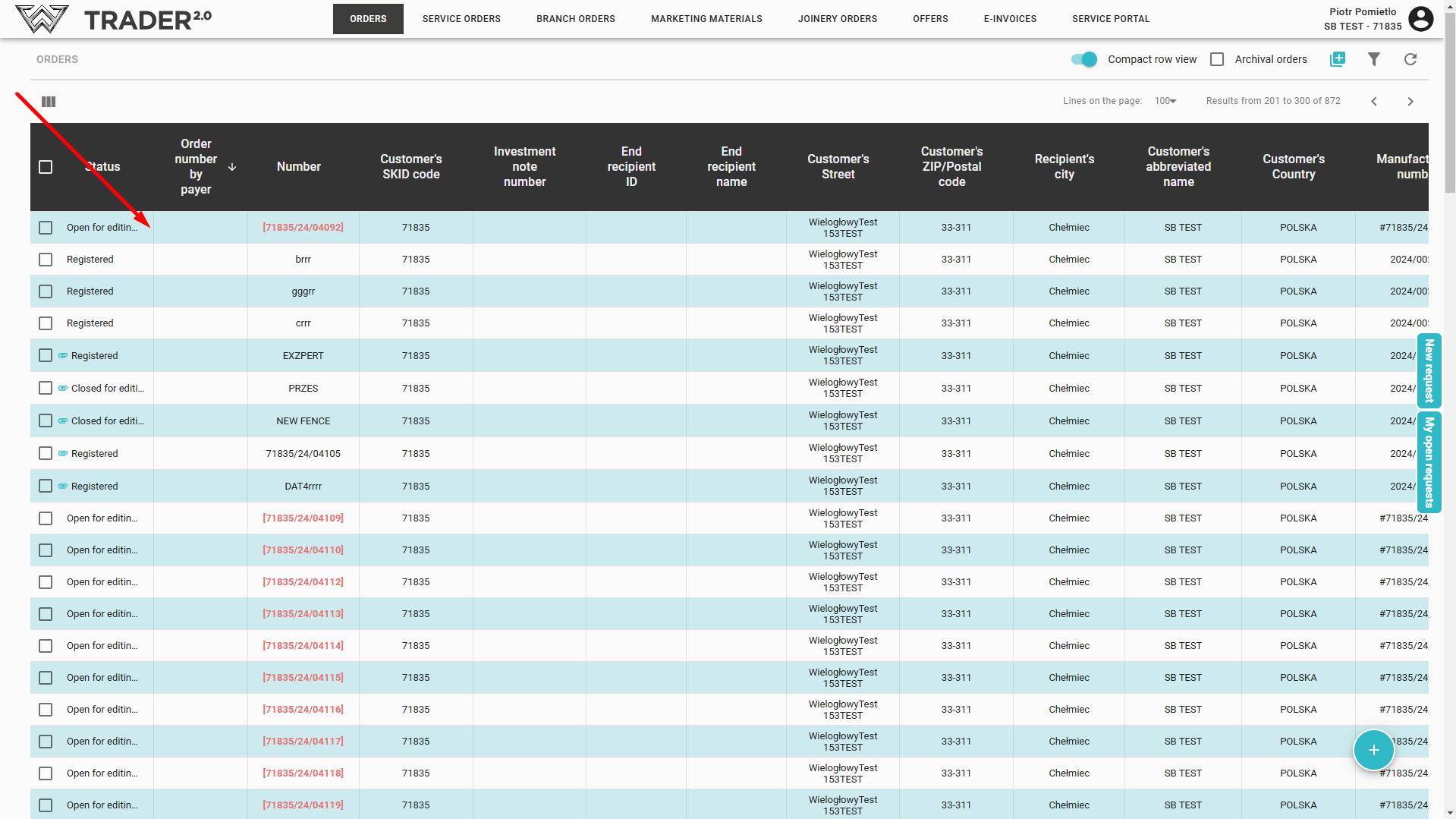
After creating a new order, you can find it in the list of orders. You will see the details of the previously entered order, by clicking on the given line in the order list.
When you open the order you are looking for, individual sections are displayed:
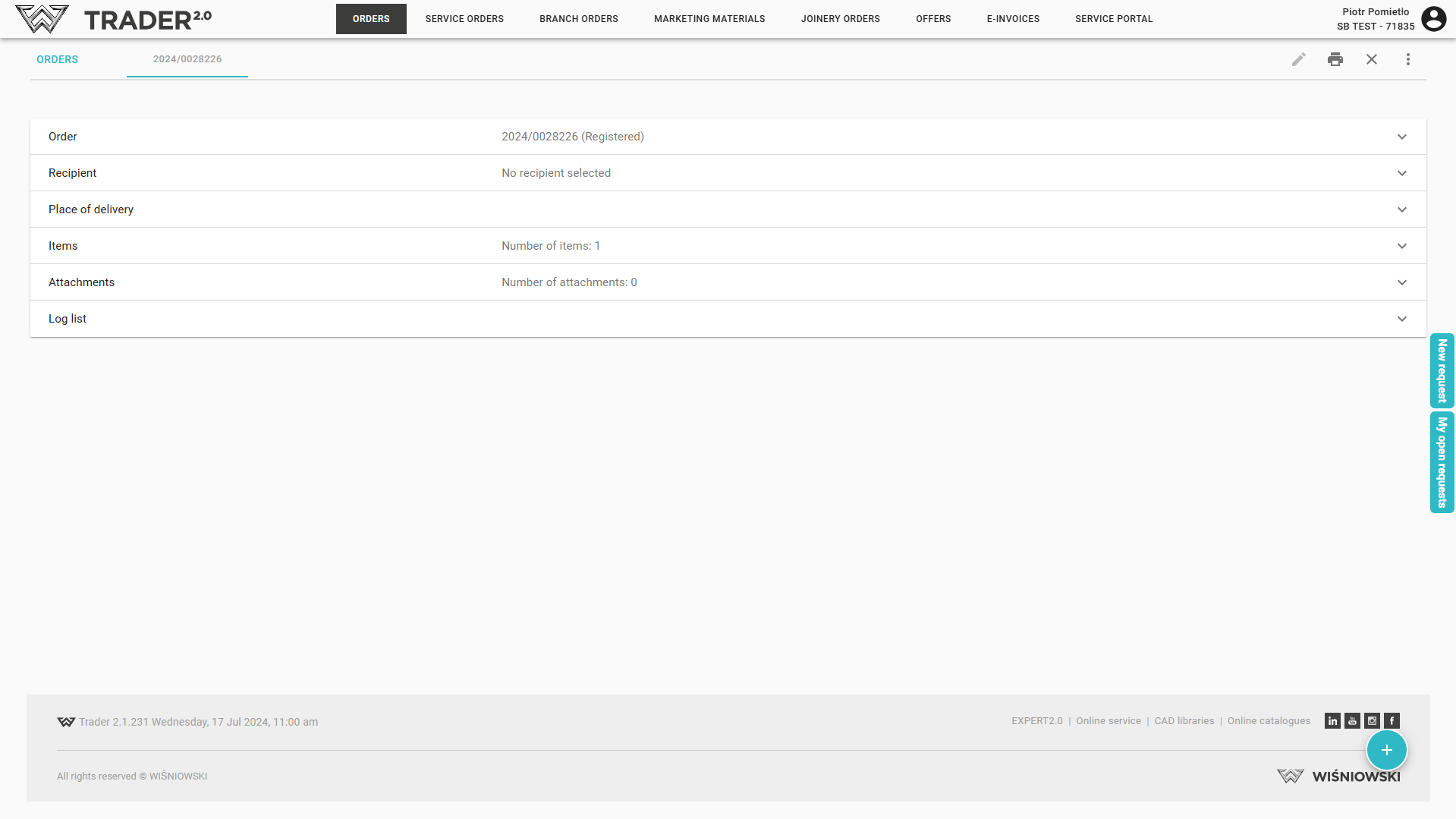
Order: here you will find basic information, i.e. order number with status (e.g. “Open for editing”), customer number, form of payment, type of transport, comments, survey number, payment days, or delivery warehouse - it is required for order shipment.
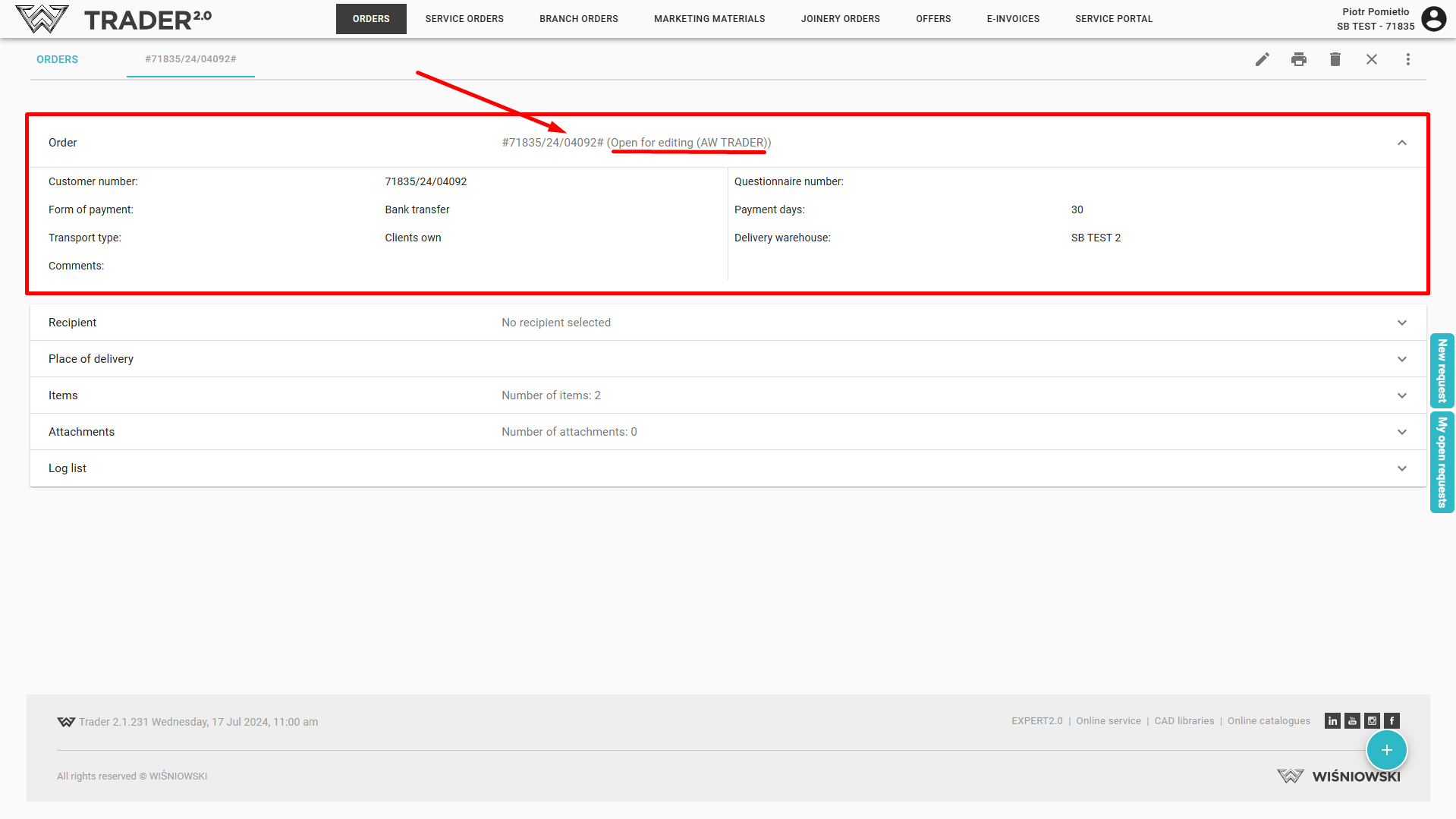
Recipient: for the selected recipient, his/her data will be displayed, you can also add a new recipient by clicking on (1) (analogously Stage 5 - Recipient details).
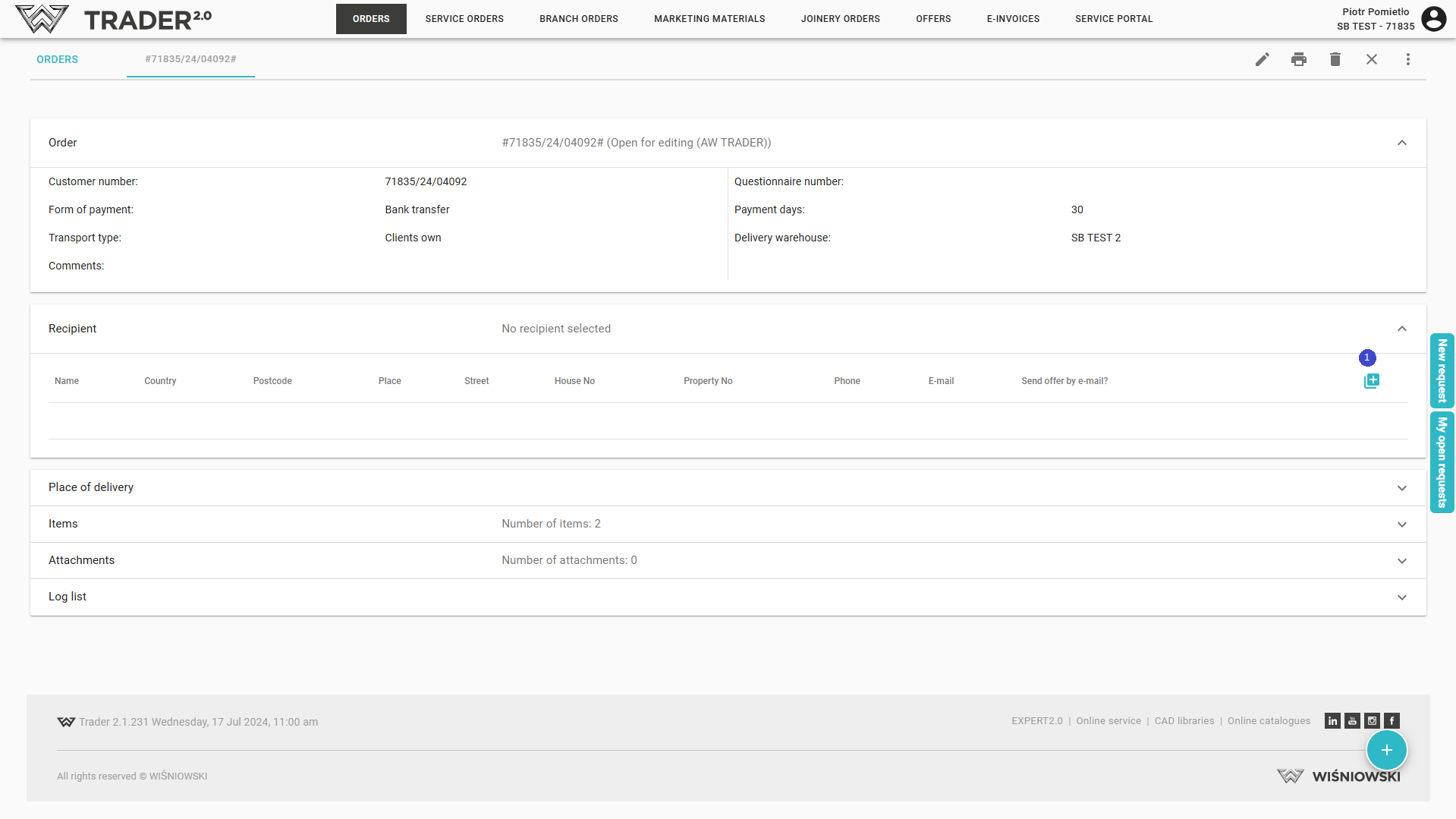
Delivery location (total for all order items) - fill in if the delivery location is different from the delivery warehouse in the order header.
We can select from the list (2) if the place was previously saved to the list, or we can add a new one by clicking on the  and filling in the fields Description, Country, City, Street, House No., Premises No., Postal Code, Phone, E-mail for delivery advice.
Fields marked with “*” are required. The entry of a new delivery location must be confirmed with the “Save” button
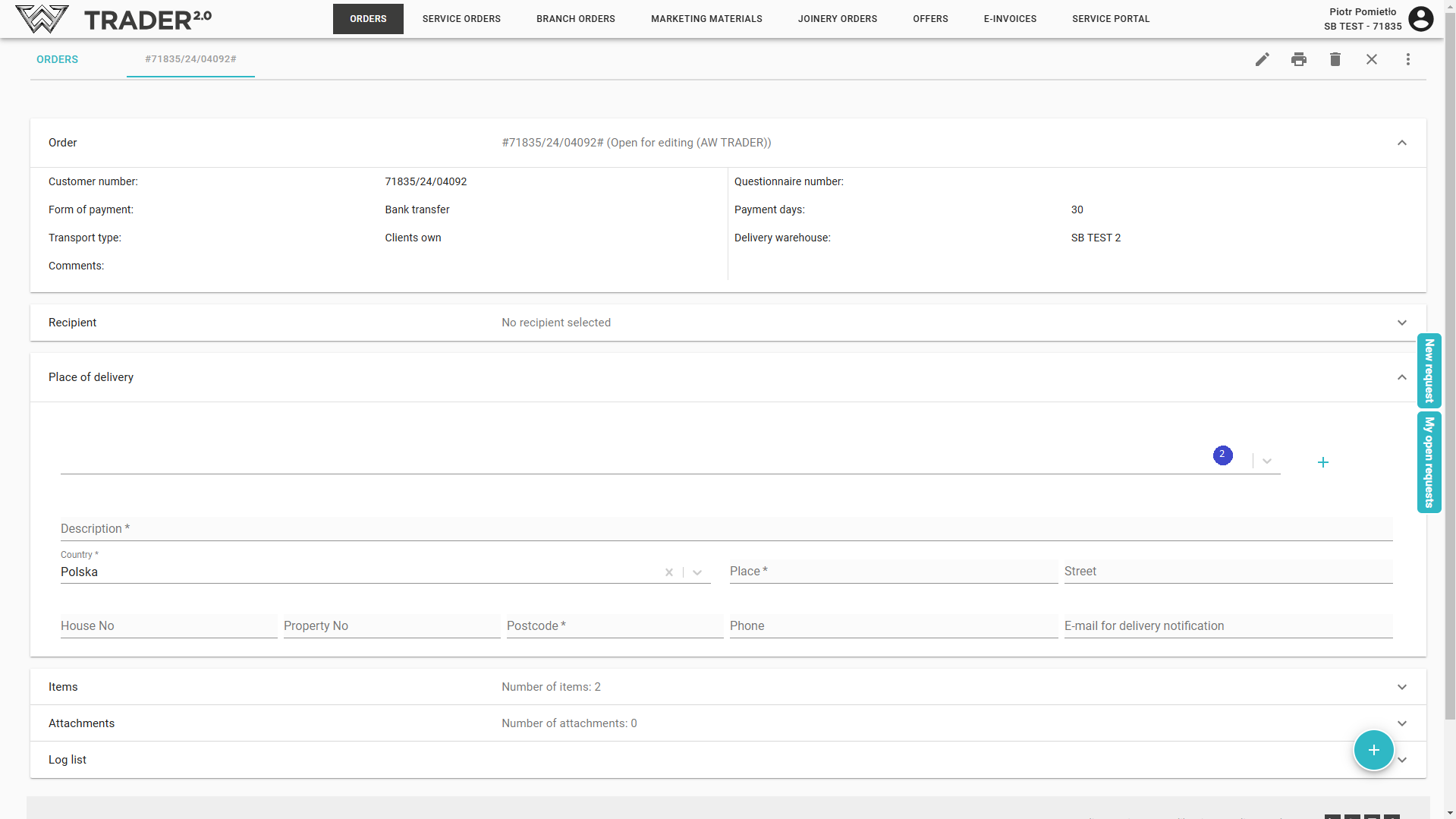
Items: list of added products, when you click on a product, you will be able to edit the item (3), properties (4) , place of delivery (5)
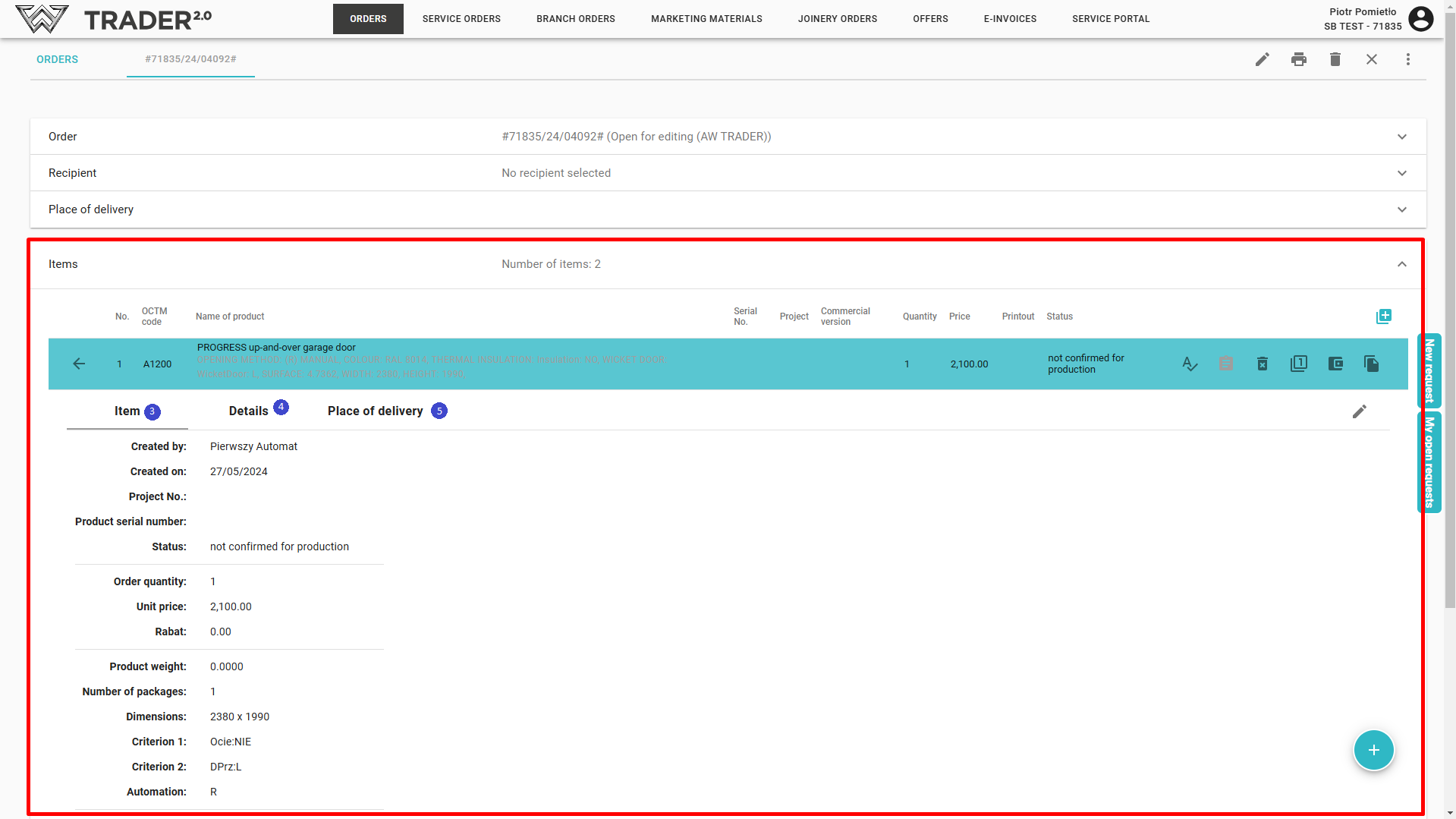
- In Item, you can edit the number on the project and add comments to the item.
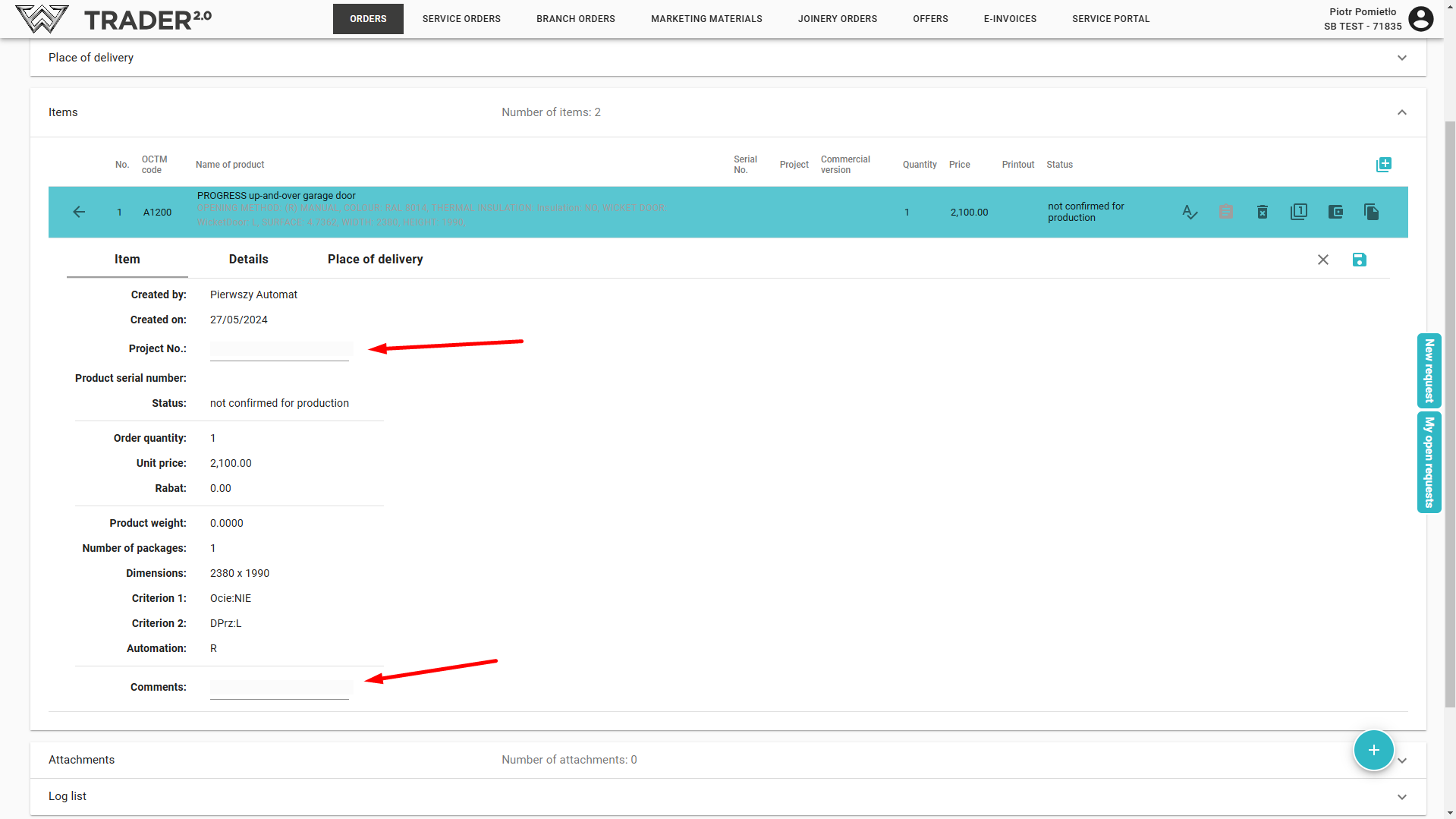
- Properties and Place of delivery can be edited analogously as described in Stage 2 - Defining the order items. (Attention ! Changing the quantity of a product is possible on Stage 2editing 'Properties').
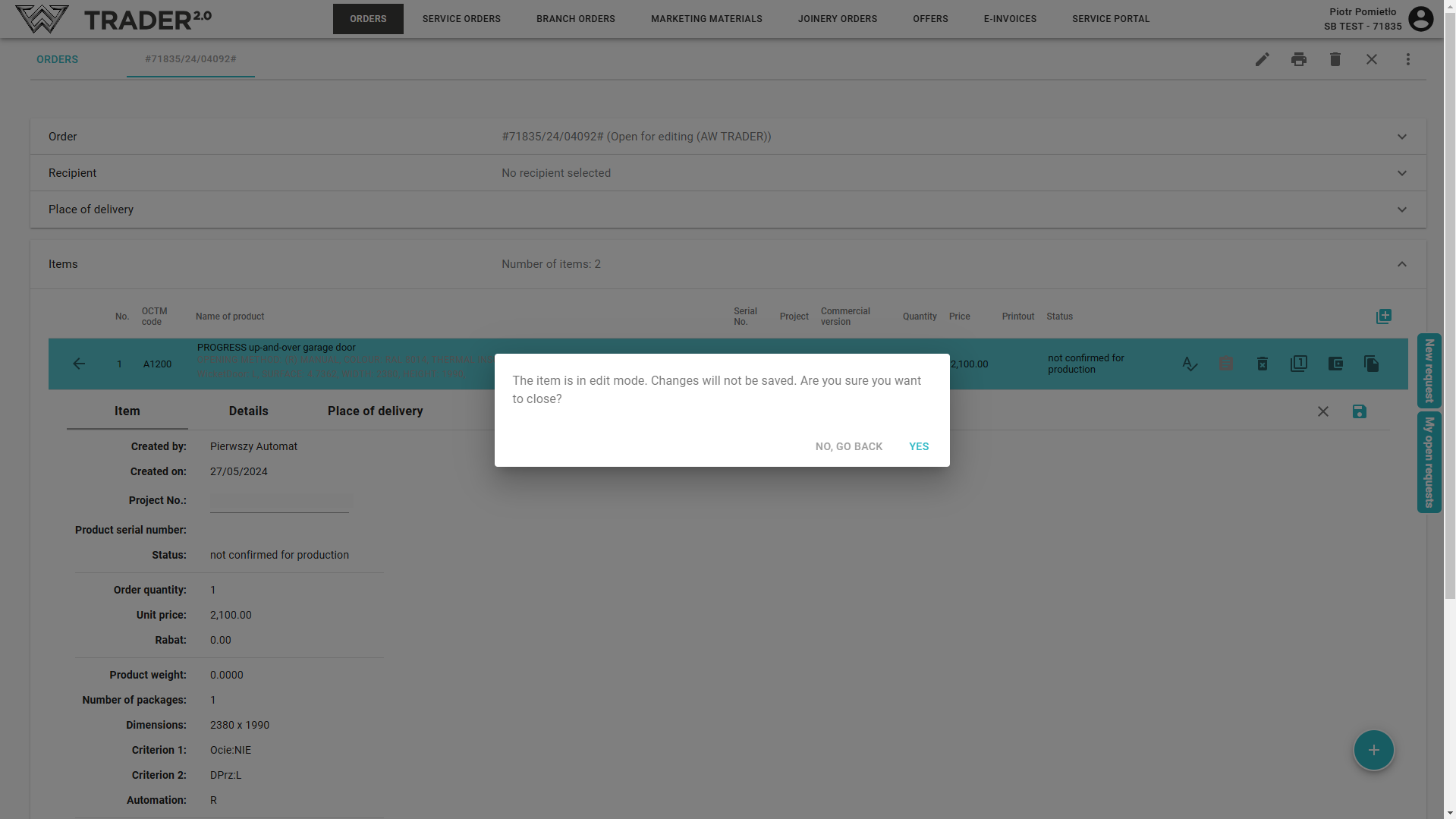
Editing can be done by clicking the icon  . You can save or cancel the changes you have made. If you do not save or cancel the changes you have made, a message will appear when the item is rolled up:
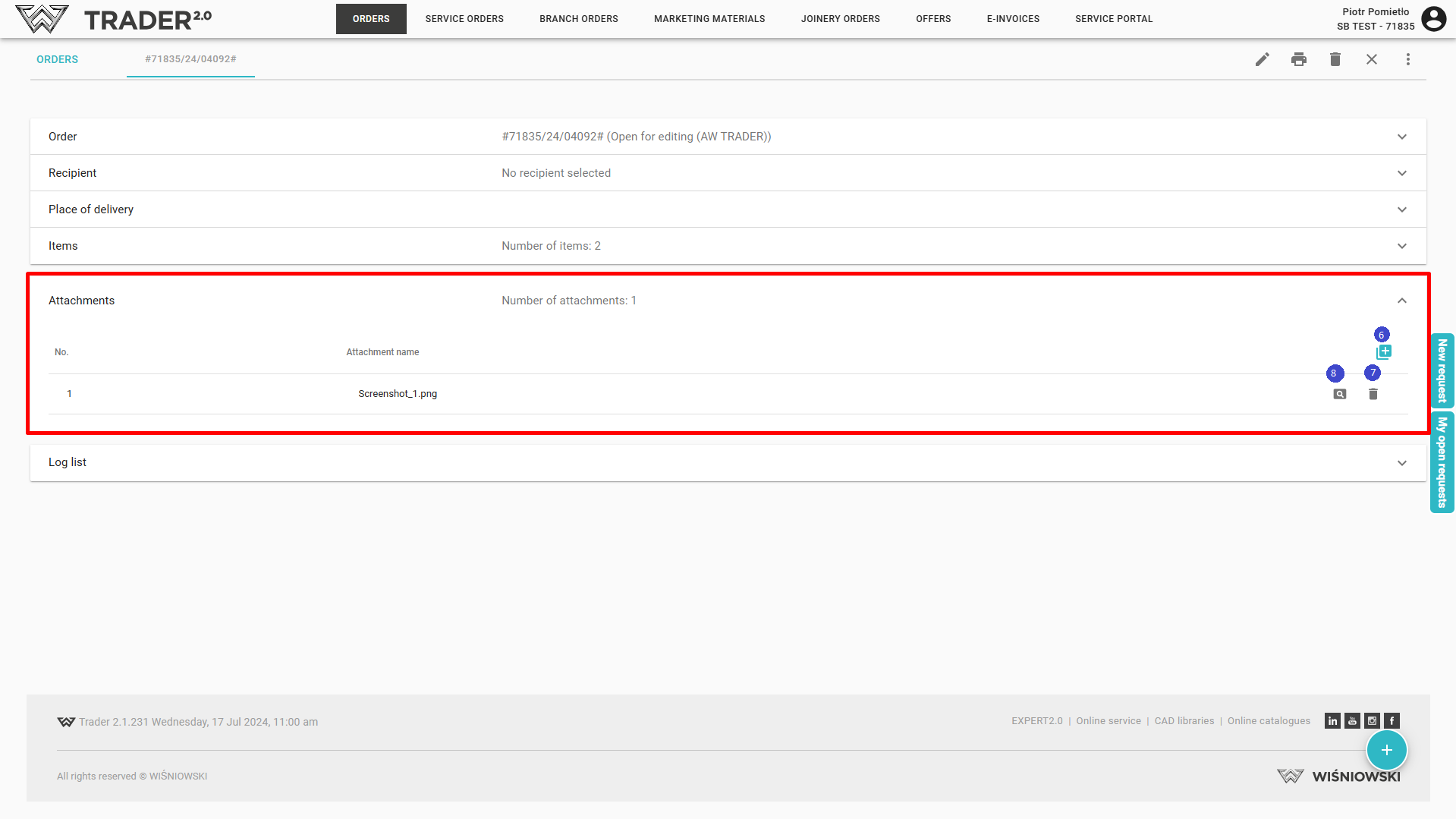
Attachments: list of added attachments (6), delete (7) or preview (8) attachment (aanalogously Stage 3 - Adding attachments to order)
List of logs: described in Order operations logs