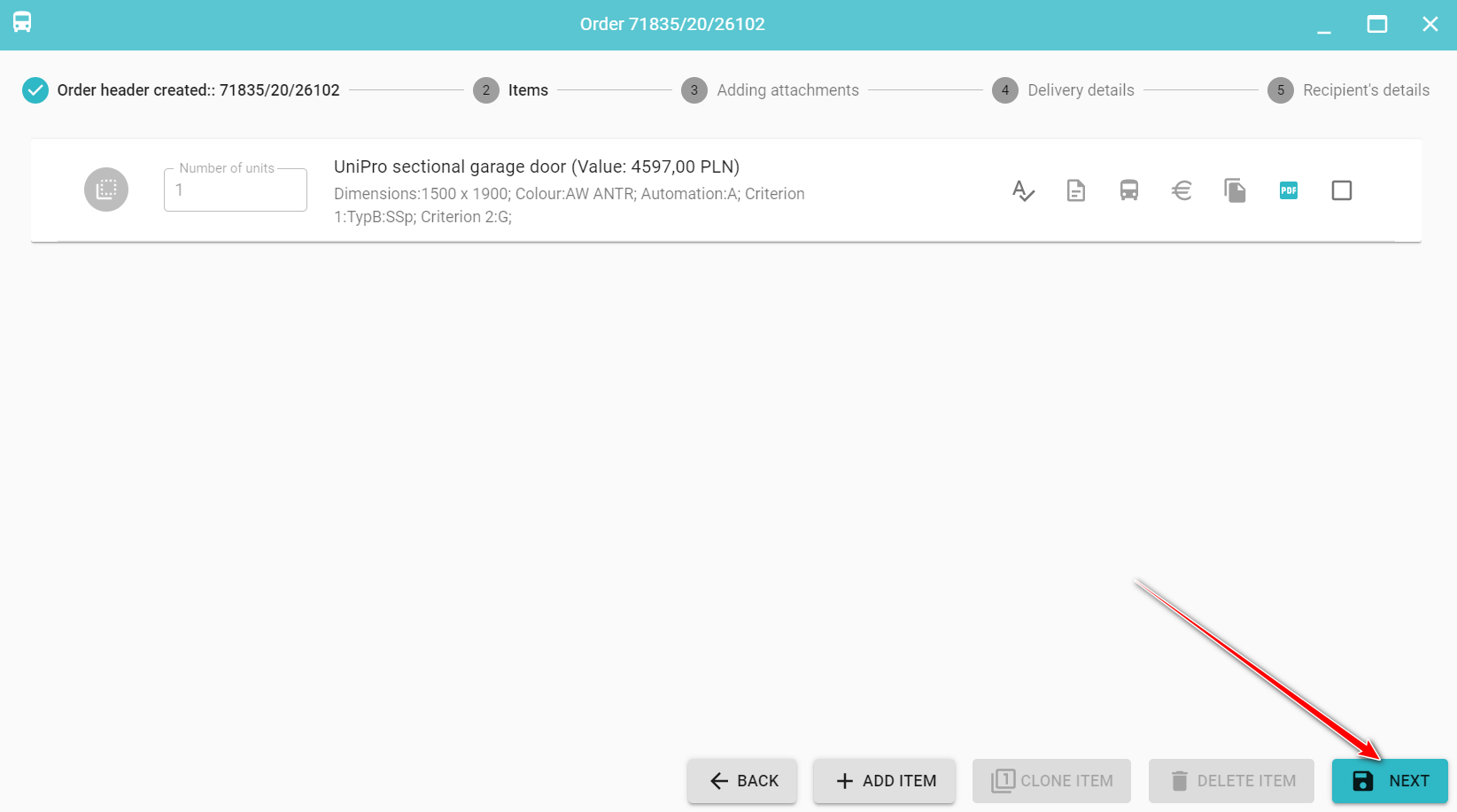
After finishing Stage 1- Defining the order header move on to Product list.
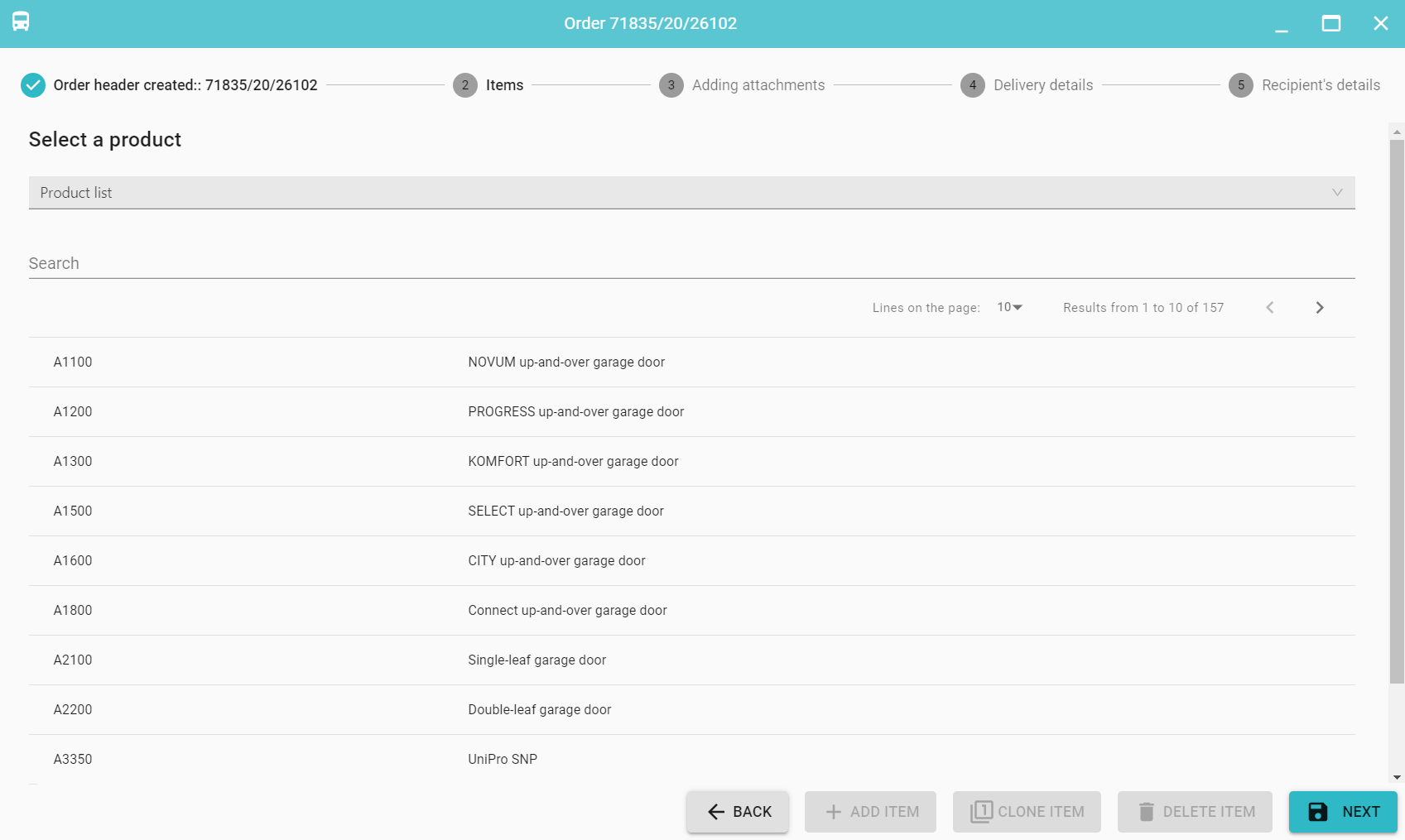
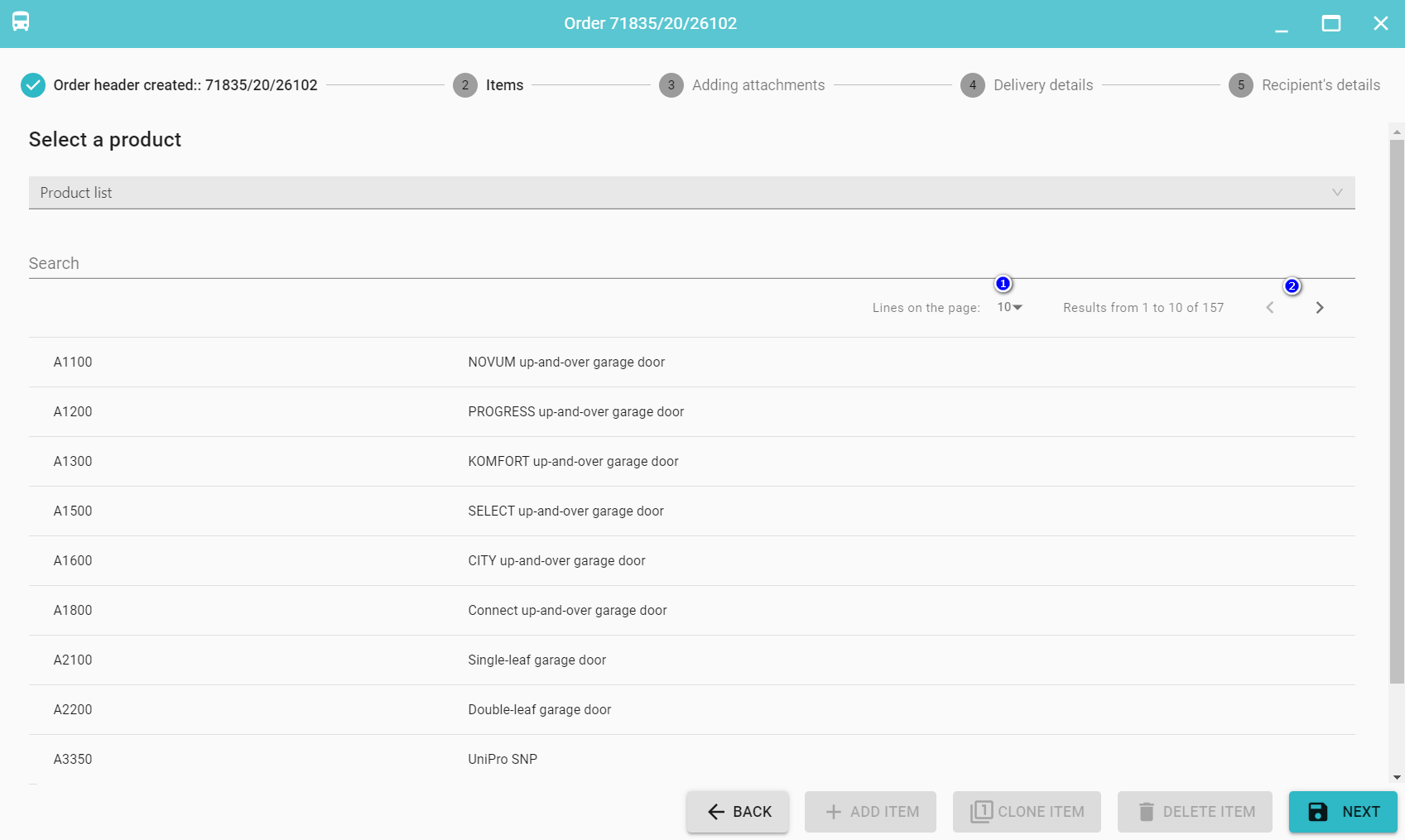
The list of products is divided into pages. You decide how many products on the site (1) are displayed and you can easily navigate using the arrows (2) between individual pages.
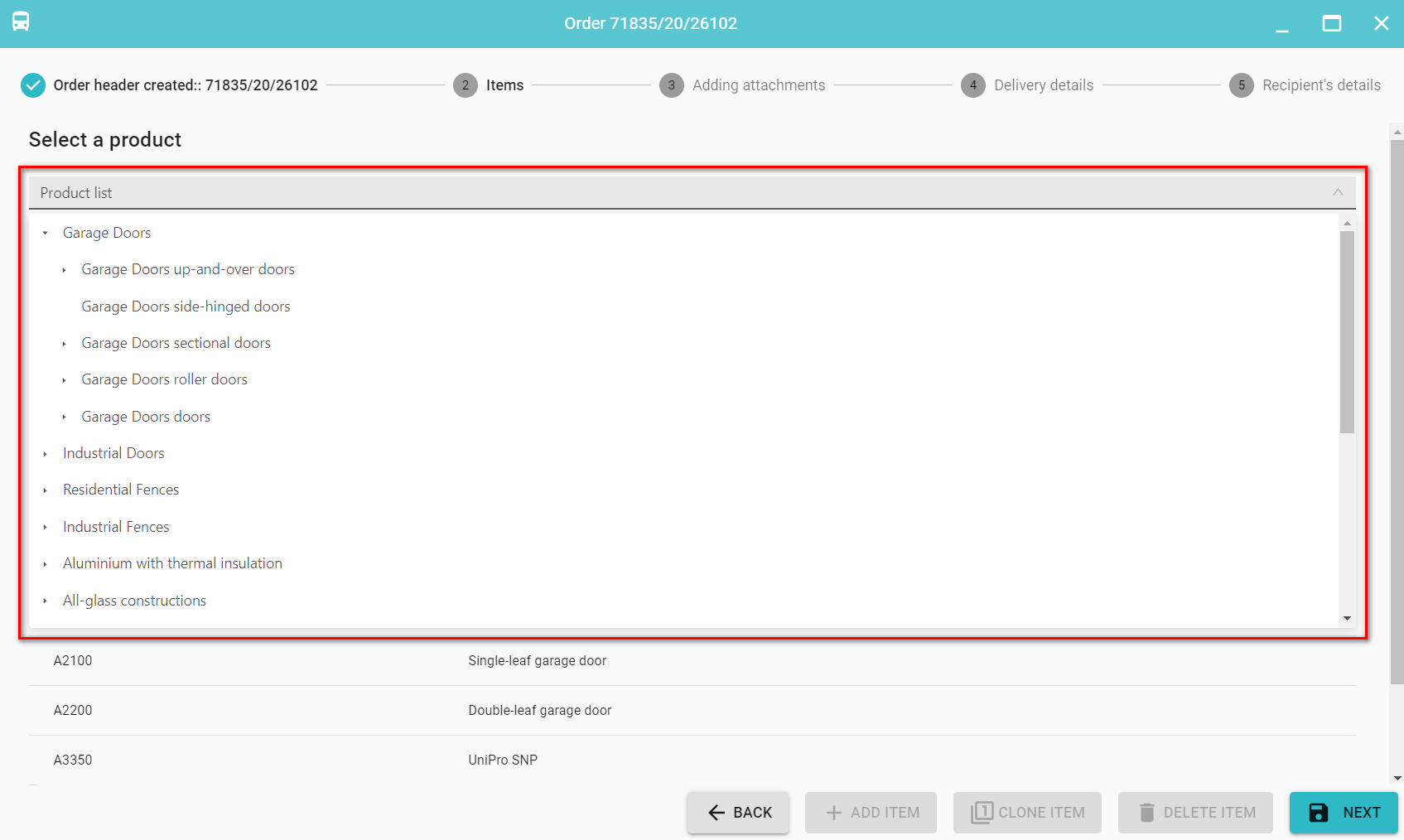
The list of products is filterable by product group, e.g. sectional garage doors
List of products equipped with a context-sensitive search, ie it is possible to search by any phrase, KTM product code or its name, just type part of the name.
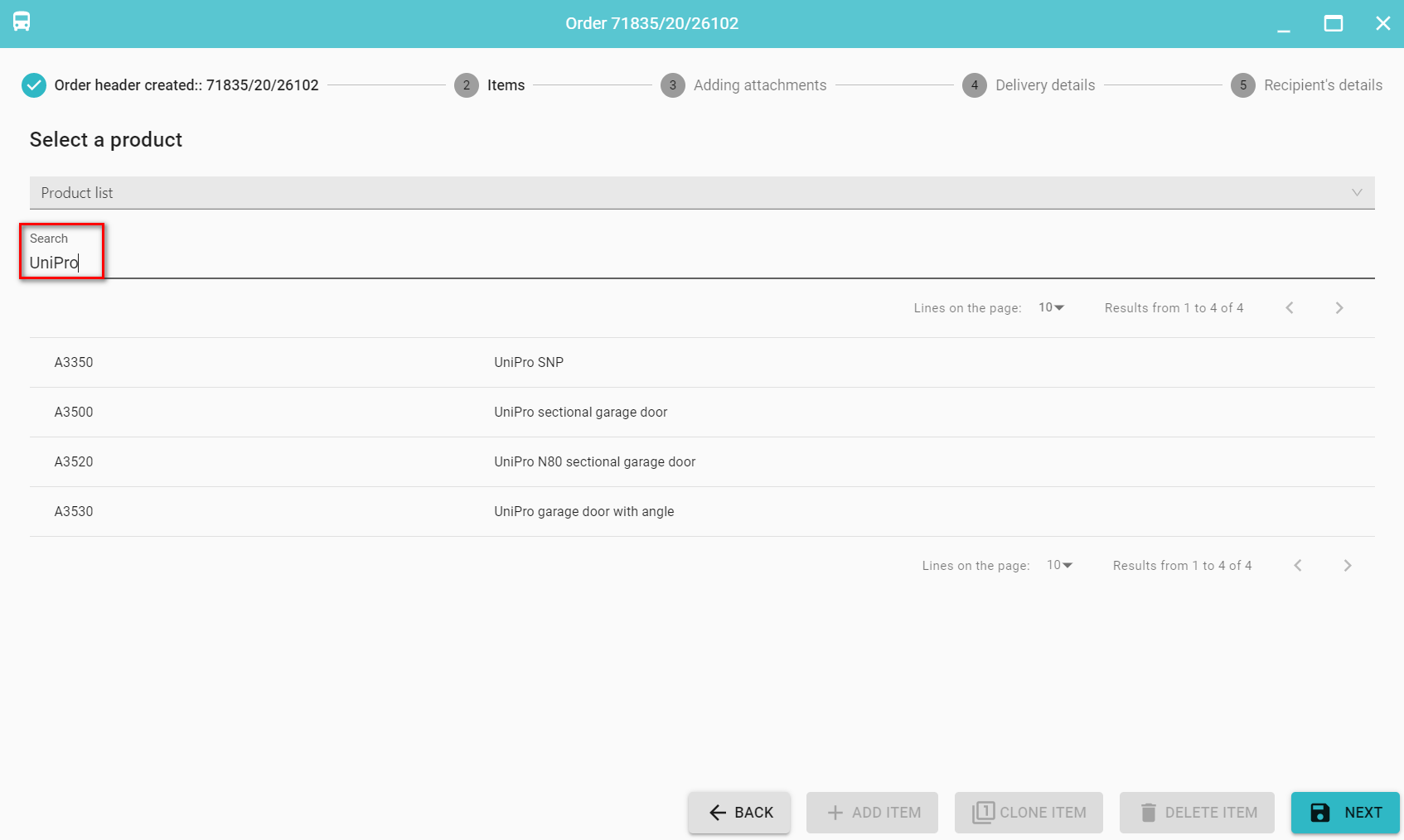
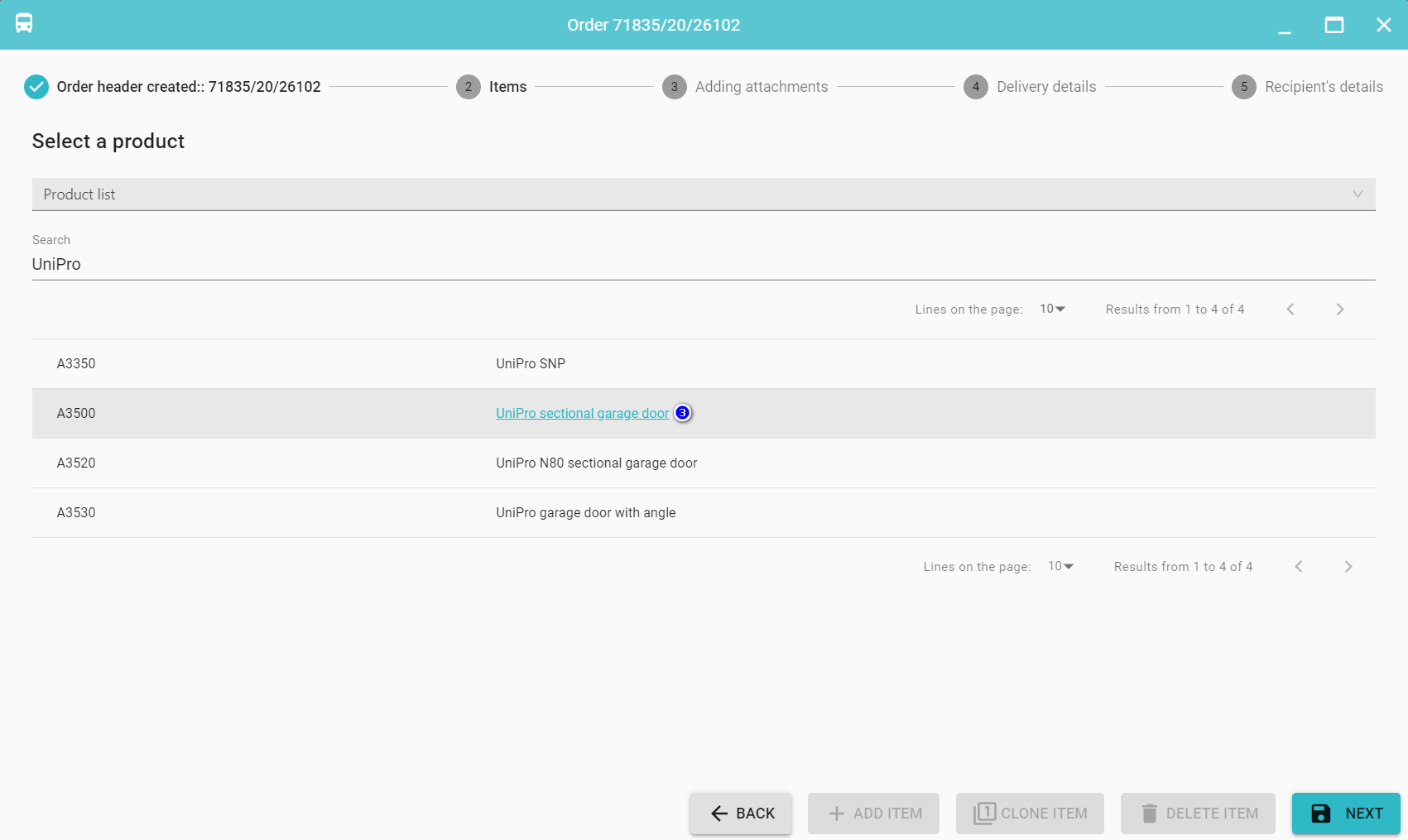
To select a product, click on a given line or, with the cursor over its name, click on the underlined text (3).
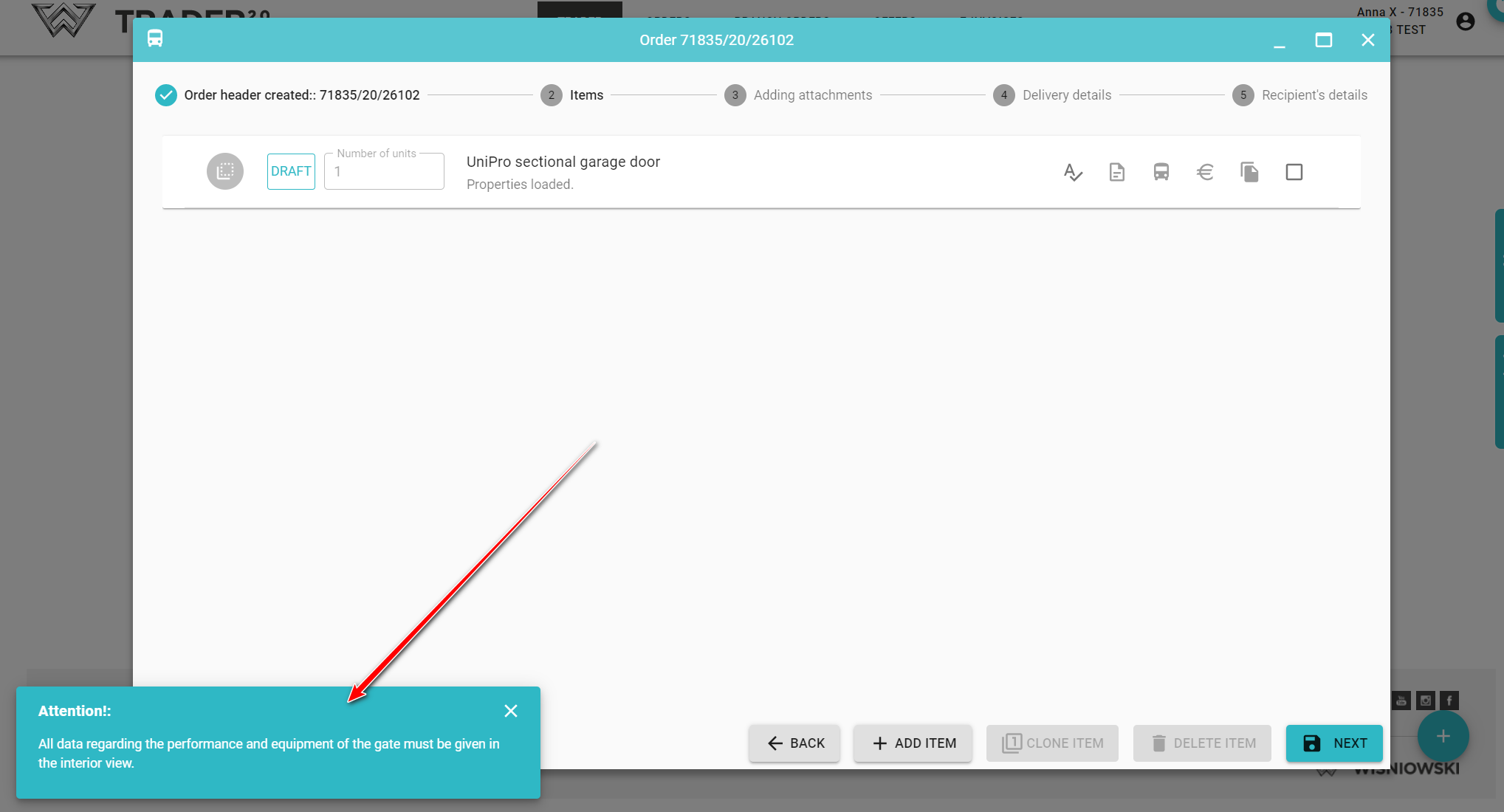
Next you will receive information on how to enter the dimensions of the indicated garage doors.
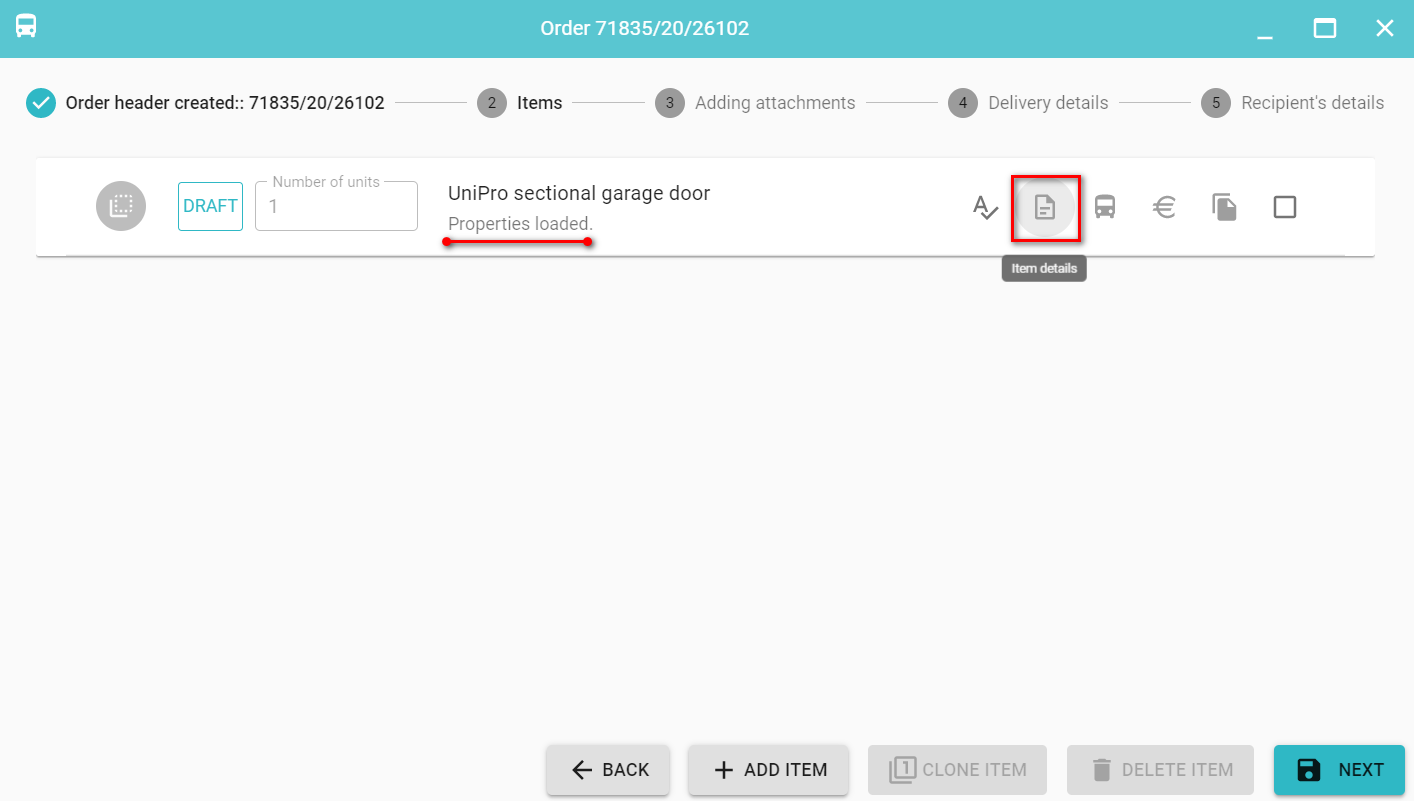
If properties are loaded, click on the item or on the Item details icon.
Define the properties. The property names that are mandatory to complete but have not been defined yet are displayed in red.
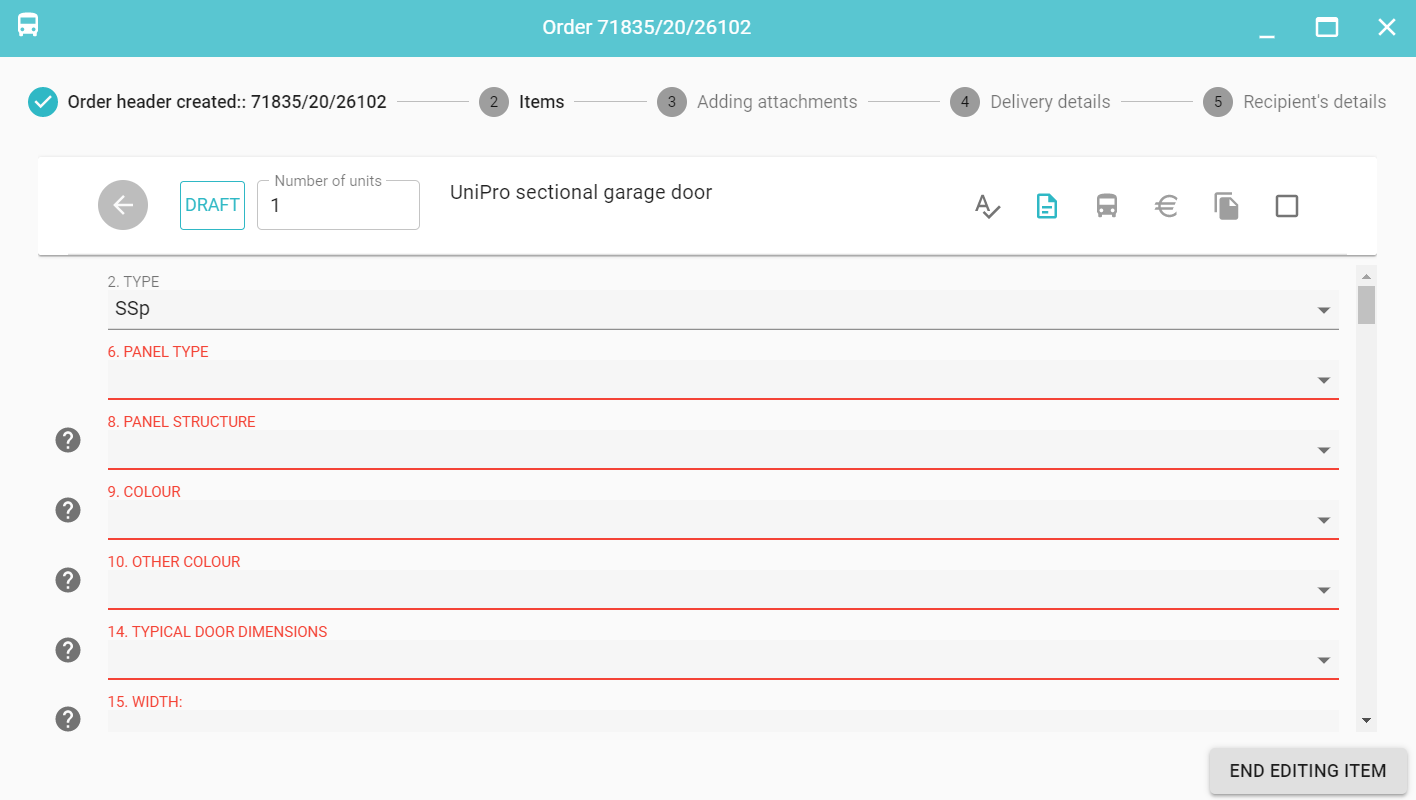
Some properties depend on others and are marked with the symbol  next to the name.
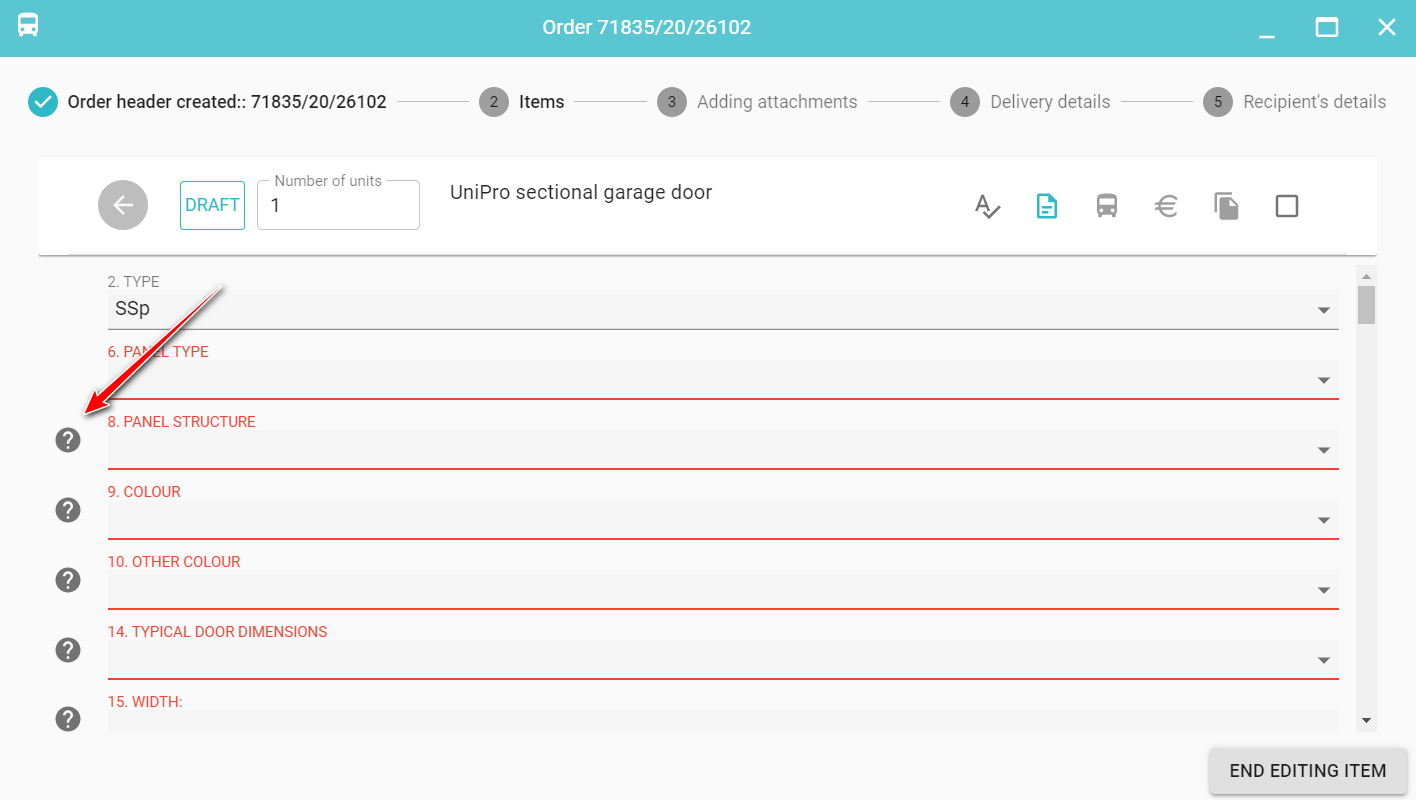
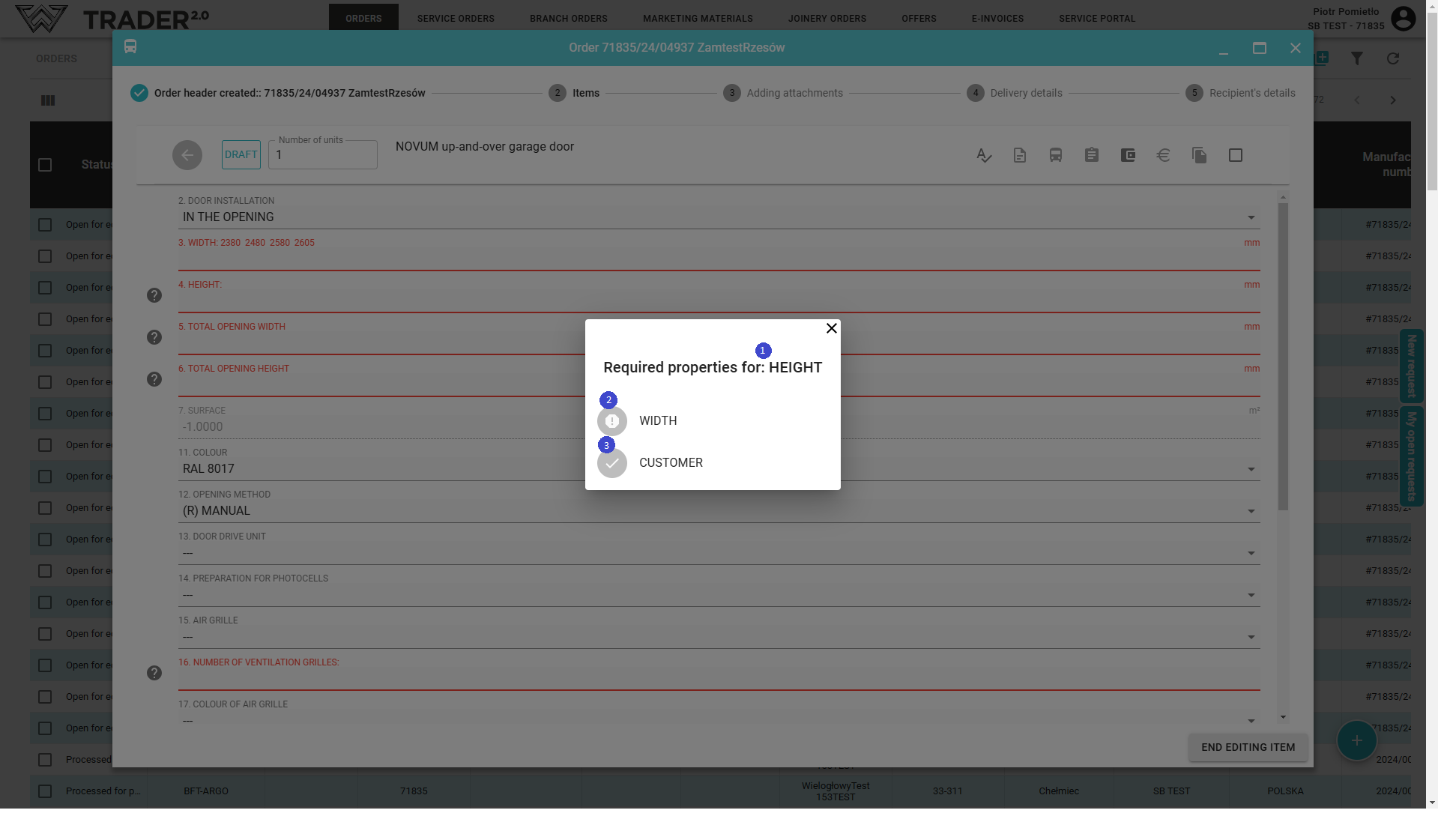
When you click on  a hint is displayed about the dependent items (1) .
No. (2) marks the properties we need to complete and No. (3) marks the properties we have already completed and met the dependency condition.
Correctly completed properties are in black.
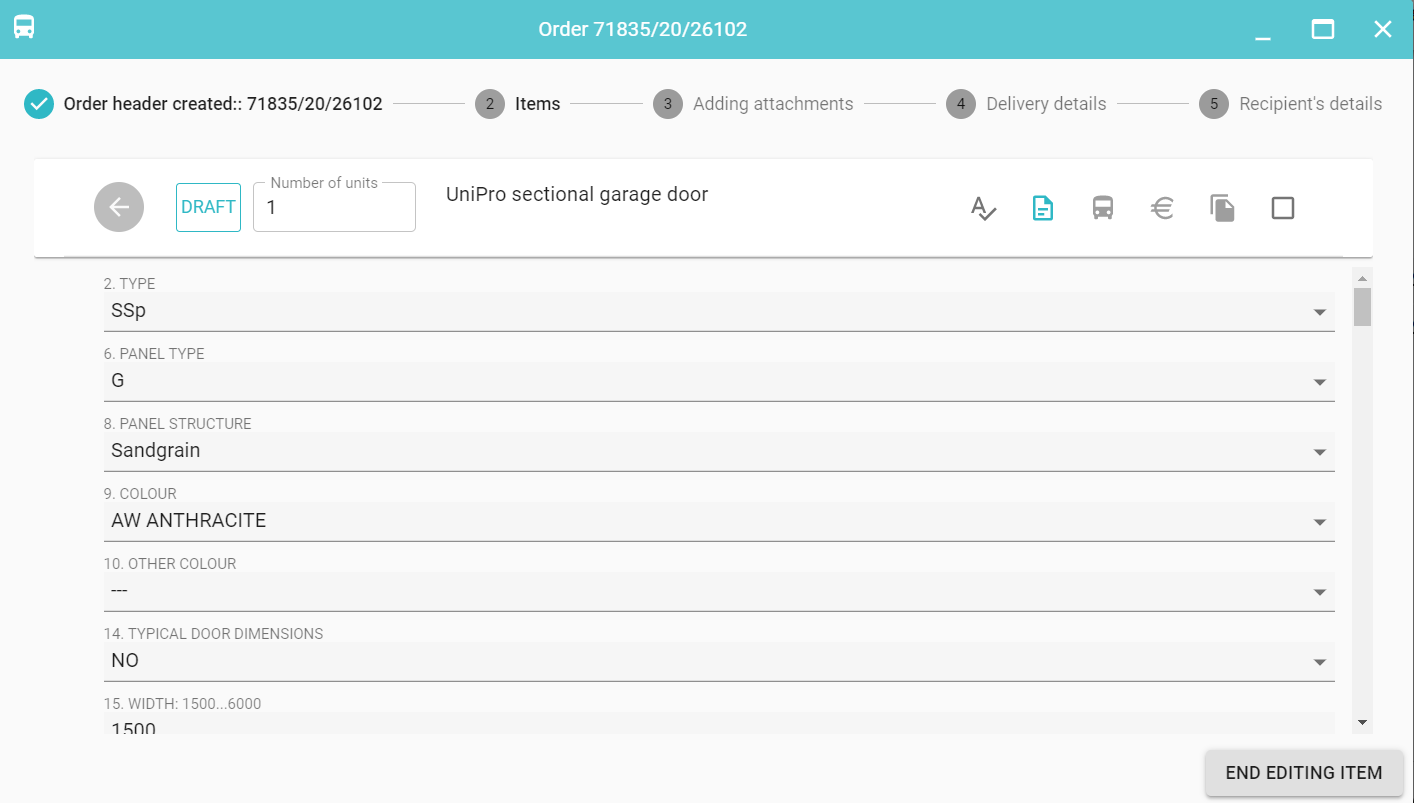
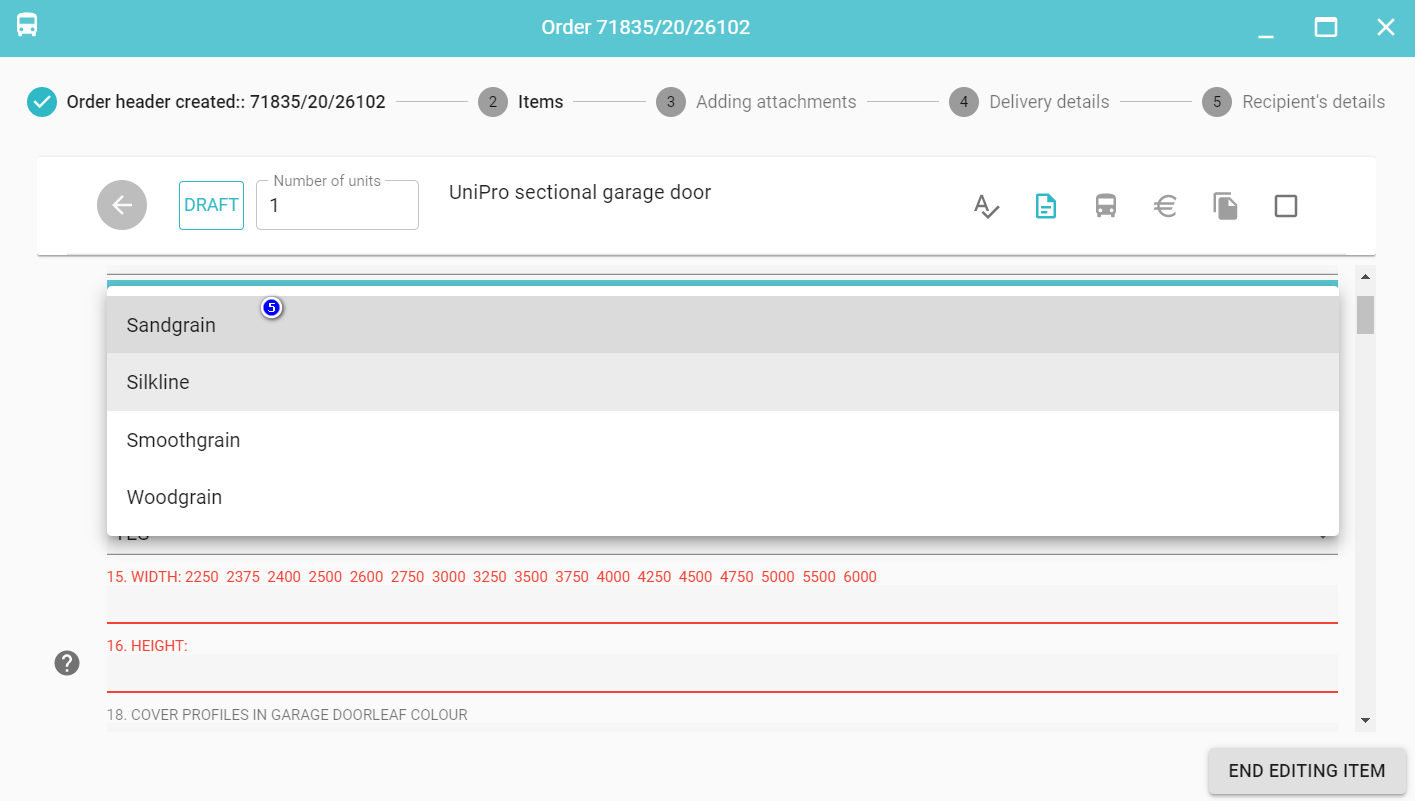
Properties are selected from the drop-down list (5) or by clicking on the suggestions list (6)
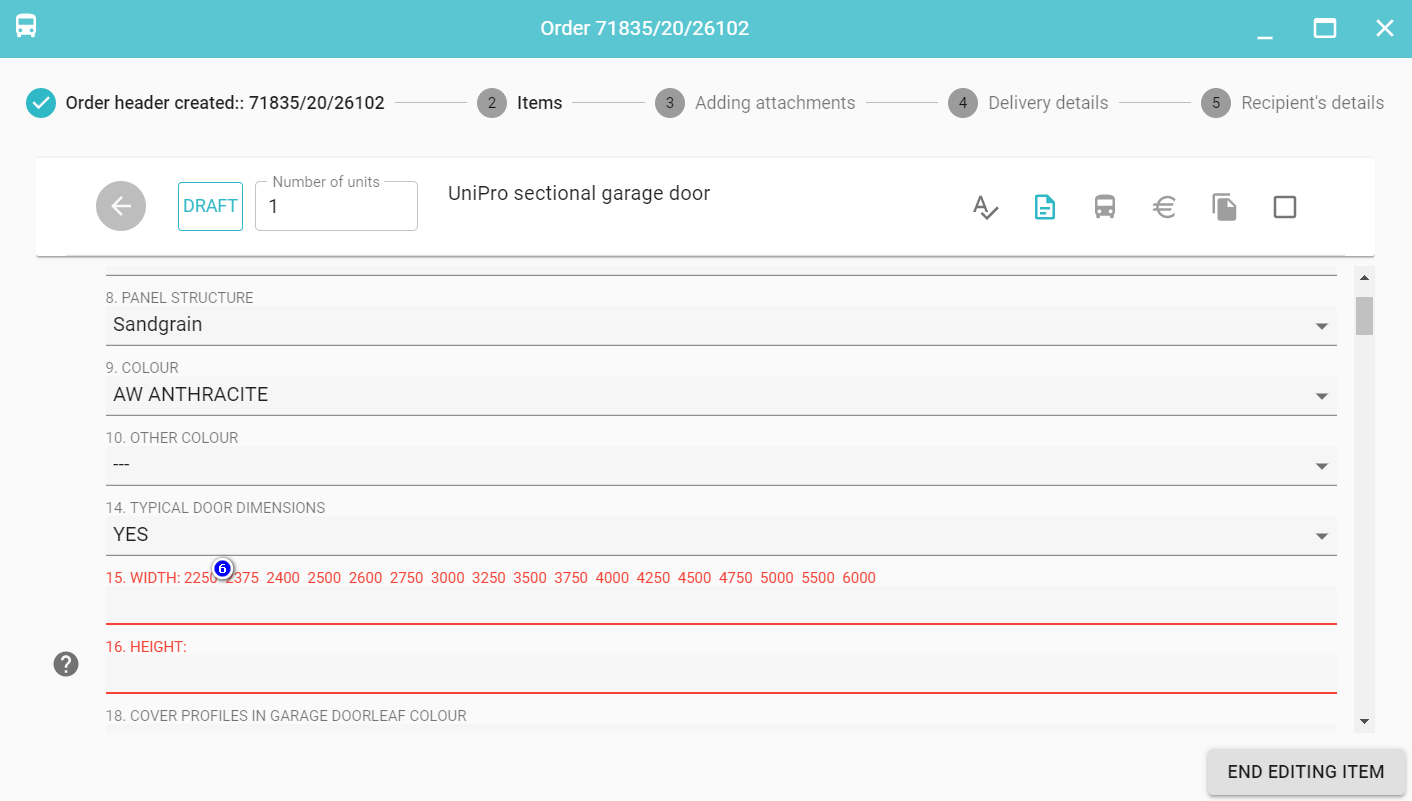
Click End Editing Item(7).
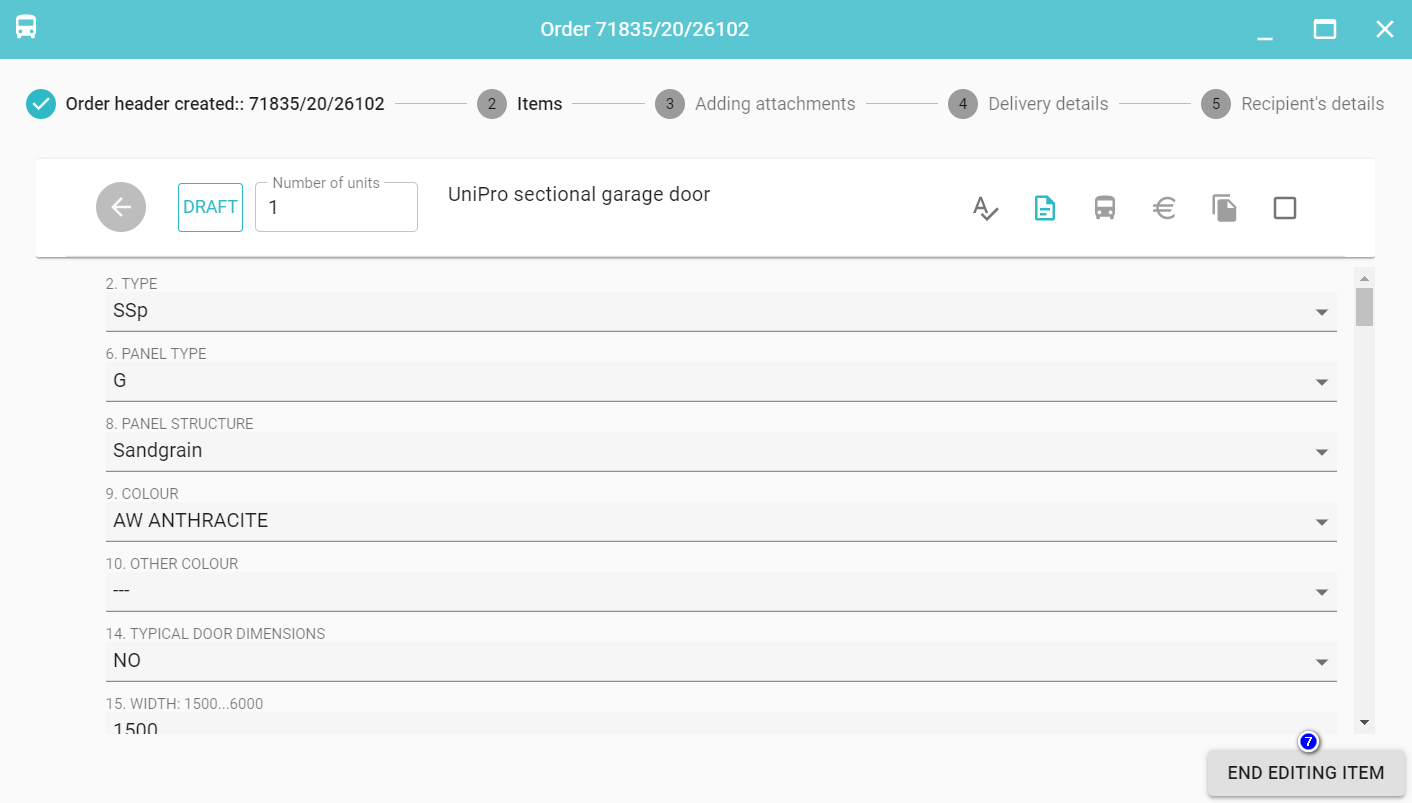
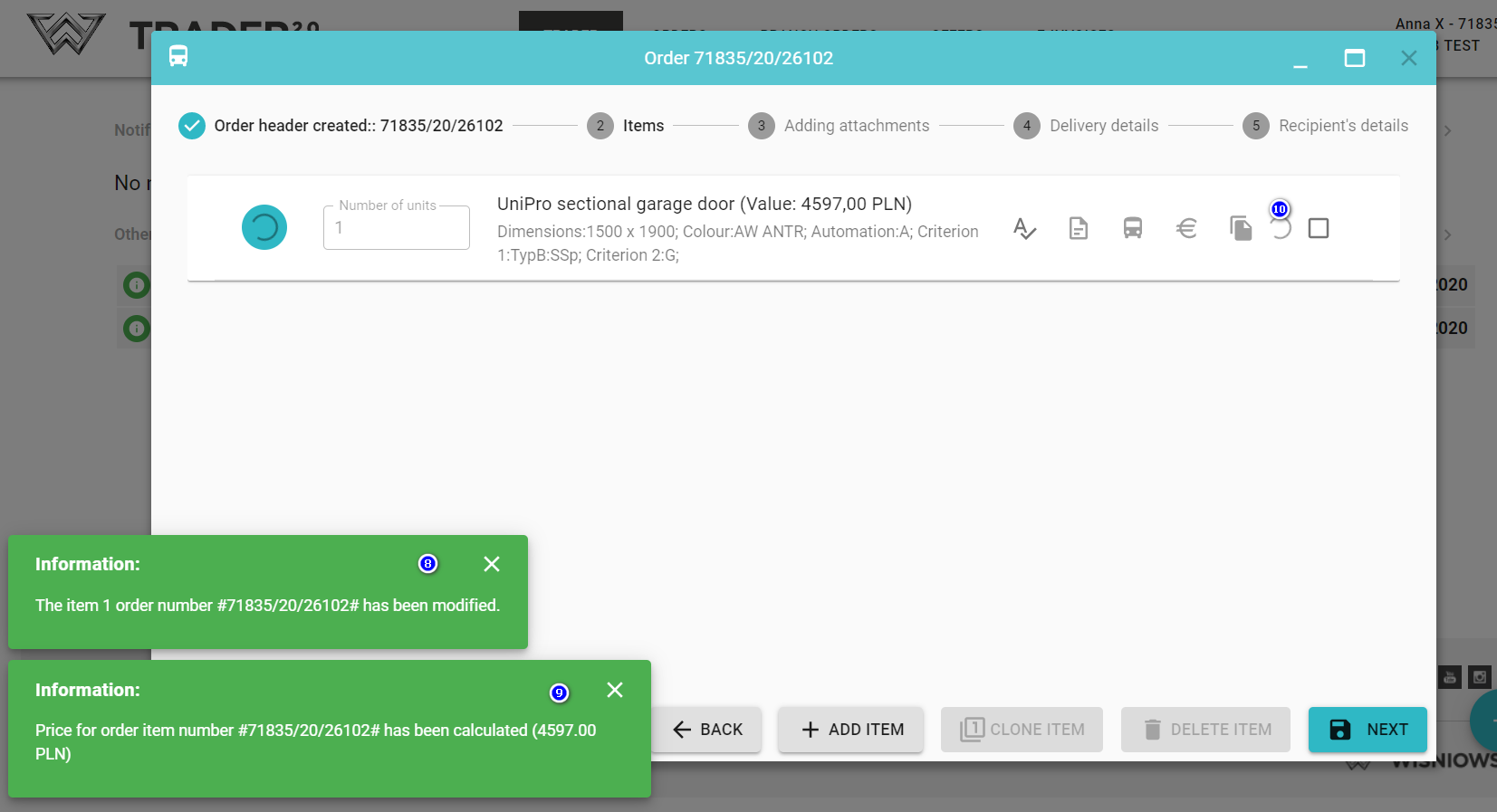
At this point, the properties are saved (8), the price is calculated (9) (for sectional garage doors construction conditions are also generated (10))
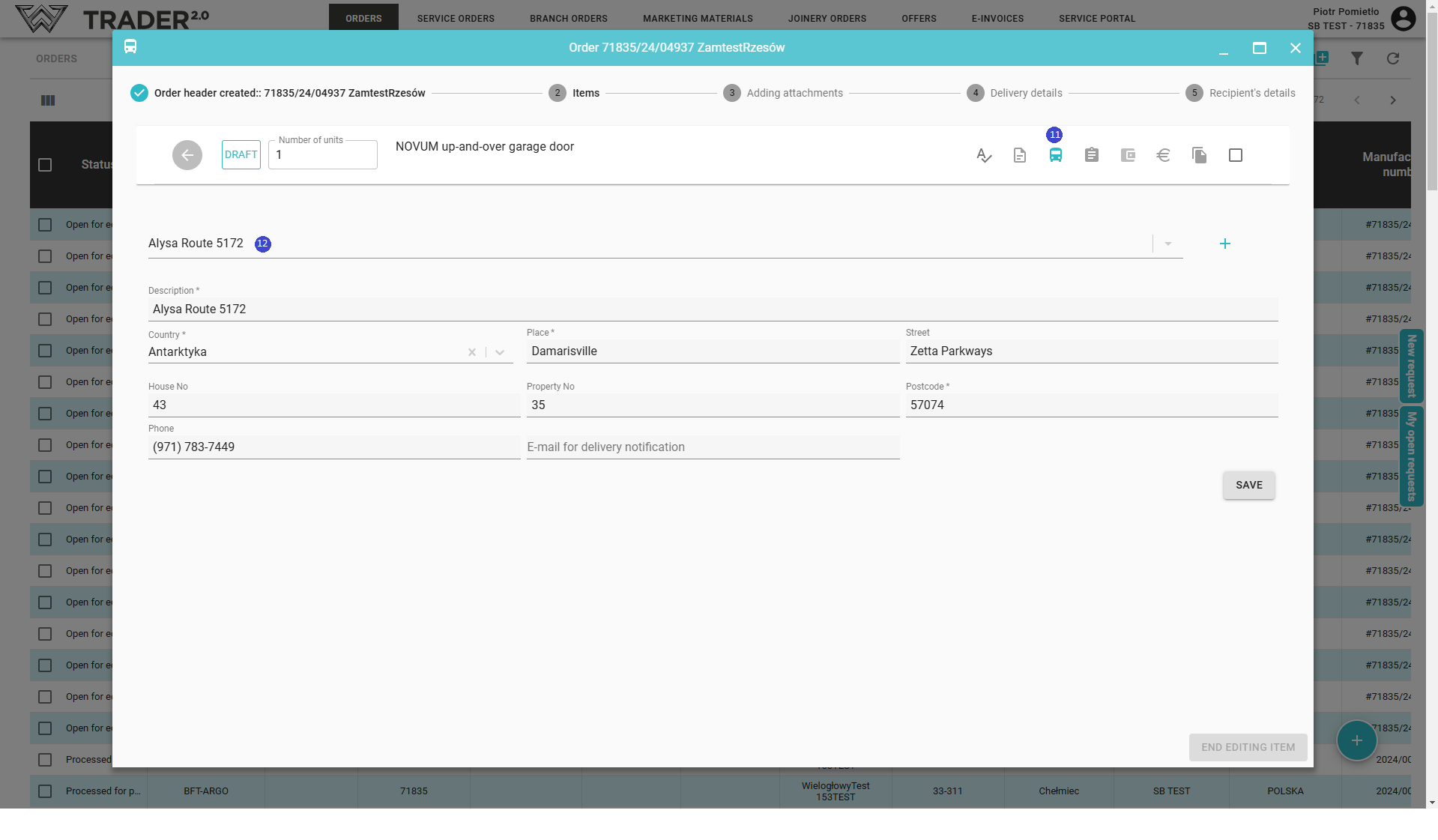
It is possible to specify the place of delivery of the order items, if it is different than for the entire order.
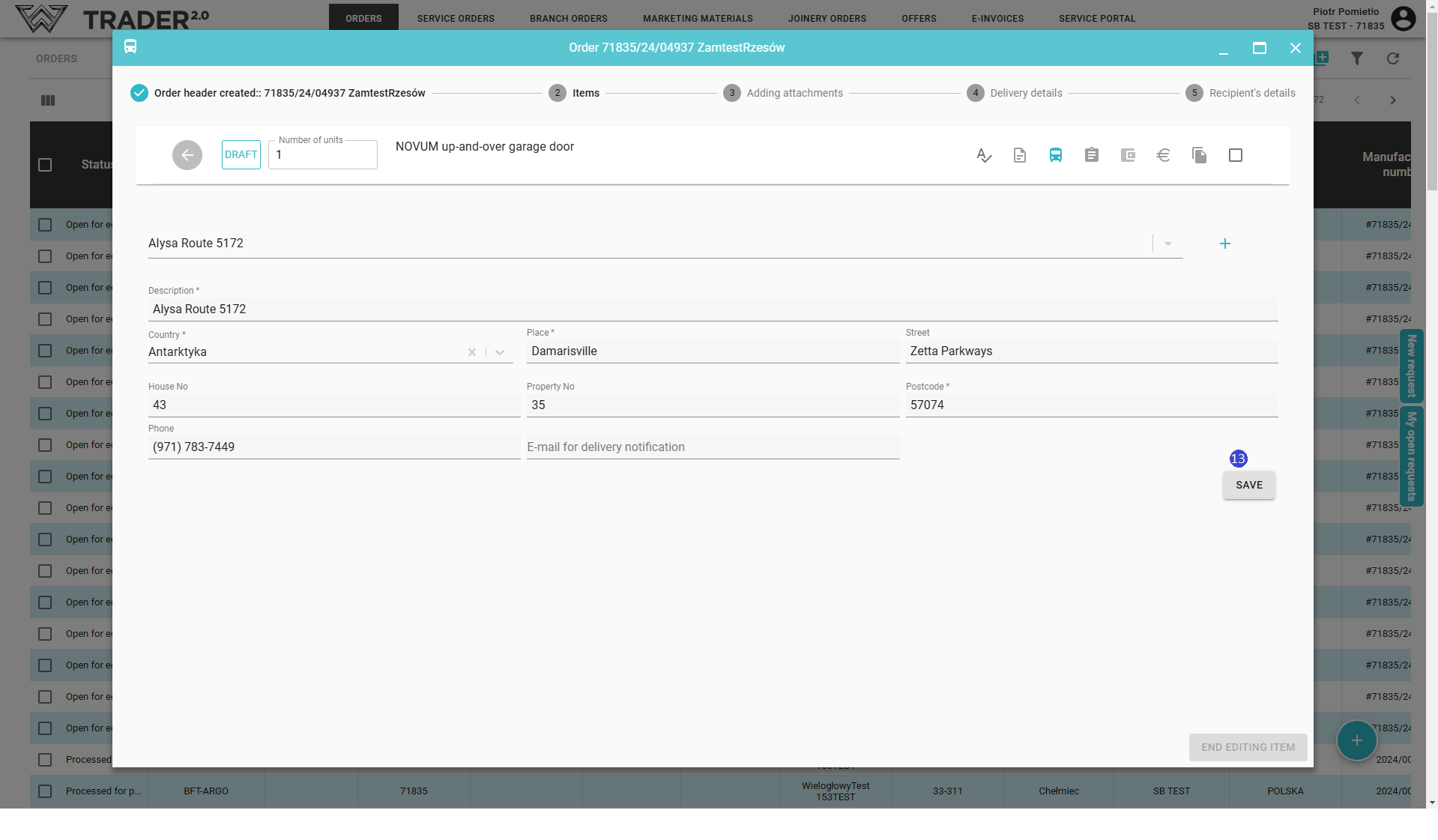
Click Delivery Details (11) - indicate the warehouse from the list (12) in the case of investments, enter delivery details and click Accept Changes (13)
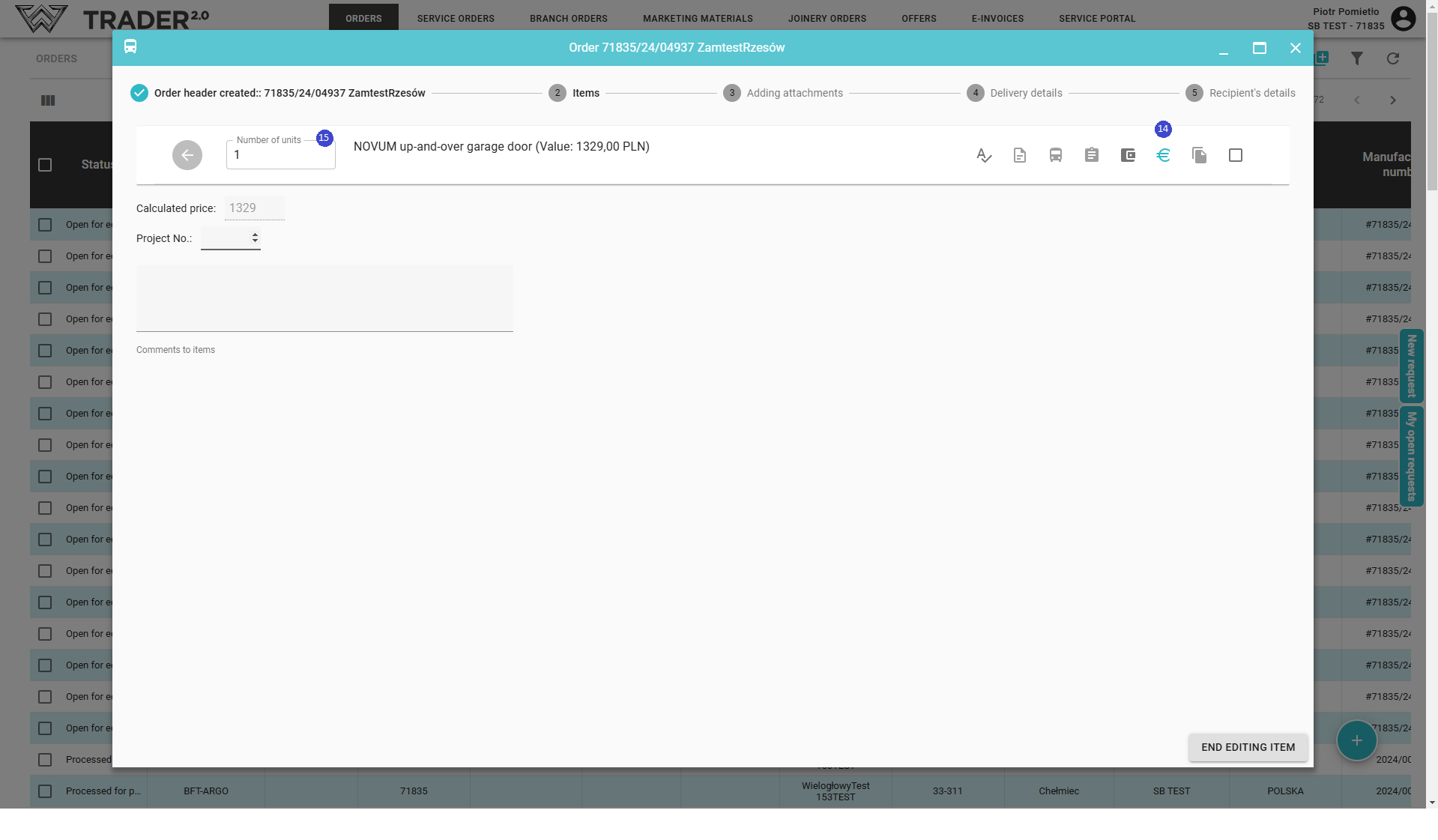
It is possible to specify the number of units of an order item, shipping, assign a project number and add comments to the item.
Click Payment details (14) specify number of units (15), Project number or enter Comments to items.
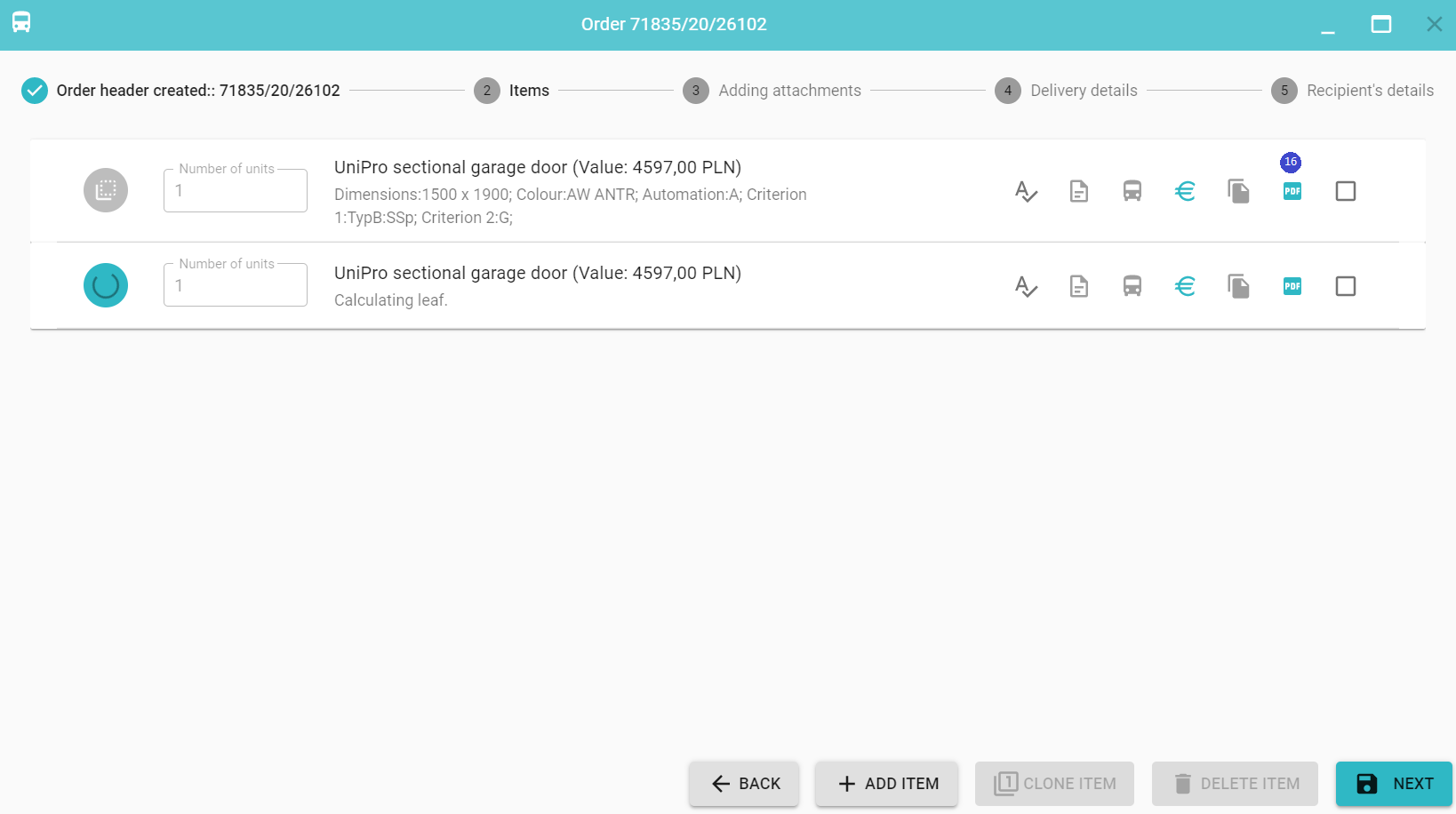
For sectional door, you can generate a printout of the leaf along with construction conditions (16).The printout is generated to a PDF file.
You can clone items within an order simply by selecting the order items to clone (17) and clicking (18).
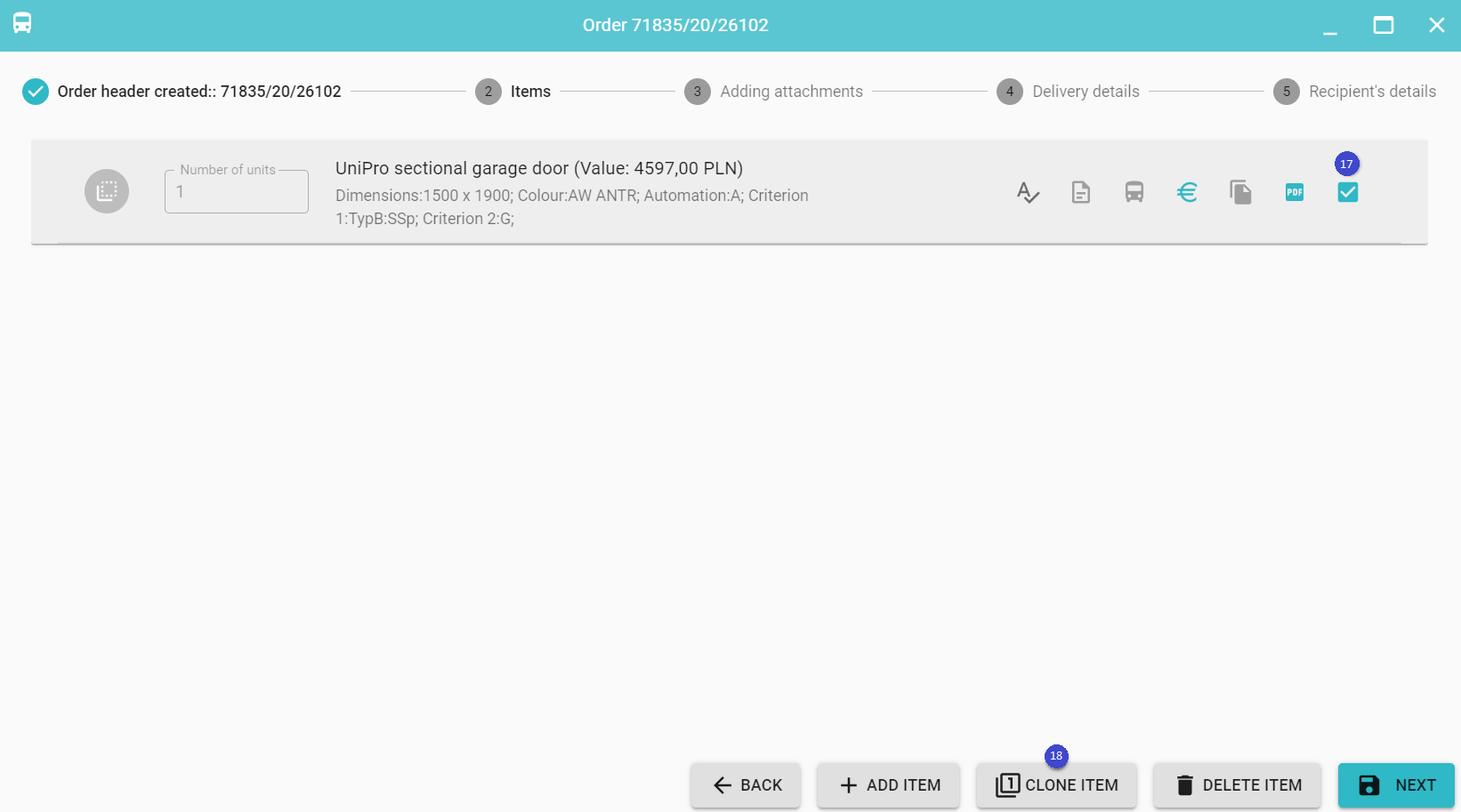
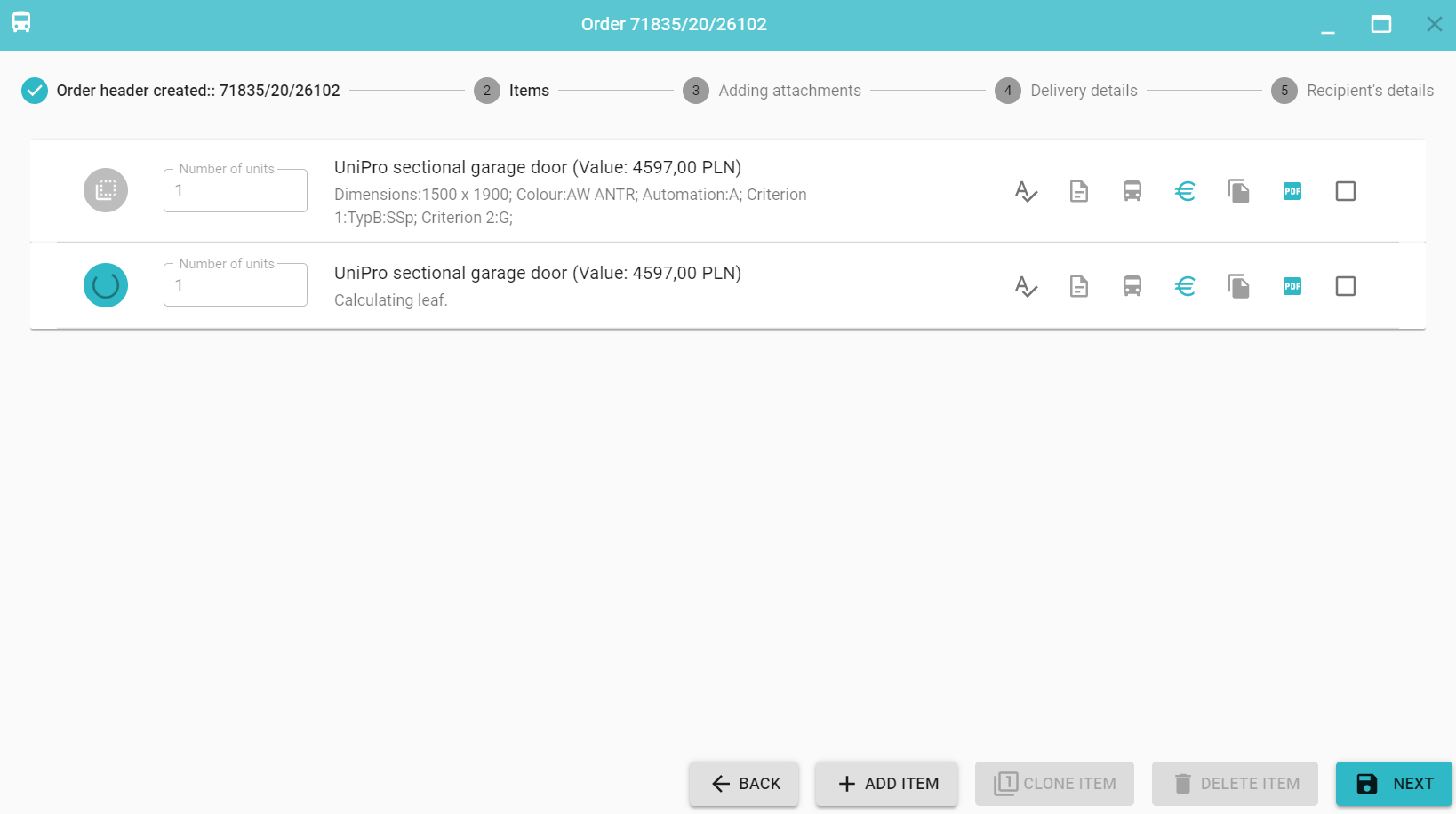
There will be a process of loading items, calculating price, etc...
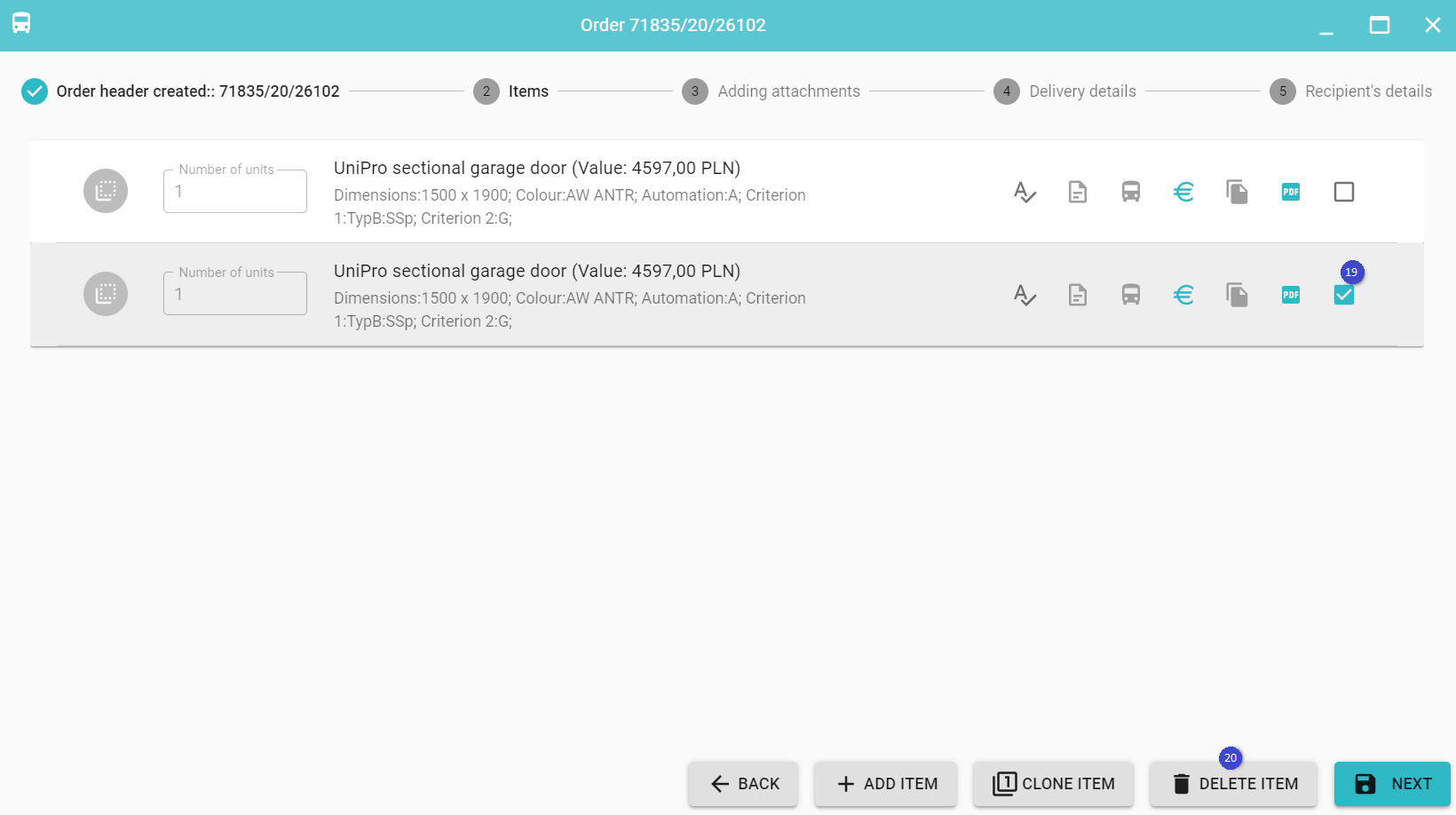
As a result, your order has two identical item.
You can delete any order item by selecting it (19) and click Delete Item (20).
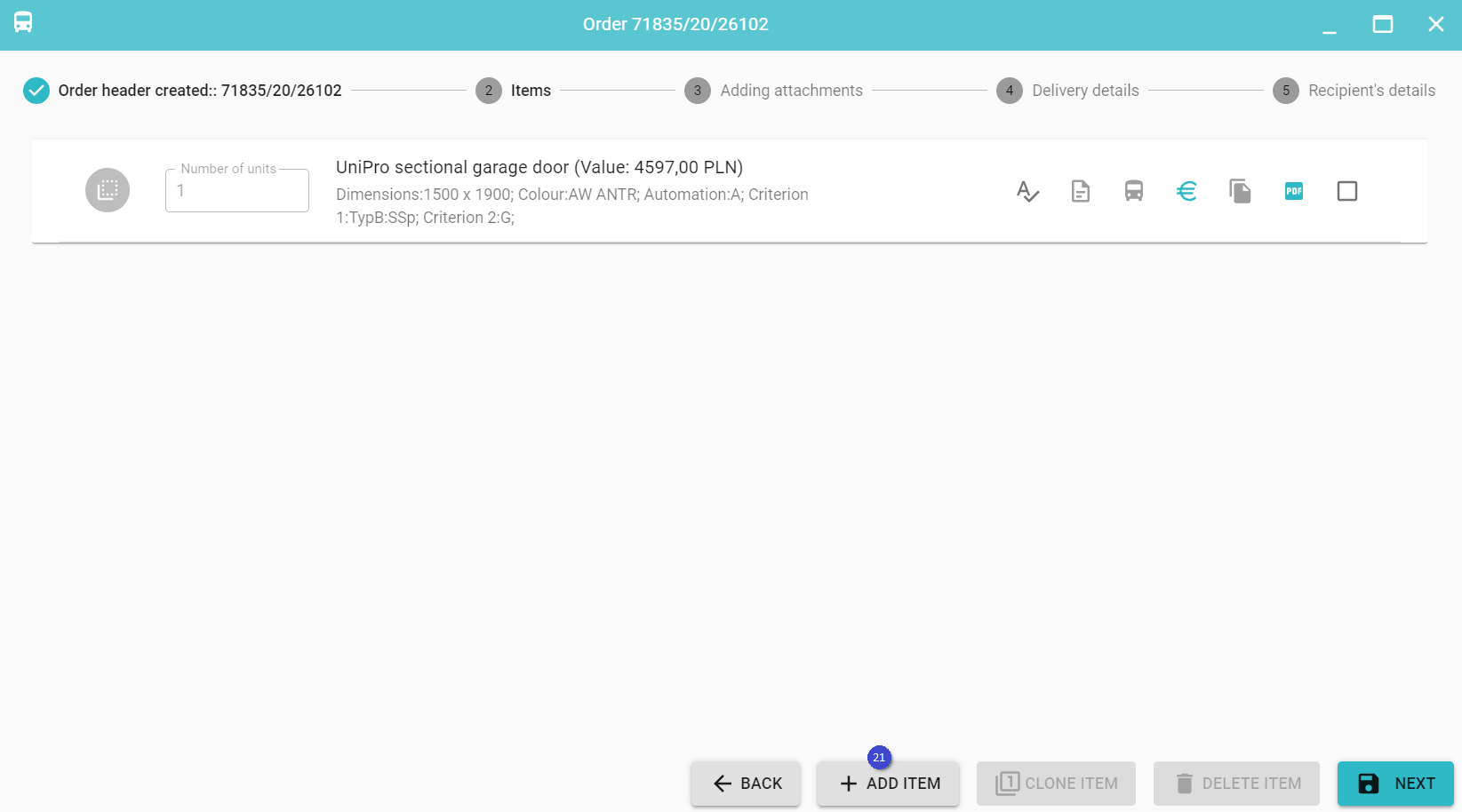
You can add additional items to the order by clicking the button Add Item (21).
By clicking Accessories (22) a list of accessories dedicated to a given product will open. When you select any item from the list of accessories, it will be added as the next item.
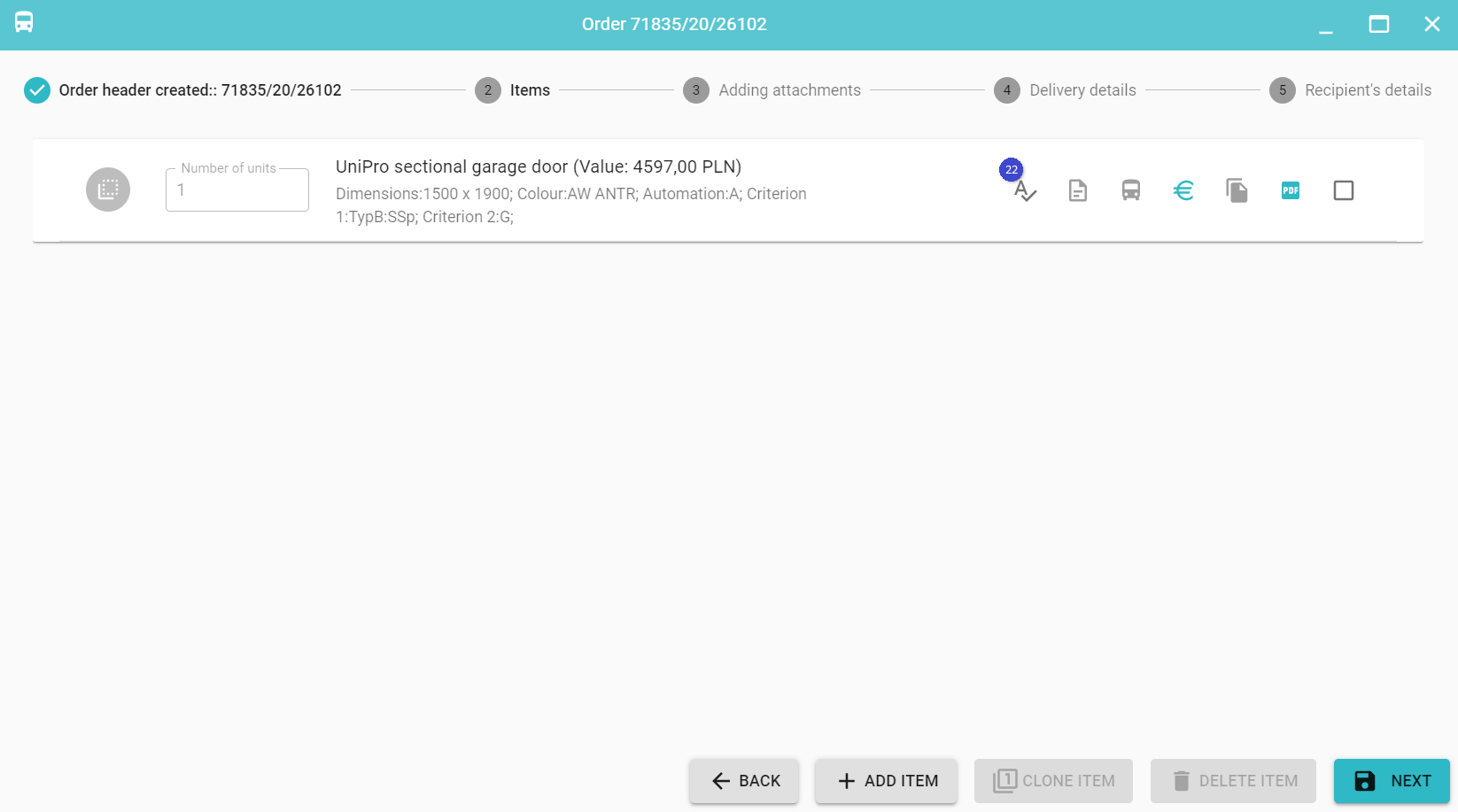
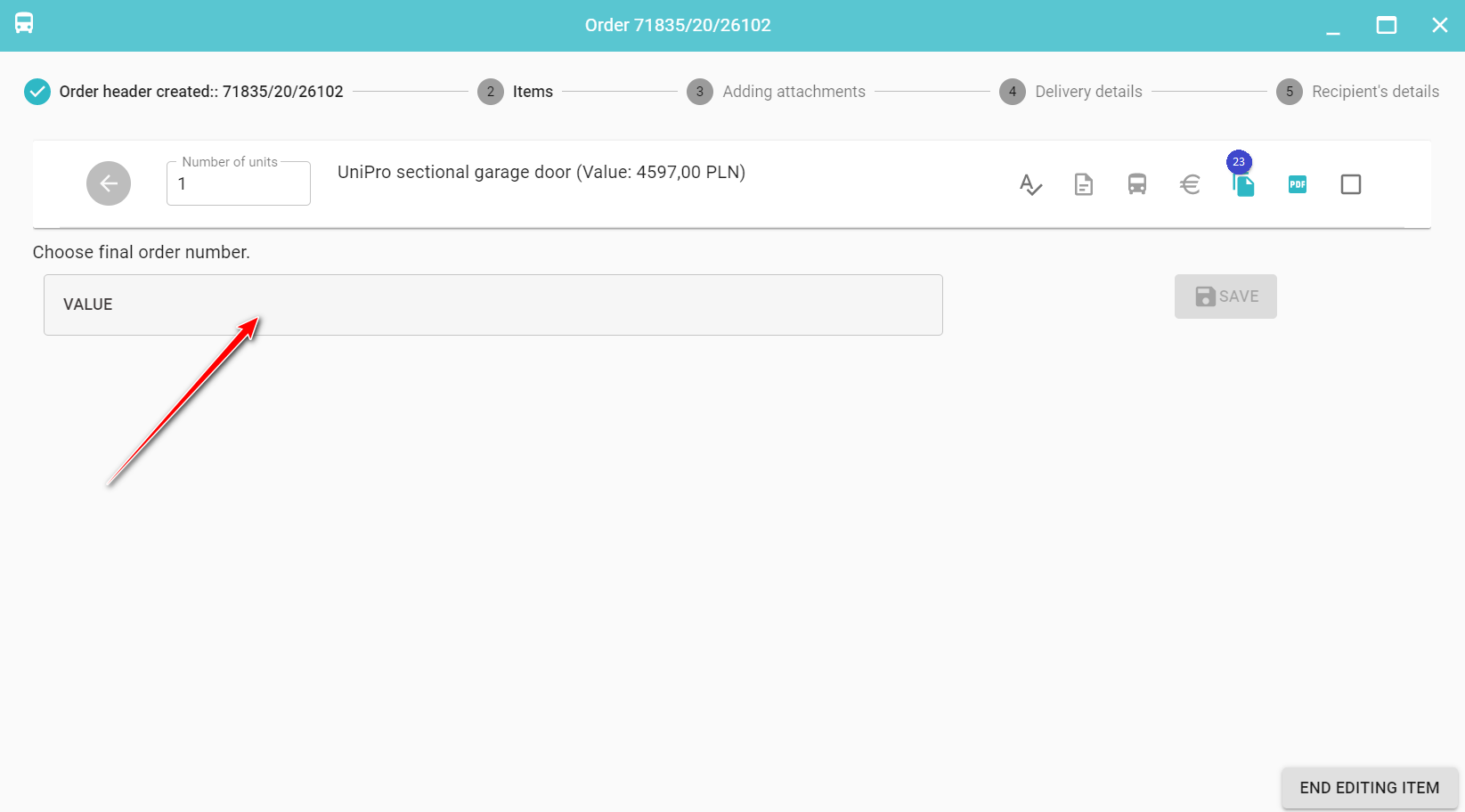
The added item can also be copied to another order by clicking Copy to another order (23). Then enter the number of the target order to which you want to copy the item, Save and click End Editing Item.
Entering the order item is completed by clicking the button Next.