Joinery orders cannot be created directly from the joinery orders page.
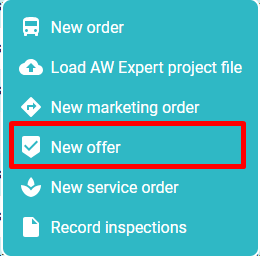
To do this, first create an offer by clicking on  and select New Offer from the menu that appears.
The headline of the offer should be established - more on this in the defining the offer header.
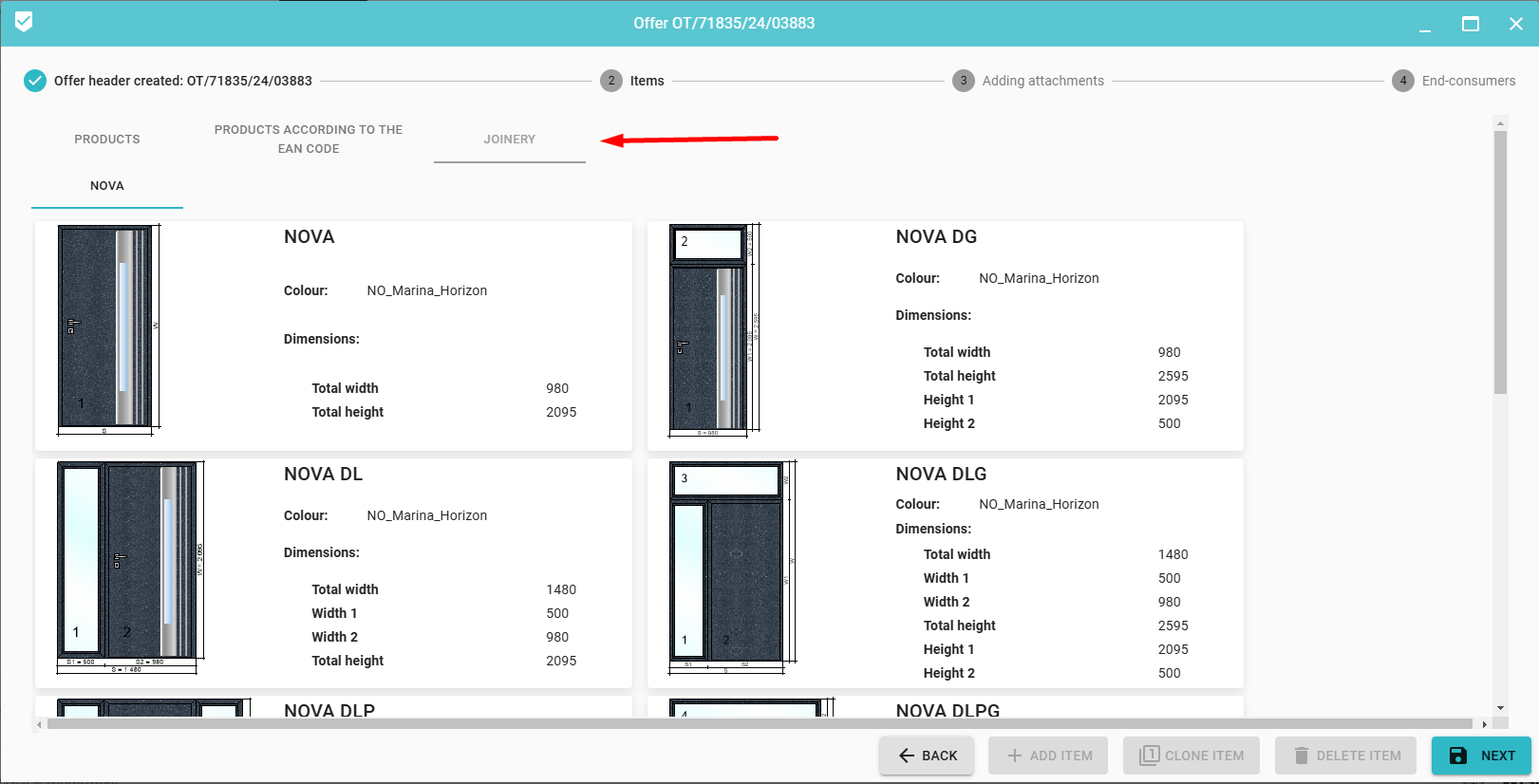
In the items section, we will see an additional tab JOINERY - you will find the available products divided into groups:
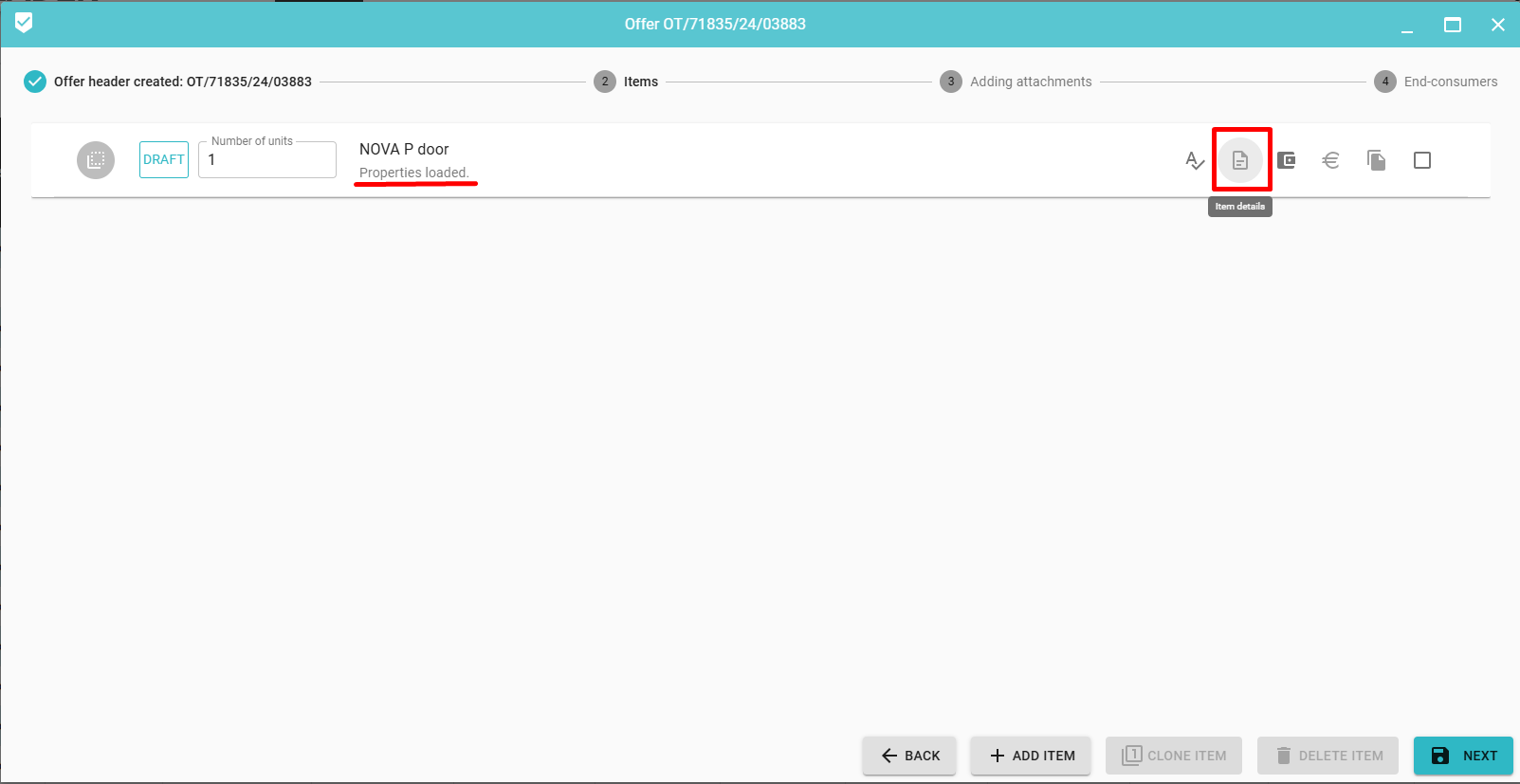
After selecting the product we are interested in, we can move on to determining its properties. After loading the product properties, we click on the item or on the Item Details icon.
A new window will appear where we can set the available properties. It is divided into 4 tabs (OPTIONS, DIMENSIONS, COLOR, NOTES).
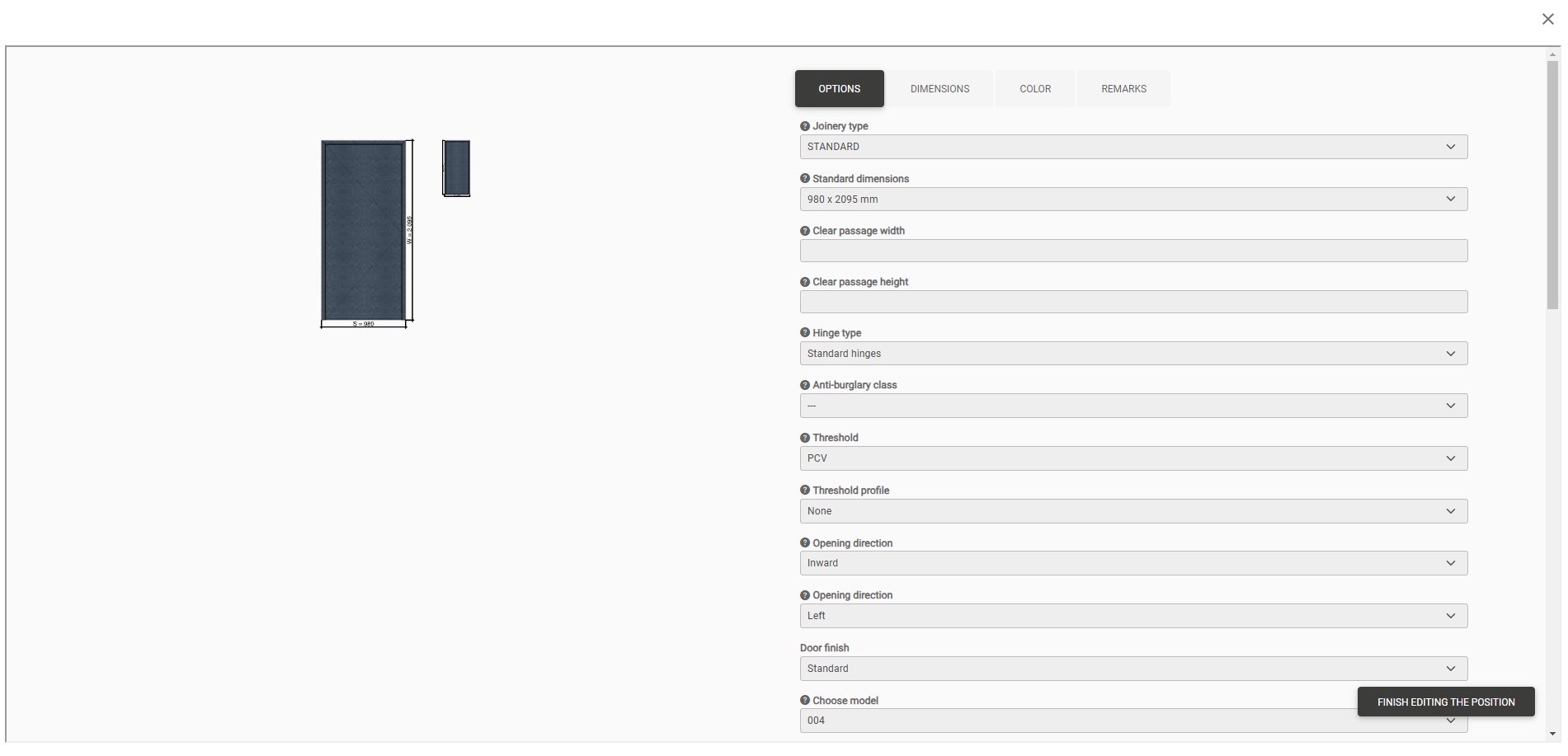
When you have finished editing, click on the Finish Editing The Position.
The rest of the process is identical to creating new offer. Finally, we need to generate an order from the offer - more on this in the generating an order from offers.
On the offers from which the joinery orders were generated in the Status column and directly on the order, we can find an additional status in red. It indicates the current registration status of the order, which we should especially pay attention to after the order is generated.
When you click the Generate Order from Offer action, the status of the offer will change to Order during registraction in PREFSUITE. This means that the order is processed and registered in the PREFSUITE system.
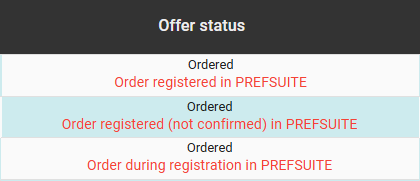
After a short time, the status of the offer will change to Order registered (not confirmed) in PREFSUITE - It means that the order has been processed
When this happens you will see them in the list of Joinery Orders
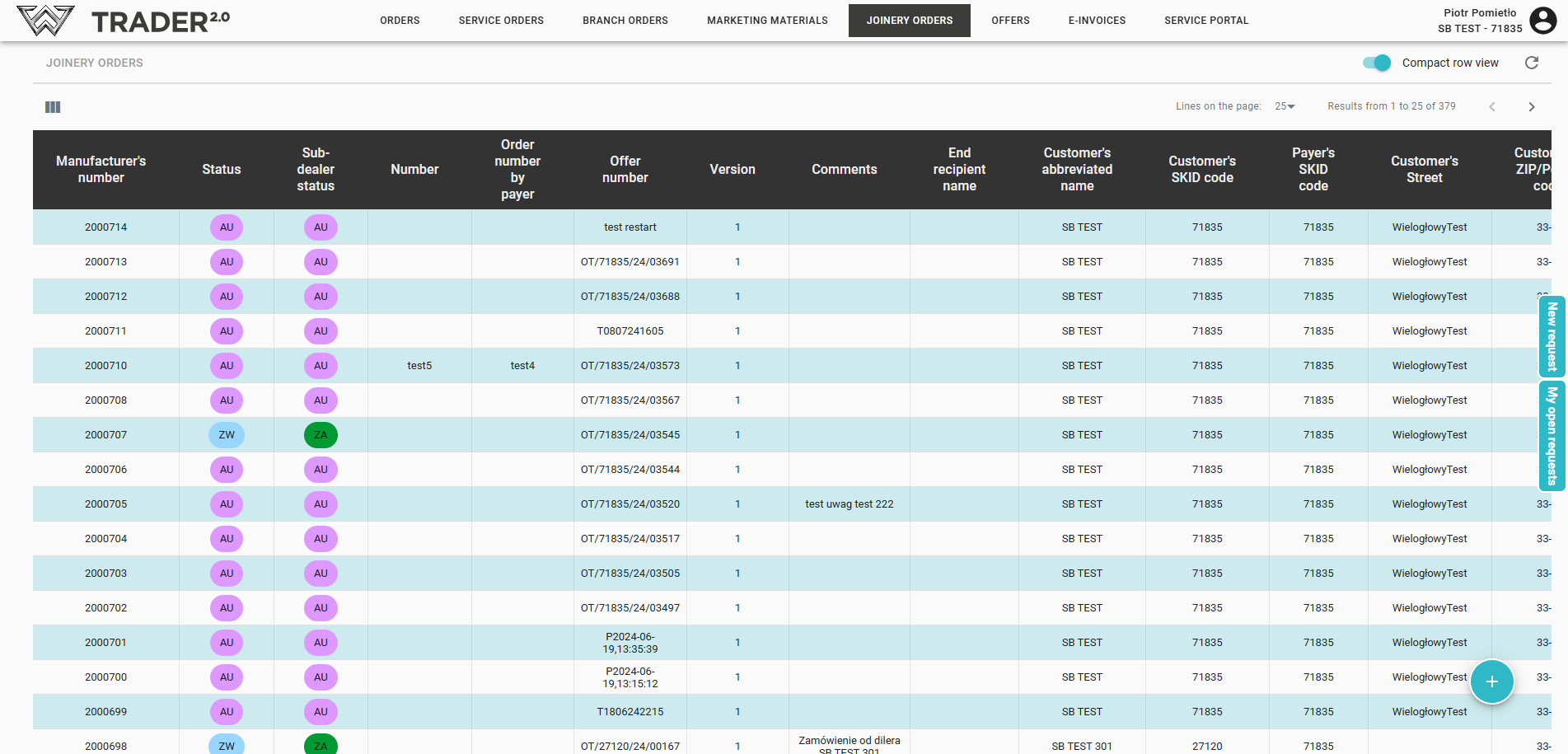
Once the payer/dealer has approved the order, the status on the offer will change once again, this time to PREFSUITE registered order. This means that the order has been approved by the dealer.
Attention!
If you change the status of the offer and approve the order, you will lose the ability to go back to the offer to make changes!
The Status and Sub-Dealer Status columns display the status of the order. The Status sub-dealer column indicates the status of the order in the context of the branch.
Ordinary orders also have a Status column. However, they differ in the statuses displayed, so it is useful to use the list below to identify the meaning of the status.
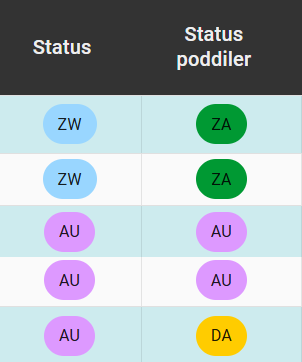
They mean :
- AU - Auto utworzone AC- Auto created
- WA - W akceptacji IN- In approval
- DA - Do akceptacji FA- For approval
- ZW - Zweryfikowane do produkcji VI- Verified for production
- ZP - Zlecenie produkcji PC -Production commissioning
- ZA - Zaakceptowane A- Accepted
- PP - Przyjęto z produkcji AFP-Accepted from production
- FS - Faktura Sprzedaży SI-Sales Invoice