Option Generate order from offer will only be possible to do if Recipient is added and offer includes at least one added item (this item can't be in Draft  status).
Important! If the items are from different assortment groups, then as many orders will be created as there are assortment groups.
Important! If Accessories should be added into same order it is important that they are added trough option dedicated for ordered product 
available next to the added item, and not through the product list.
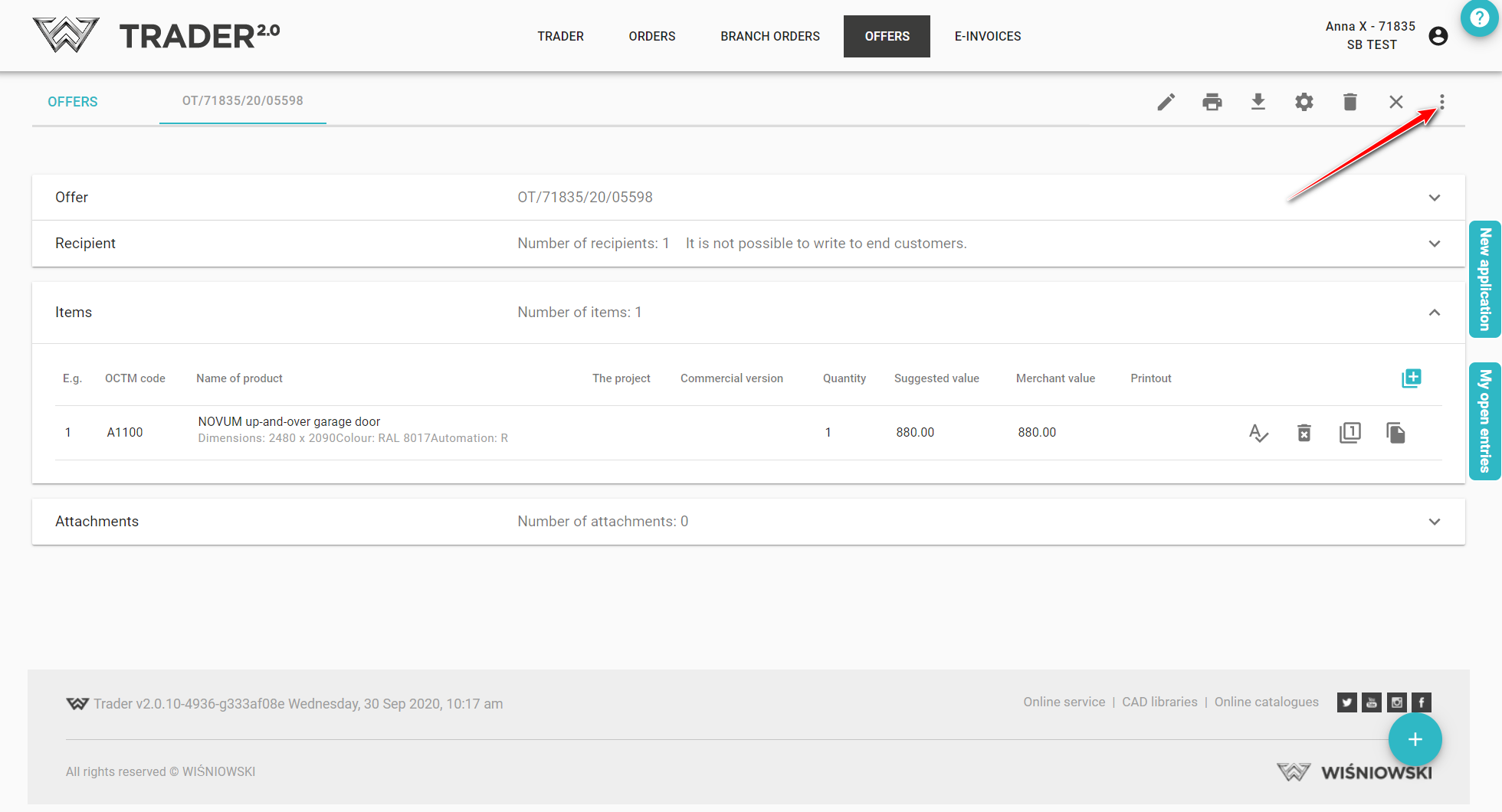
To generate an order from an offer, open the entered offer and click the icon in the upper right corner .
.
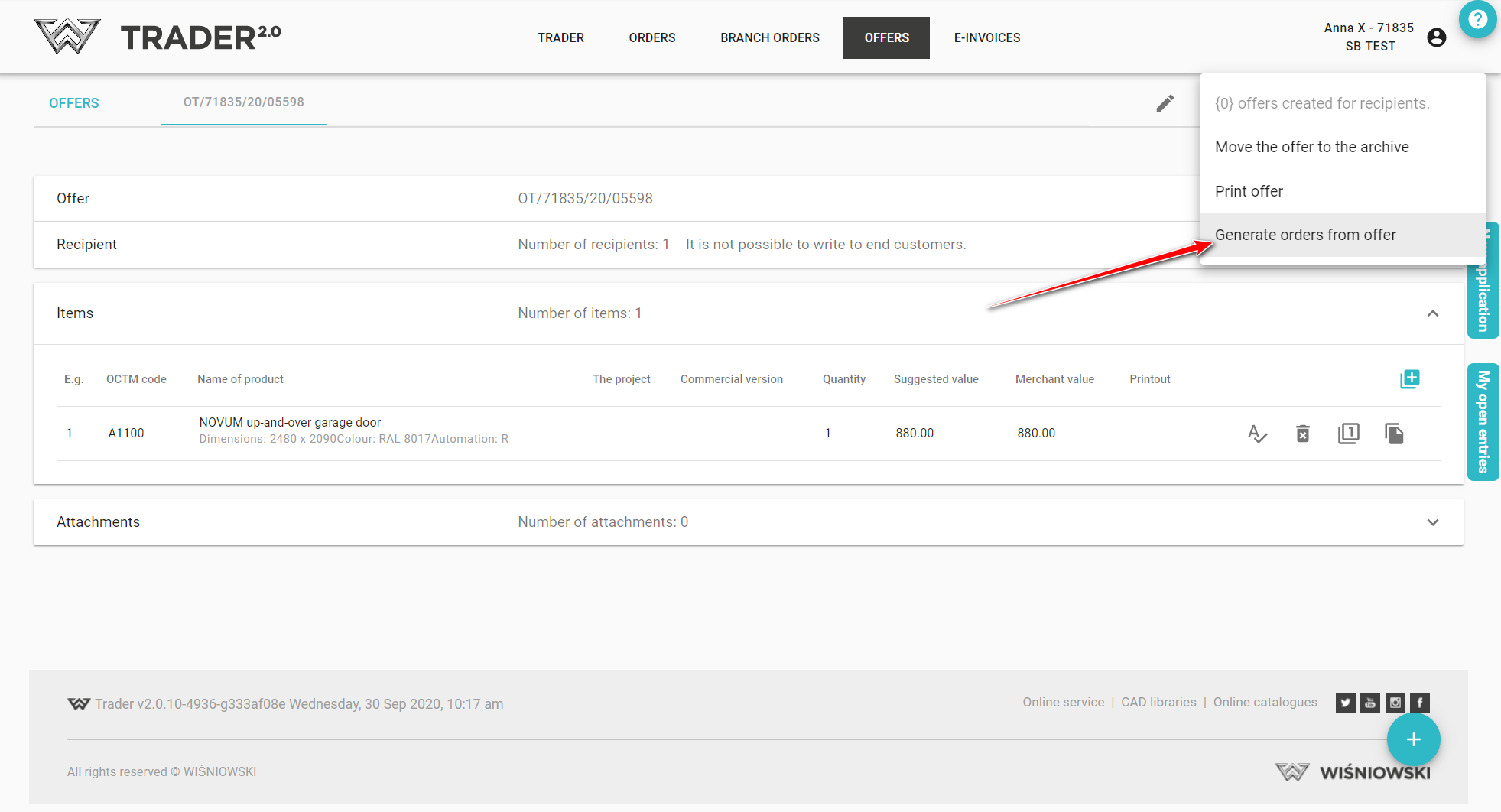
Next choose an option Generate orders from offer
If the order is created correctly, a message with the order number will appear

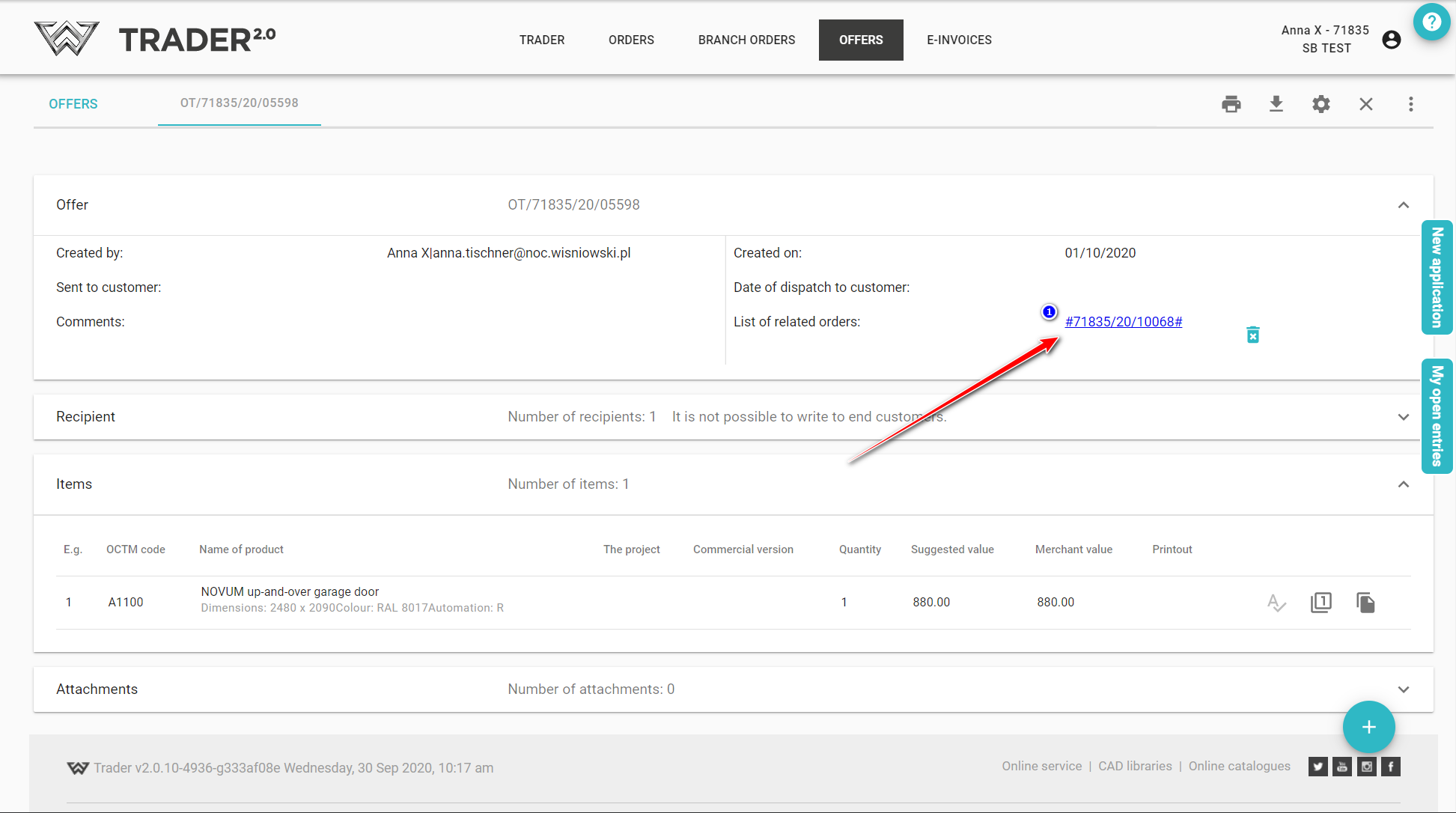
List of related orders will appear on the offer details, and by clicking on the number (1) you will be automatically transferred to the created order. (You can also find the generated order in the tab ORDERS on the order list).
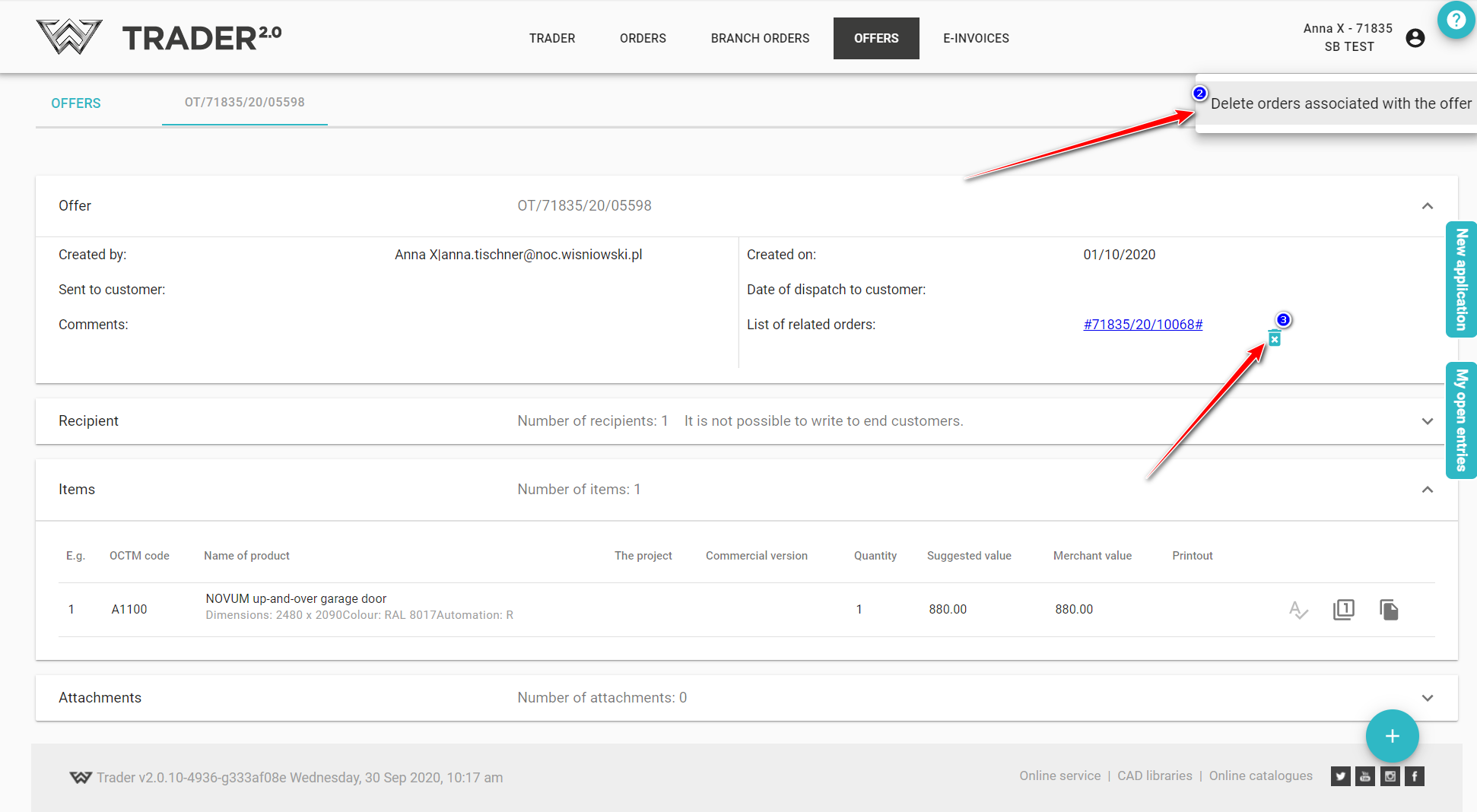
On an order generated from an offer, item editing is locked. Deleting/canceling orders linked to an offer will allow you to edit the items again if you wish to make changes
You can do this by deleting orders linked to an offer. While on the offer you have selected, click on the change status icon in the top right corner , and then on Delete orders associated to an offer (2) or by clicking on the icon or by clicking on the icon in the ‘Offer’ section (3).
The second option is to go to the order we have selected and, from the action menu called up by the icon, , use the option Send the order back to the offer (4) or, from the ‘Order’ section, click the available icon (5).
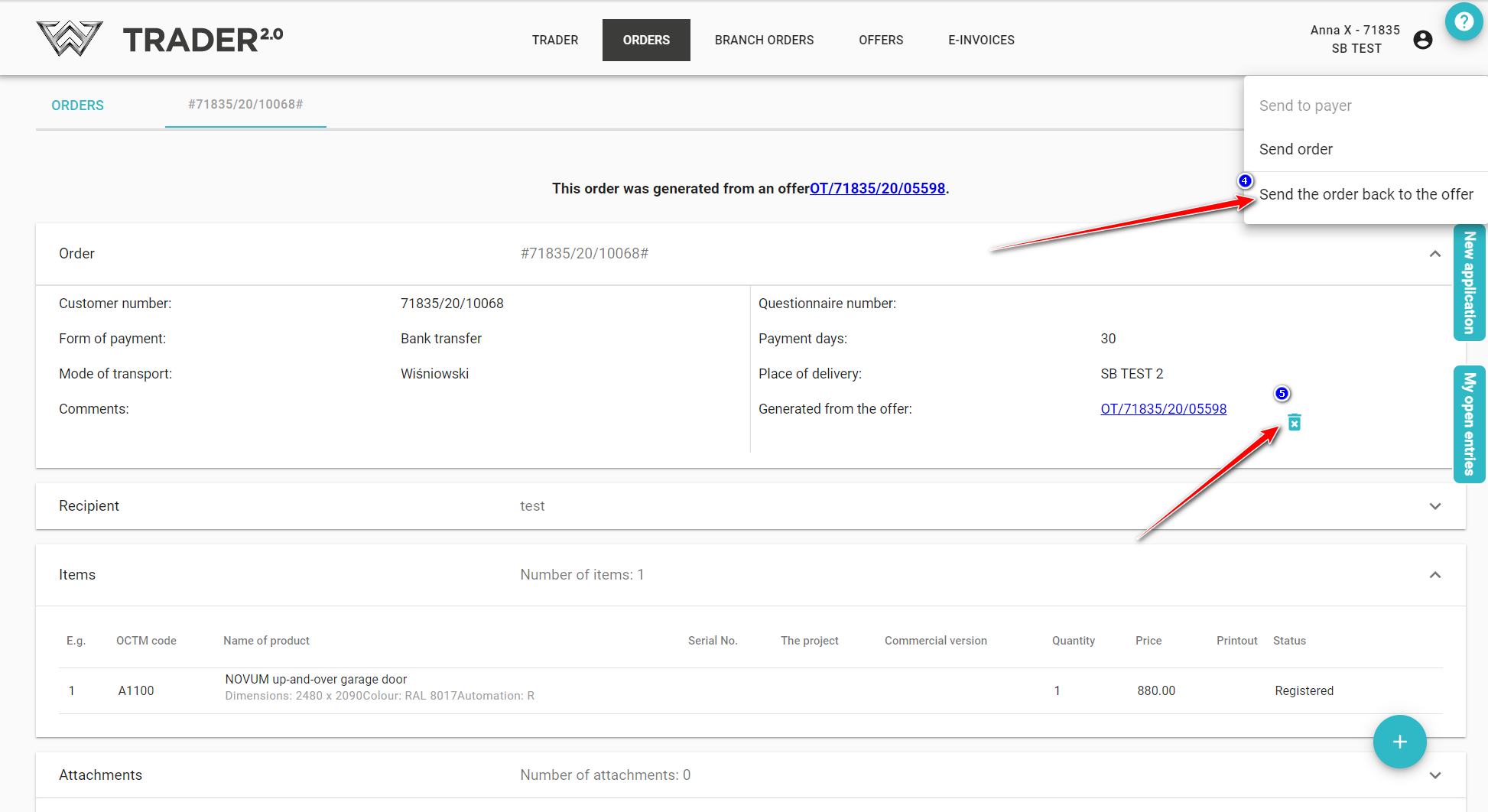
Generating an order and reversing it back to the offer:
Generate orders from an offer having items from several assortment groups: