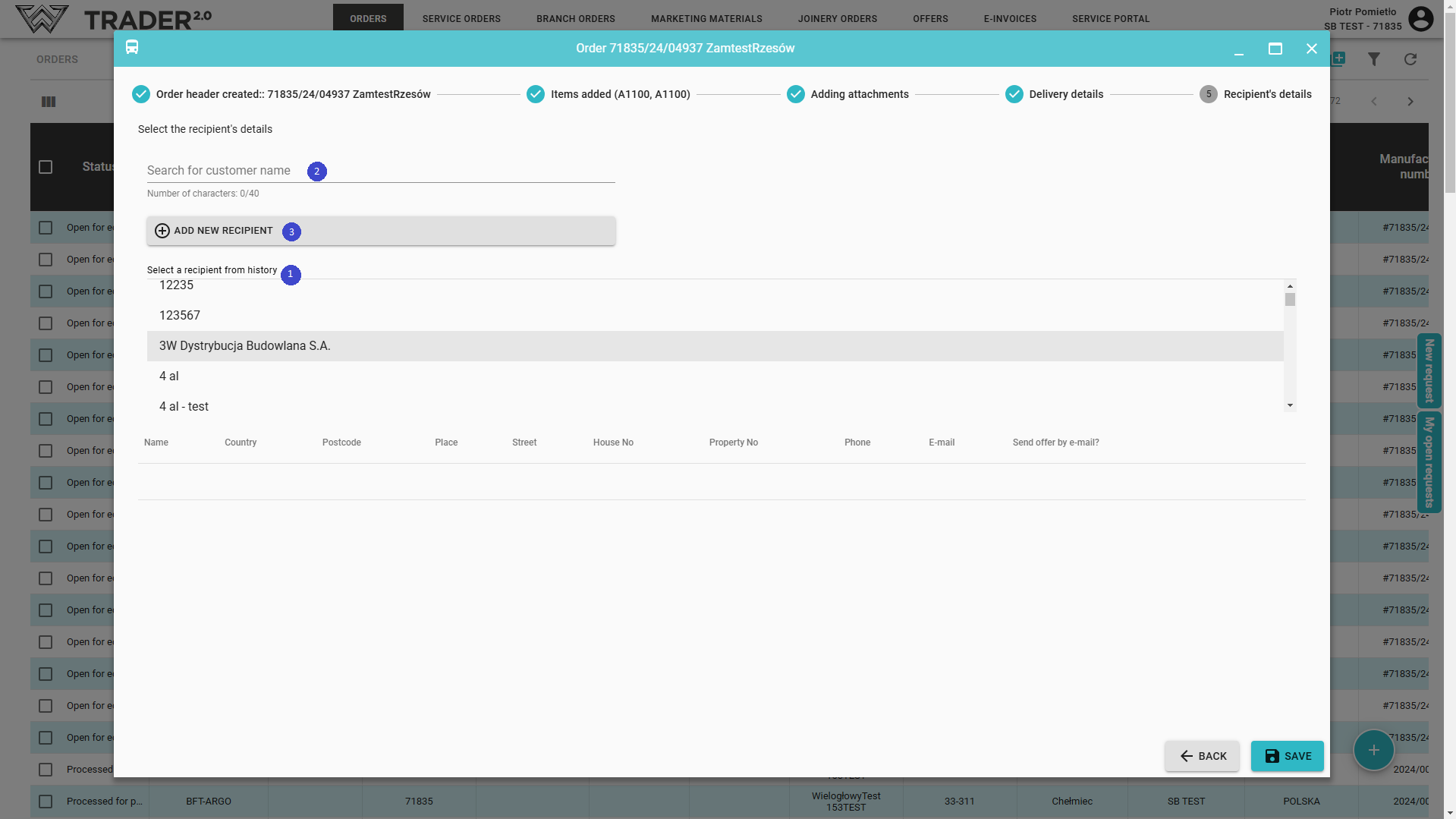
The recipient can be selected from the history - list (1) . You can also search by name (2) if it was previously added to the list for the purpose or enter a new one (3).
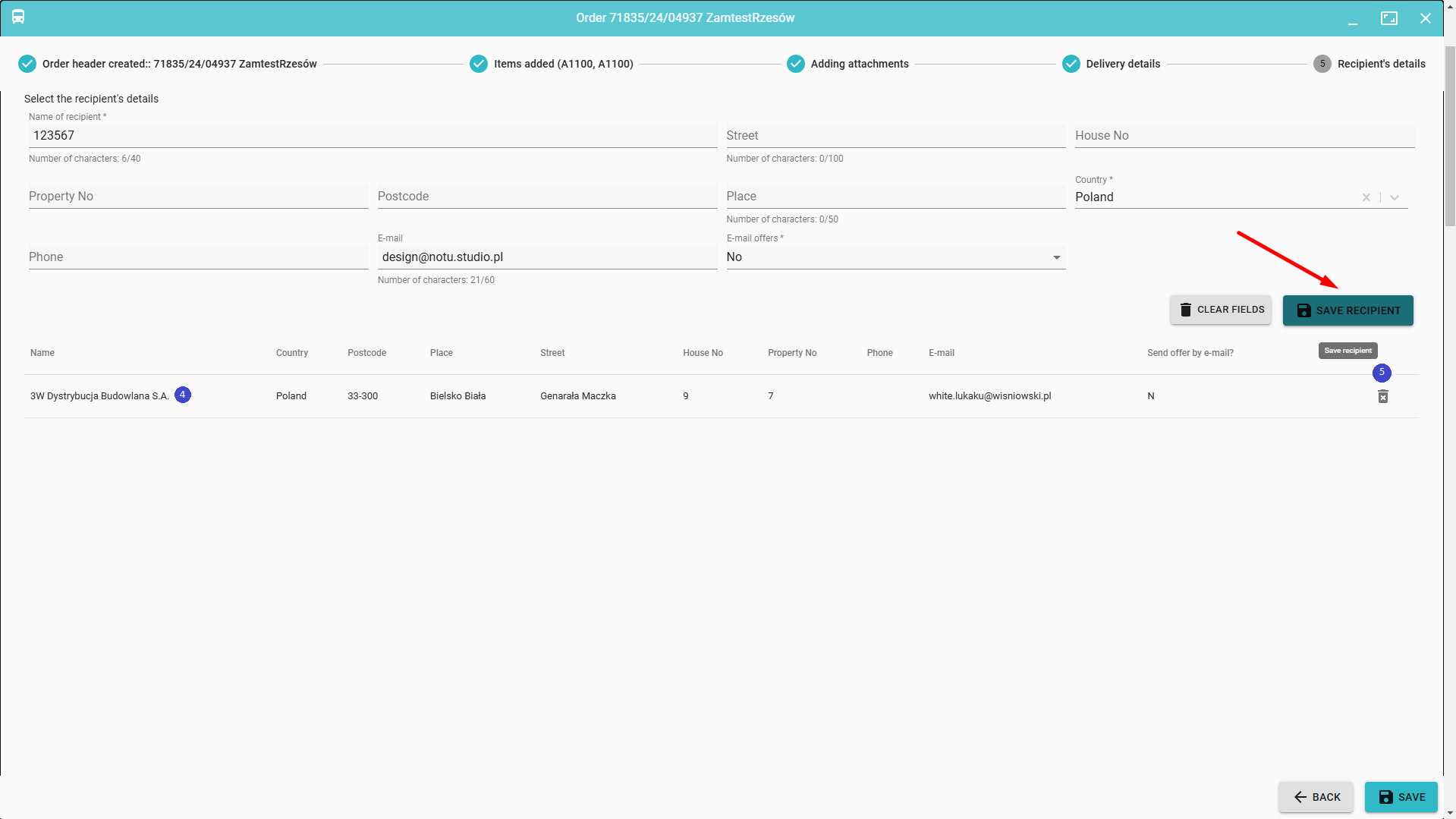
After selecting (clicking) a recipient from the list (1) - it will be automatically added to the form.
To finally confirm our selection, click SAVE RECEIVER. It will then be visible under the form (4).
If you want to remove a recipient from the current order, do it by clicking  (5)
(5)
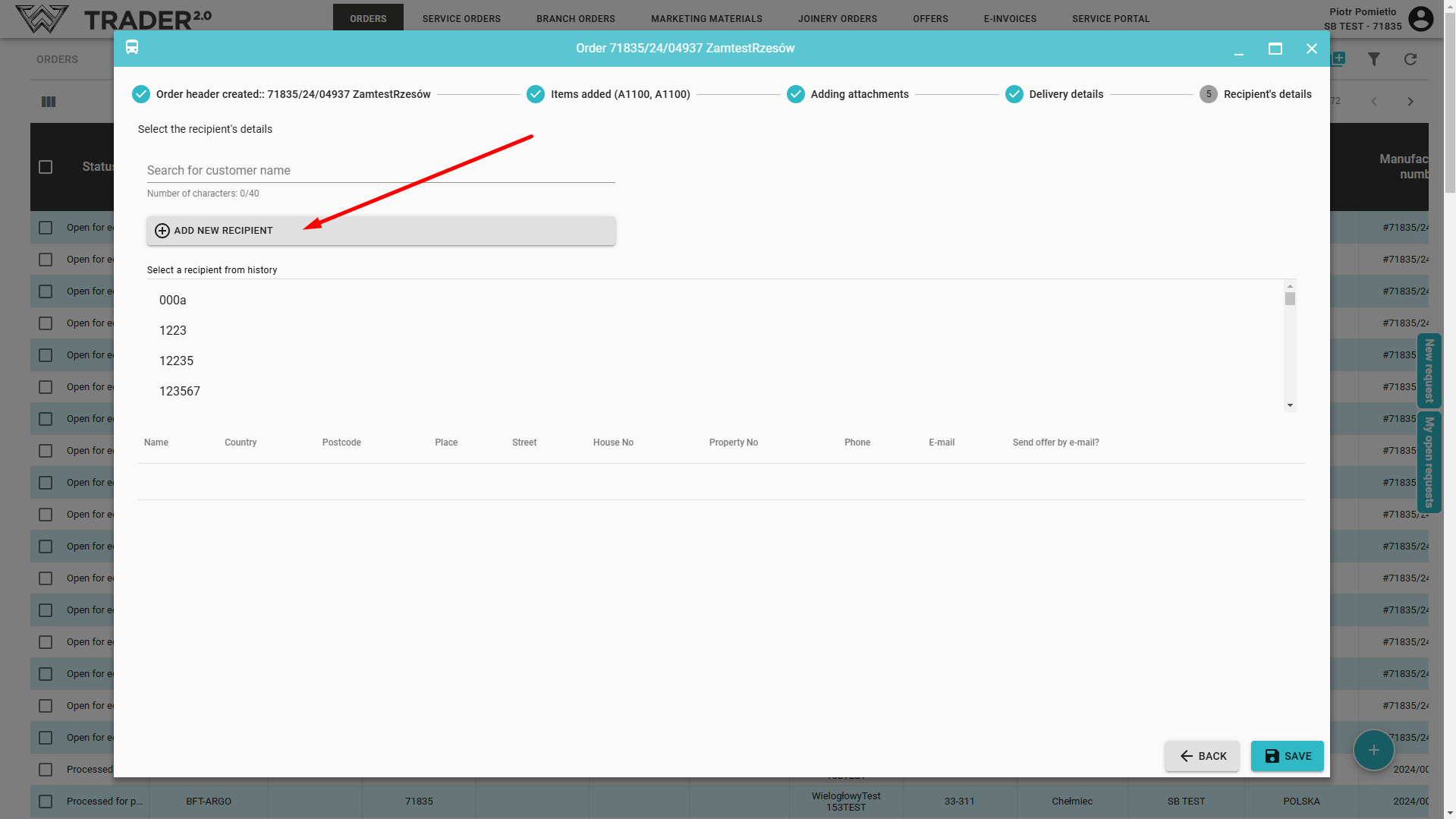
To add a new recipient click ADD NEW RECEIVER.
Fill in the required fields (marked with *).You can click on CLEAR FIELDS to clear the form and re-enter the details. Then click SAVE RECIPIENT.
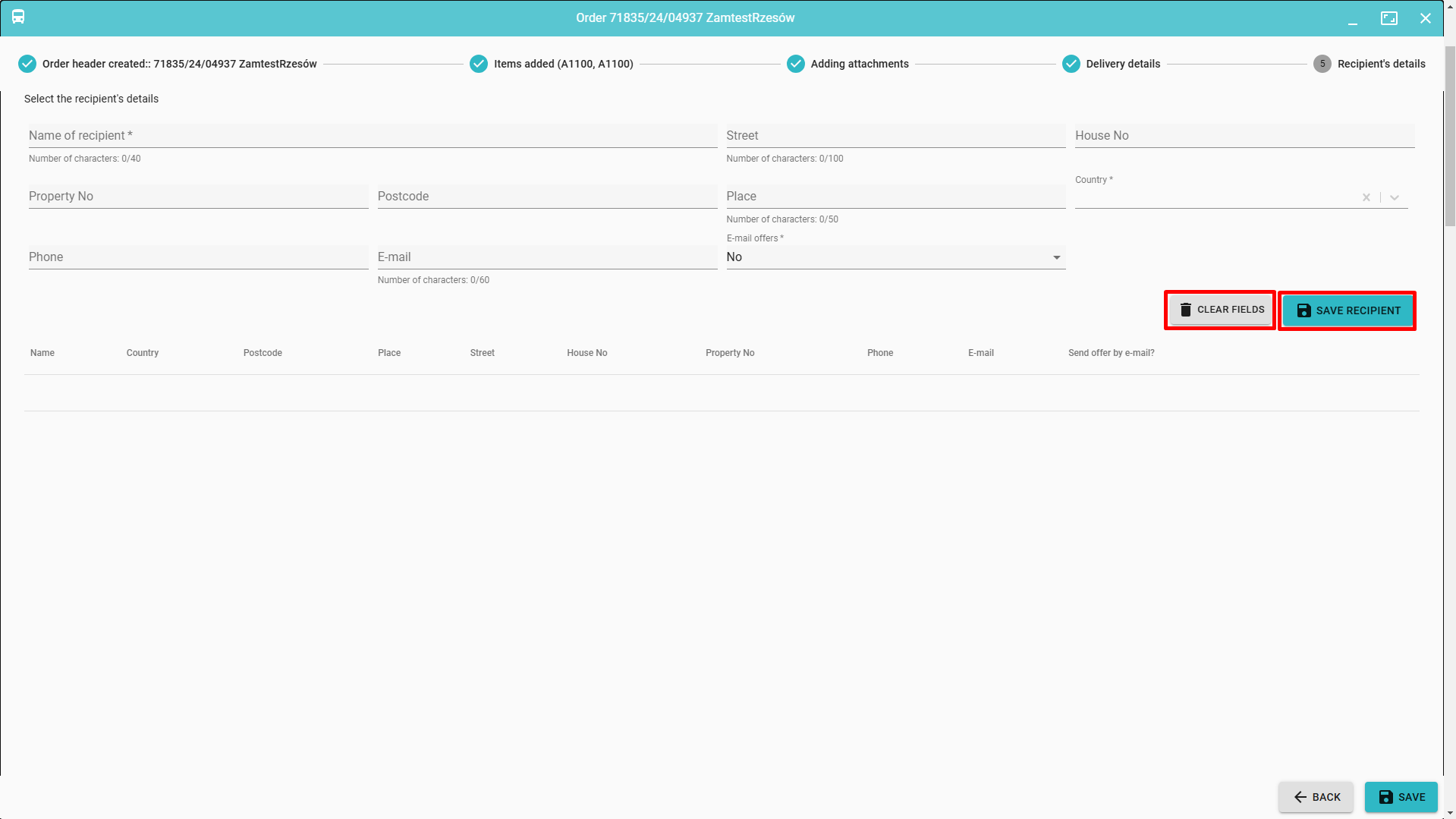
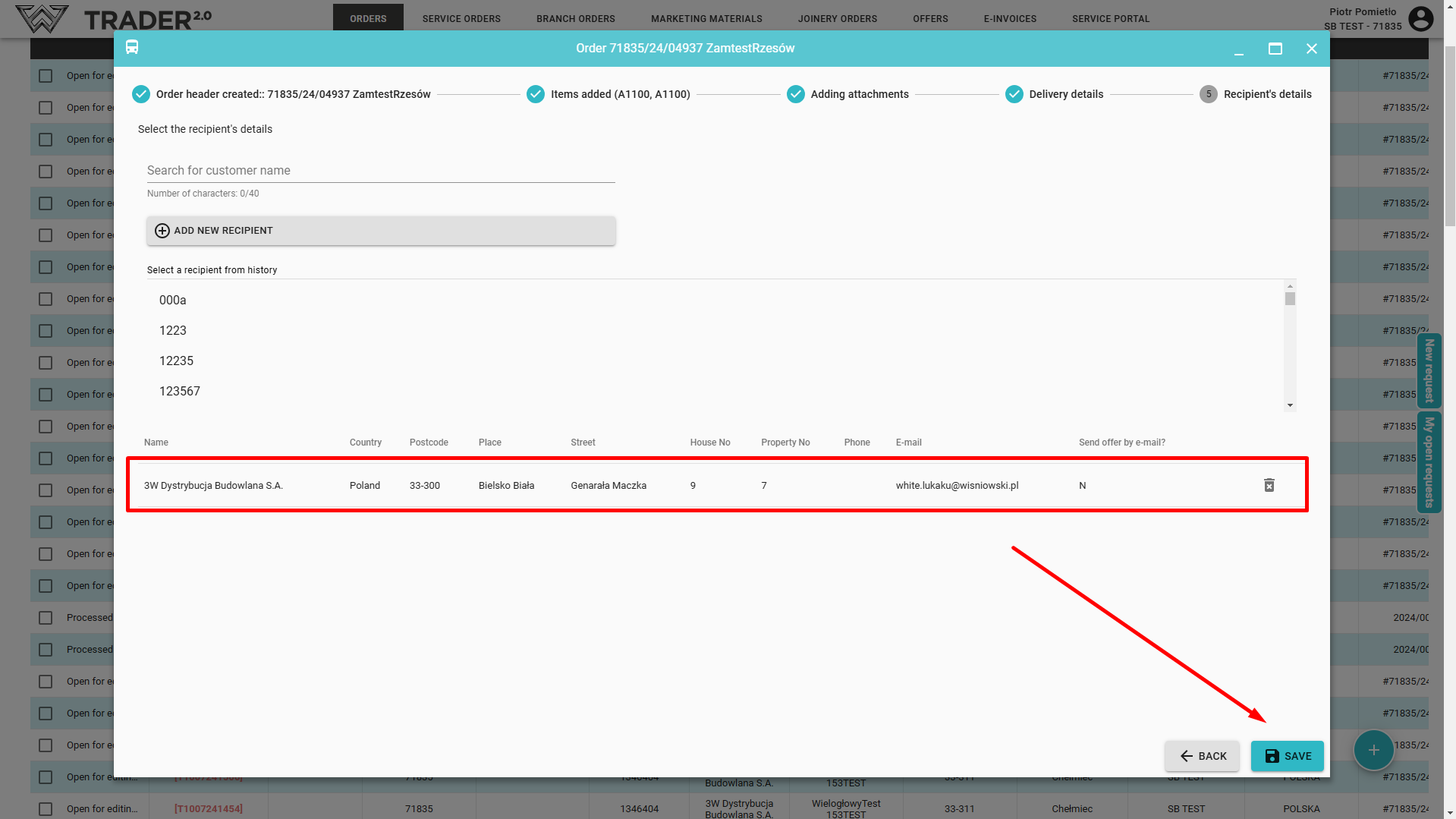
Finish entering the order by clicking SAVE.