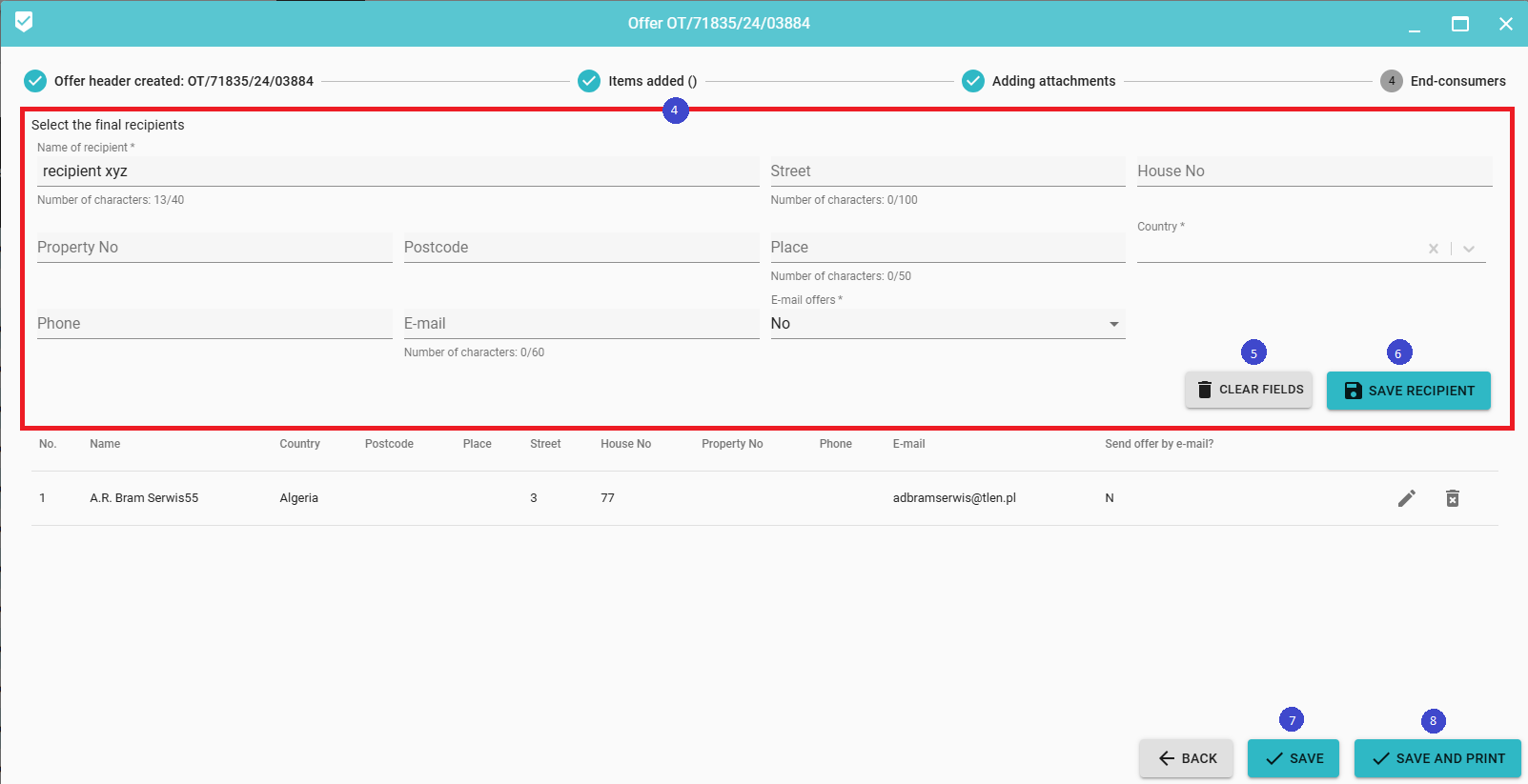
In this step, enter (or select from the list) the data of the final recipient - these data are visible on the offer printout. In the case of generating an order from the offer, it will NOT be the order delivery address!
Select a recipient from the list if one has already been added, or add a new one 
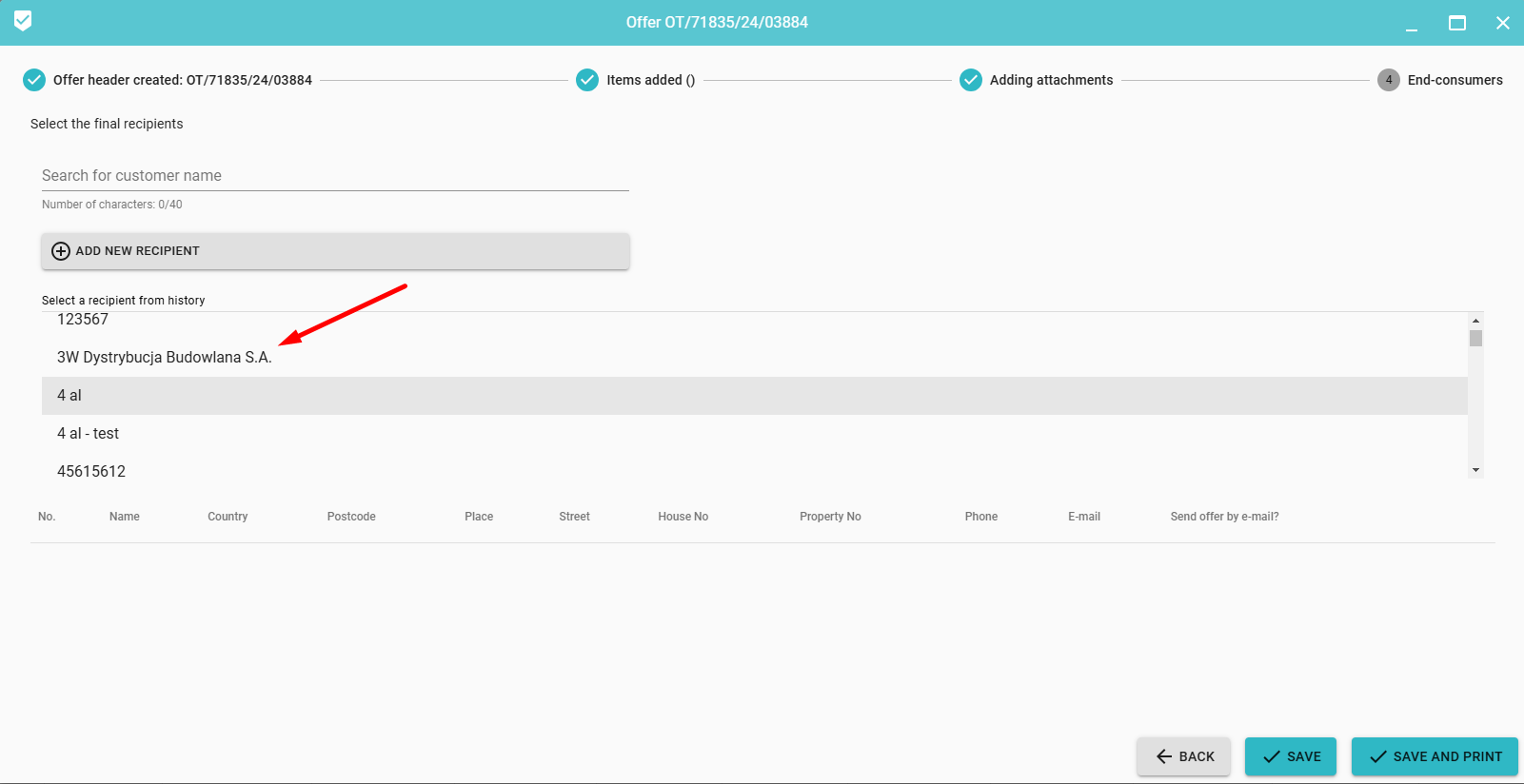
By selecting a recipient from the list, it will automatically be added to the form. Finally, save the recipient to the offer by 
in the case of an offer, we can add several recipients, which after adding are visible on the list (1). It is also possible to edit (3)and delete (2) the added recipient.
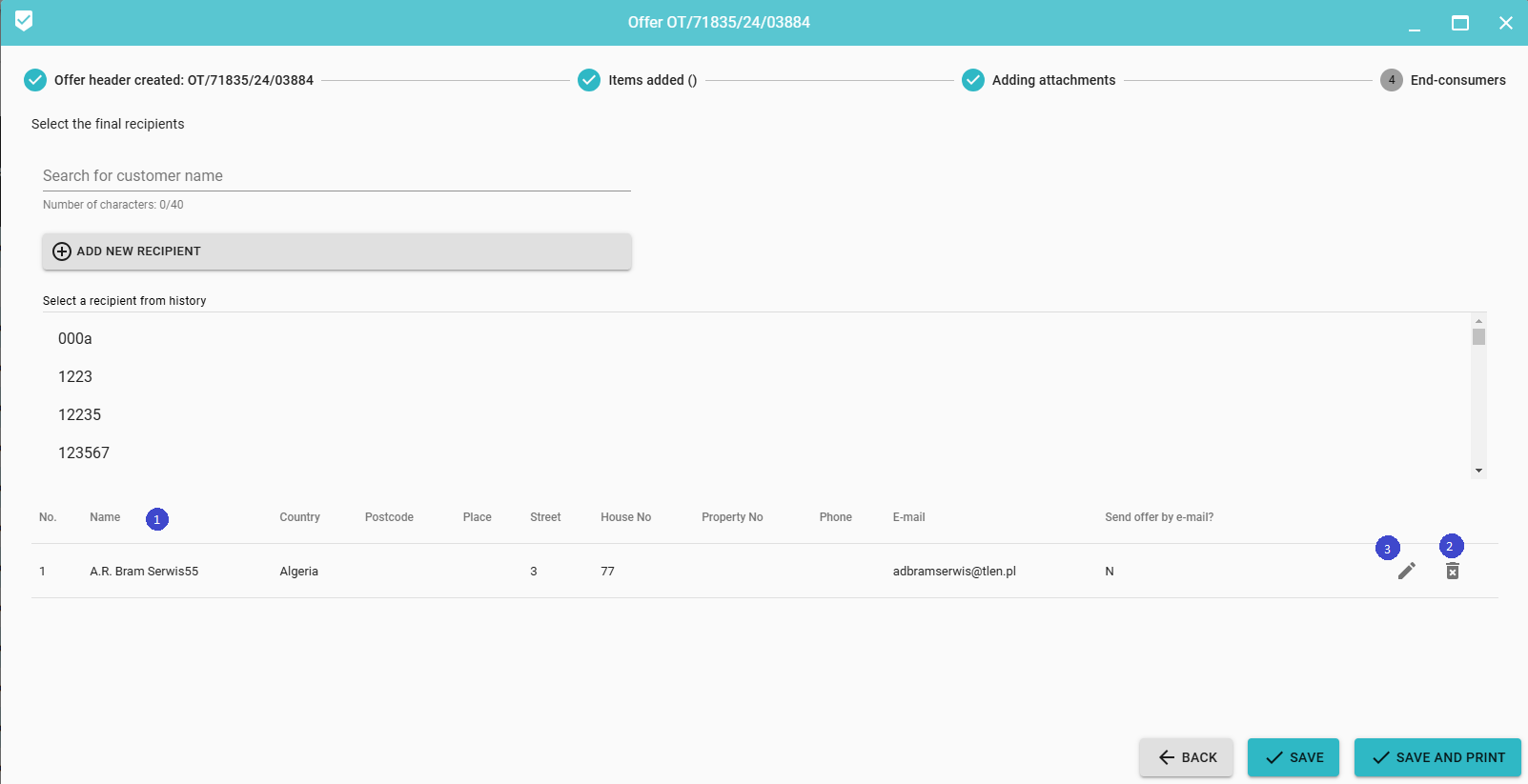
Then click Save or Save and Print, you will then be taken to the next step.
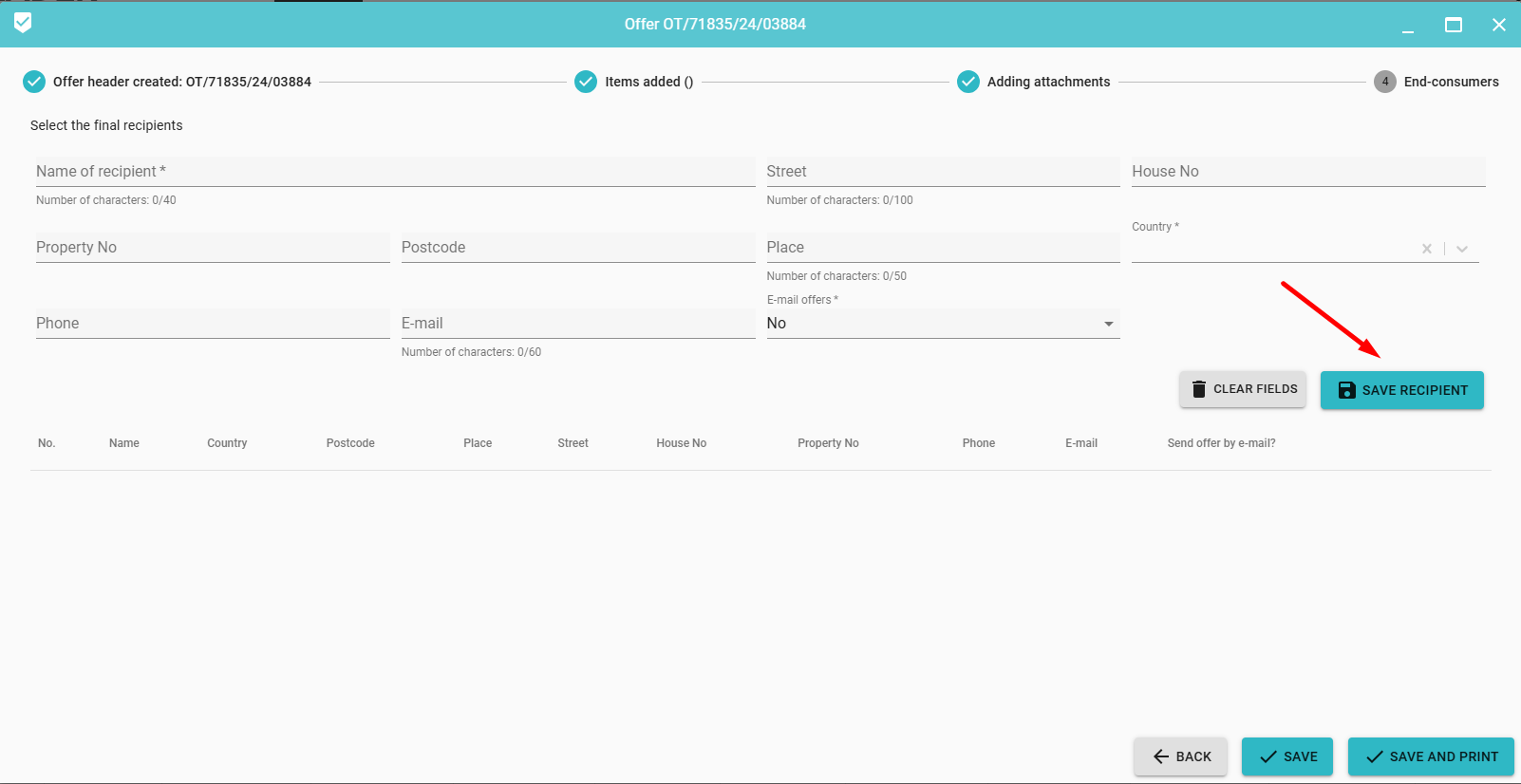
Otherwise, if you do not find a suitable recipient, you can add a new one.
Fill in the required fields (marked with *) (4). You can click on CLEAR FIELDS (5) to clear the form and re-enter the details.
Then click SAVE RECIPIENT (6) and depending on your needs, click SAVE (7) or SAVE AND PRINT (8)