WARNING!!! Spare parts belong to a separate product group and must be ordered separately in the program options AW TRADER 2.0
To create an order for spare parts, select 
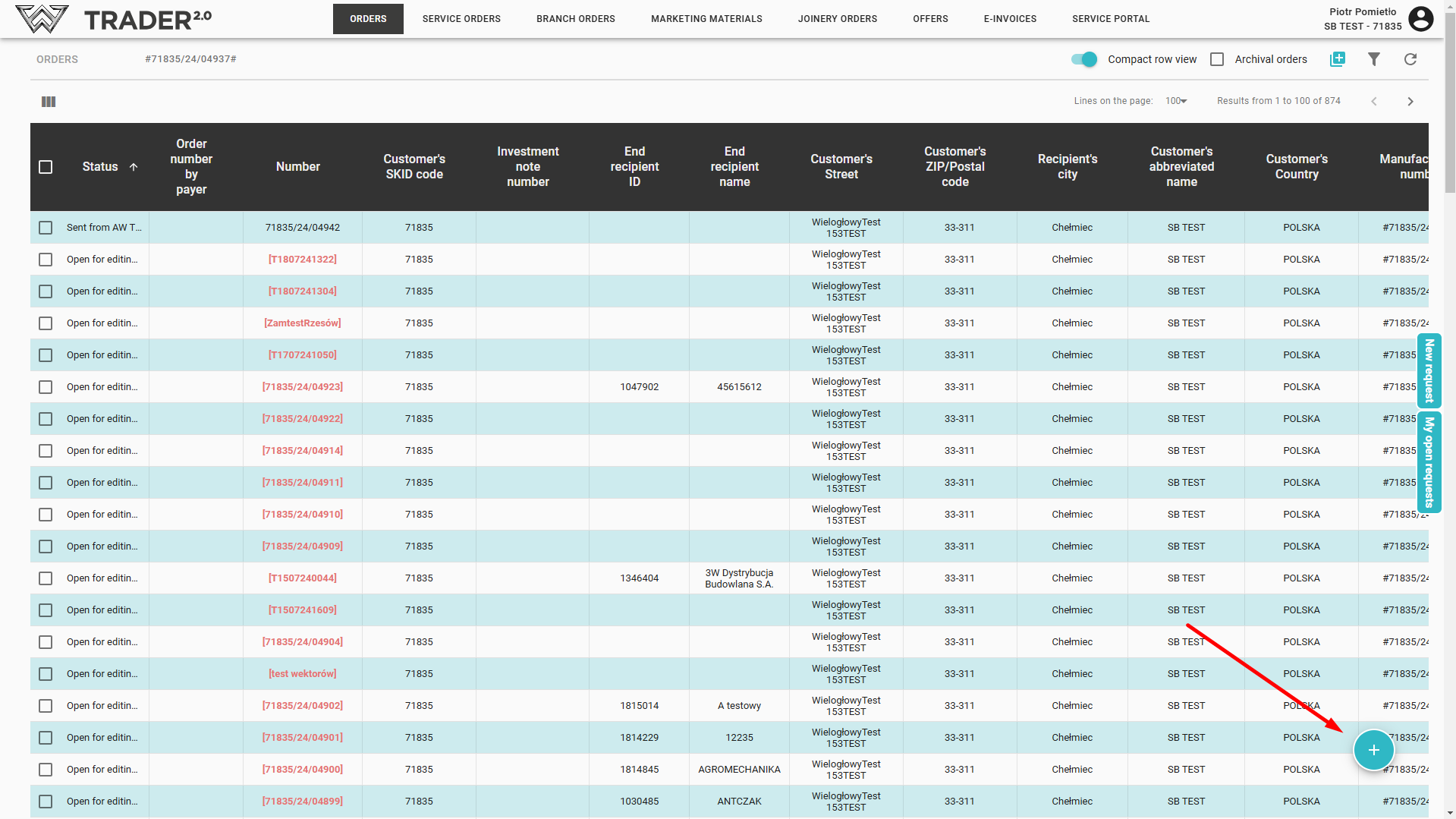
Next choose New service order
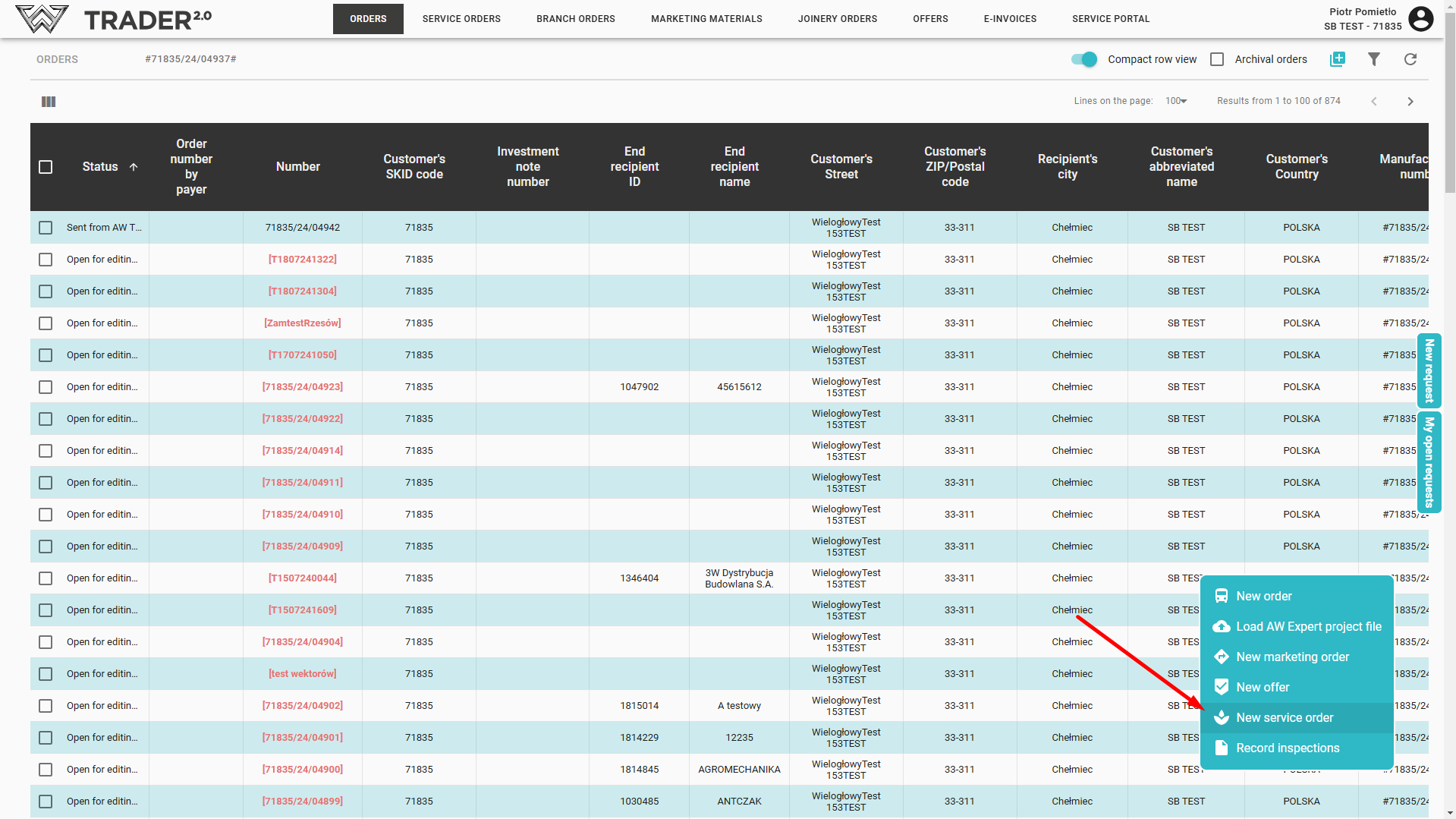
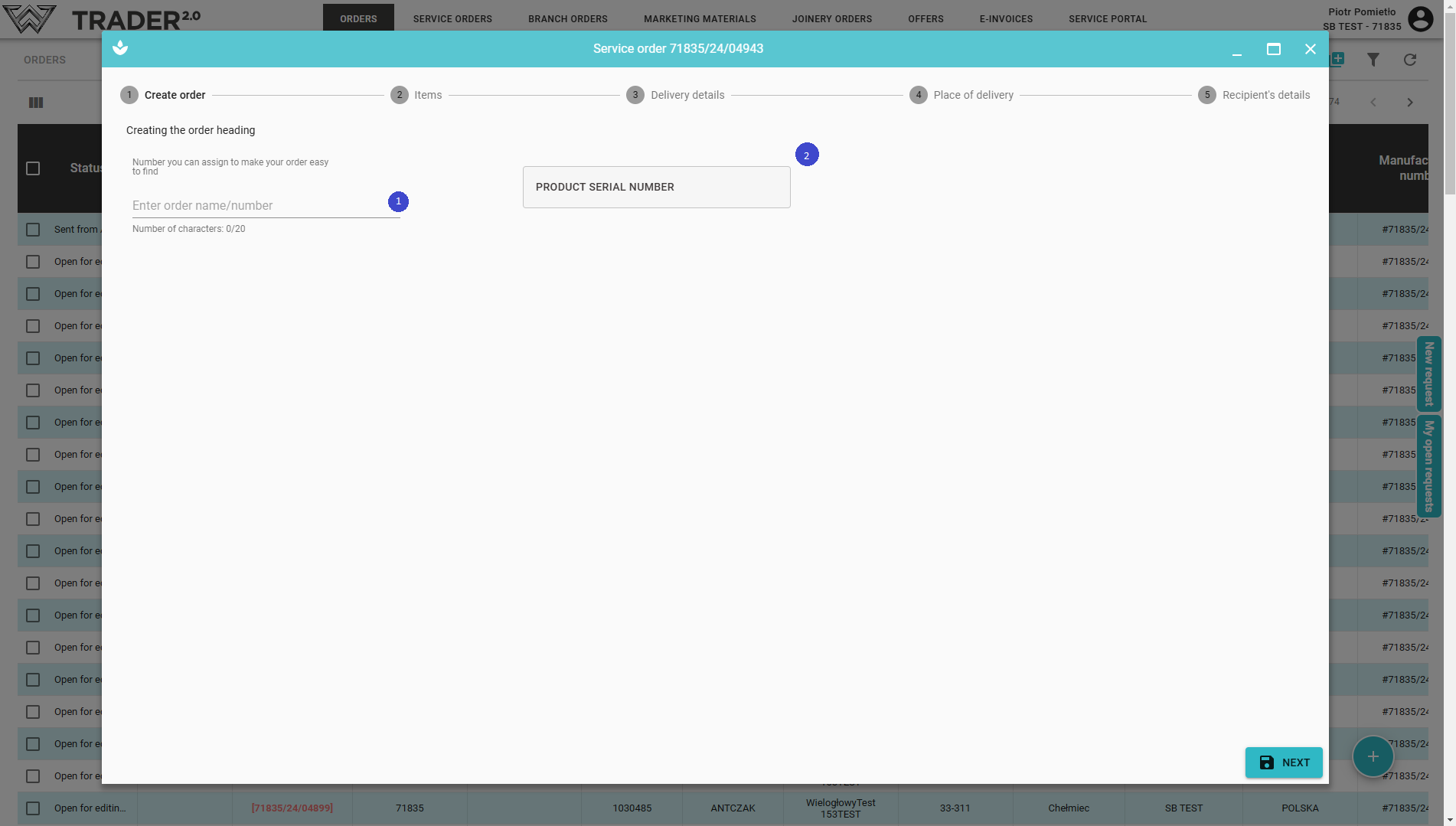
Complete the fields:
- customer's order number (1)
- serial number (2) - This is required for warranty orders, otherwise it may help to select correct spare parts and avoid mistakes.
In the next step, select the items you want to order. You can choose a spare parts list for easy selection:
- filter by product group to which the spare part belongs (4),
- filter spare parts by name (5),
- by showing photos (6).
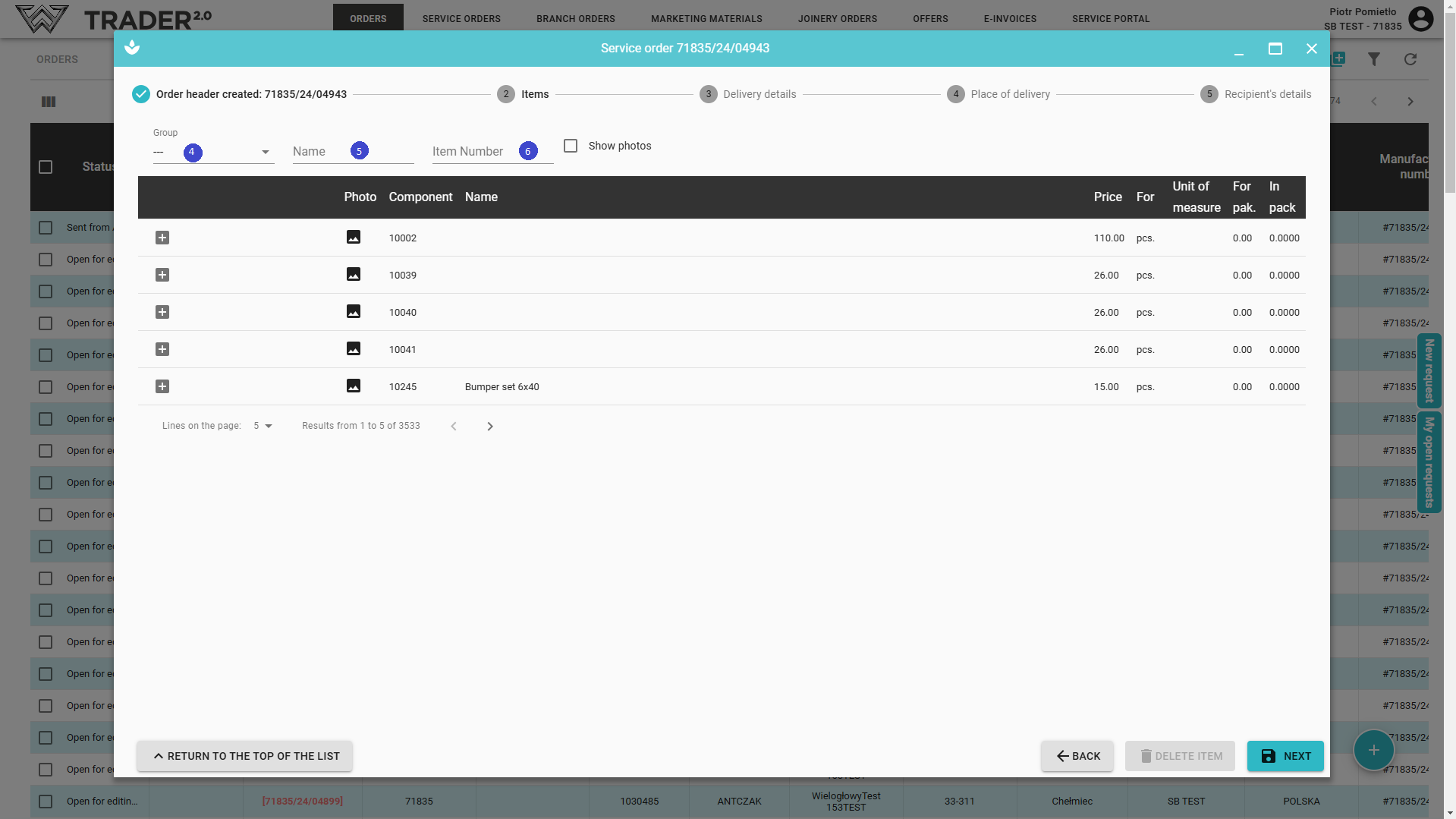
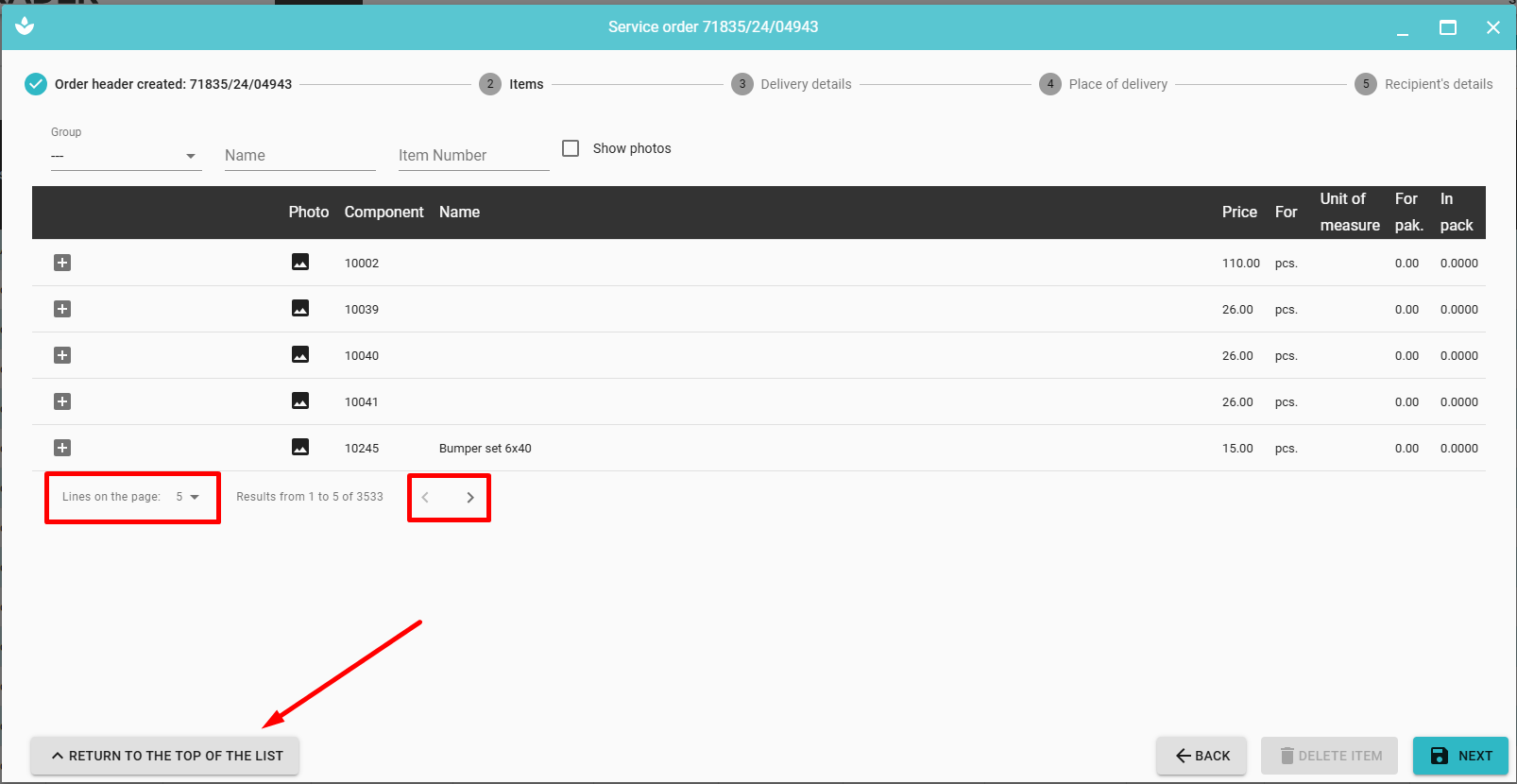
You can change the number of items displayed on the page. In case of a large number of records on the page, the button 'RETURN TO THE TOP OF THE LIST' allows you to quickly return to the top of the page, and use arrows to navigate between pages
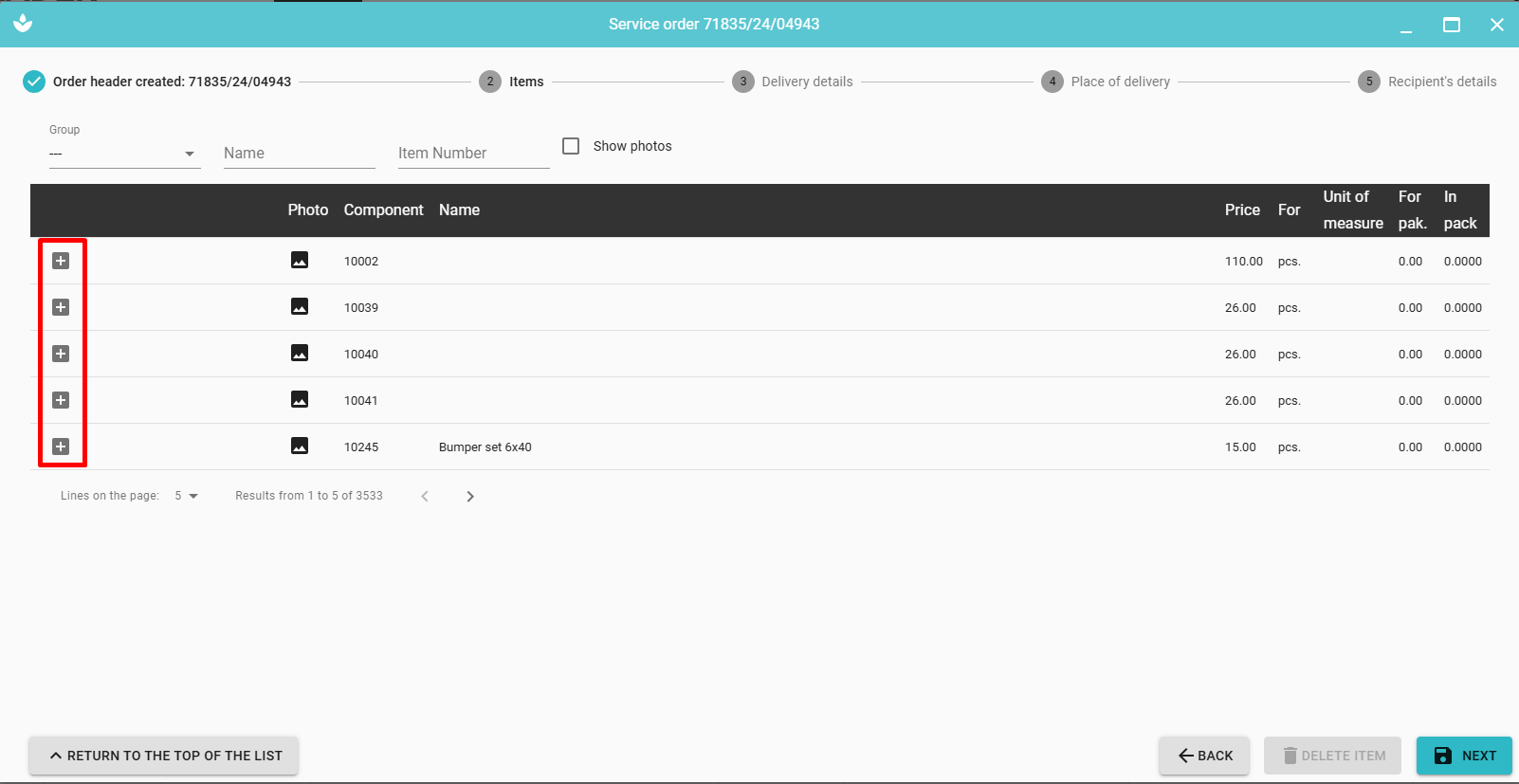
Items are added to an order by clicking on the “plus” located to its left of each record.
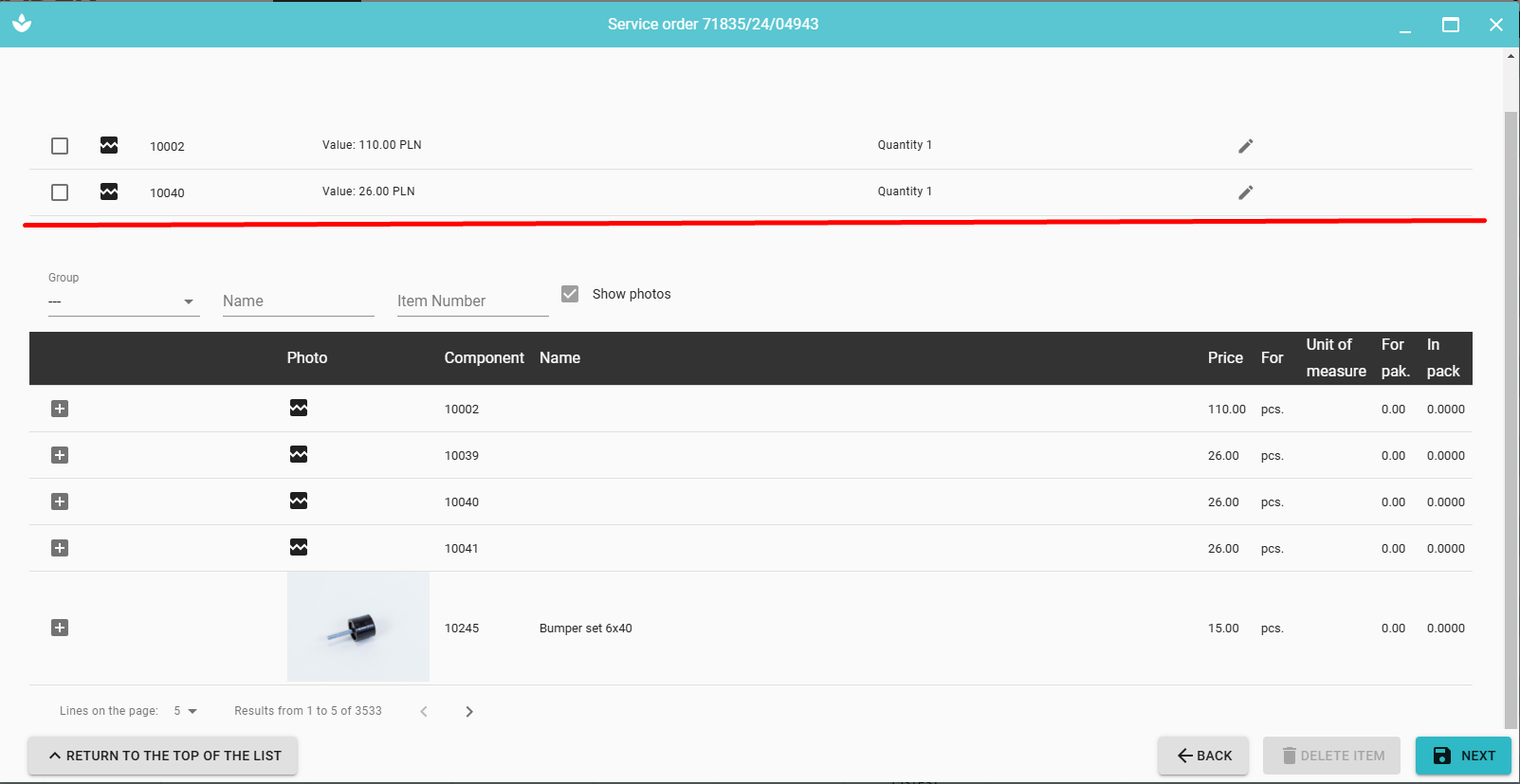
After cliking 'SELECT' a list of selected elements will appear at the top of the window.
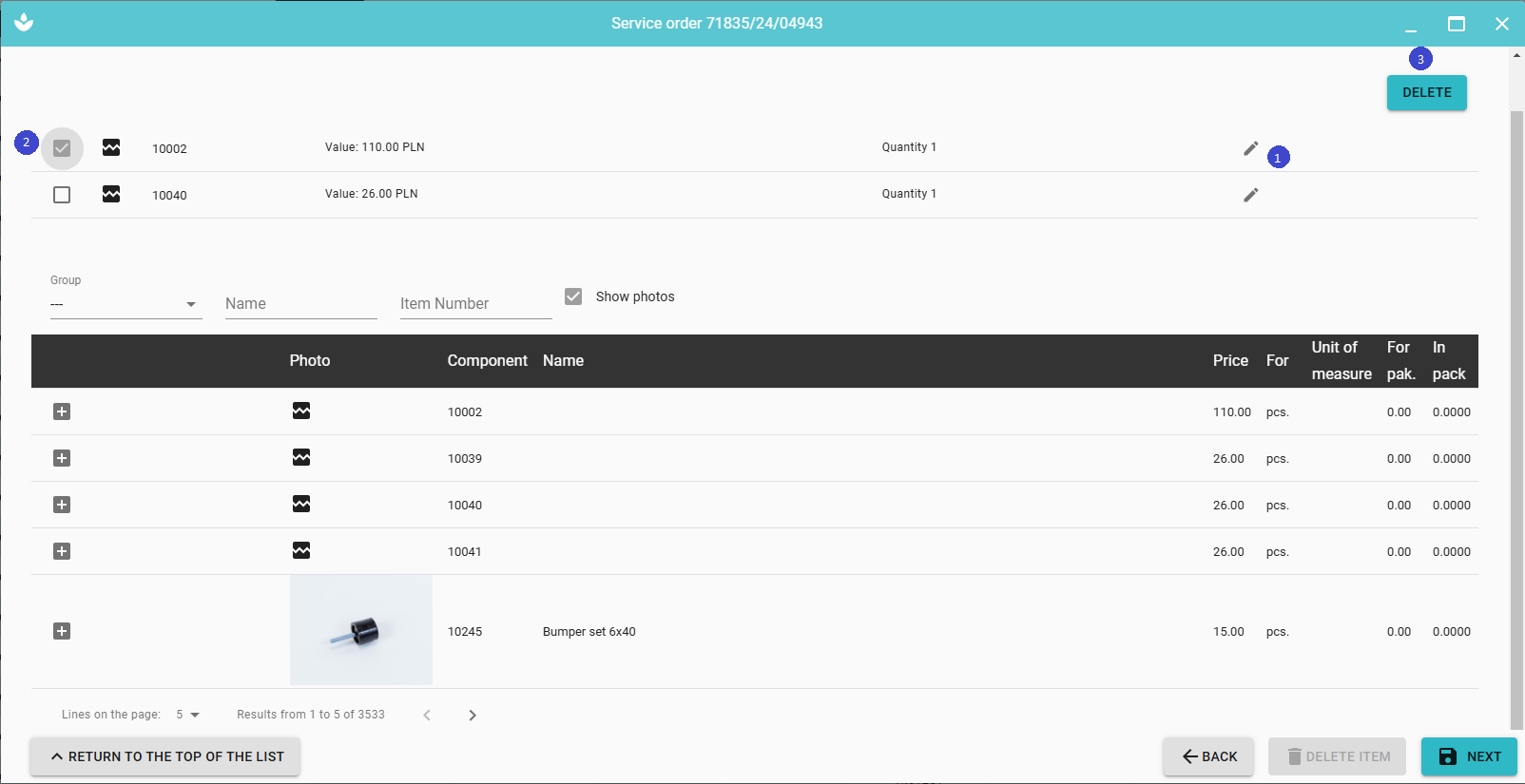
You can still edit it (1) (number of pcs ) or when you mark selected items (2) it will appear option DELET (3).
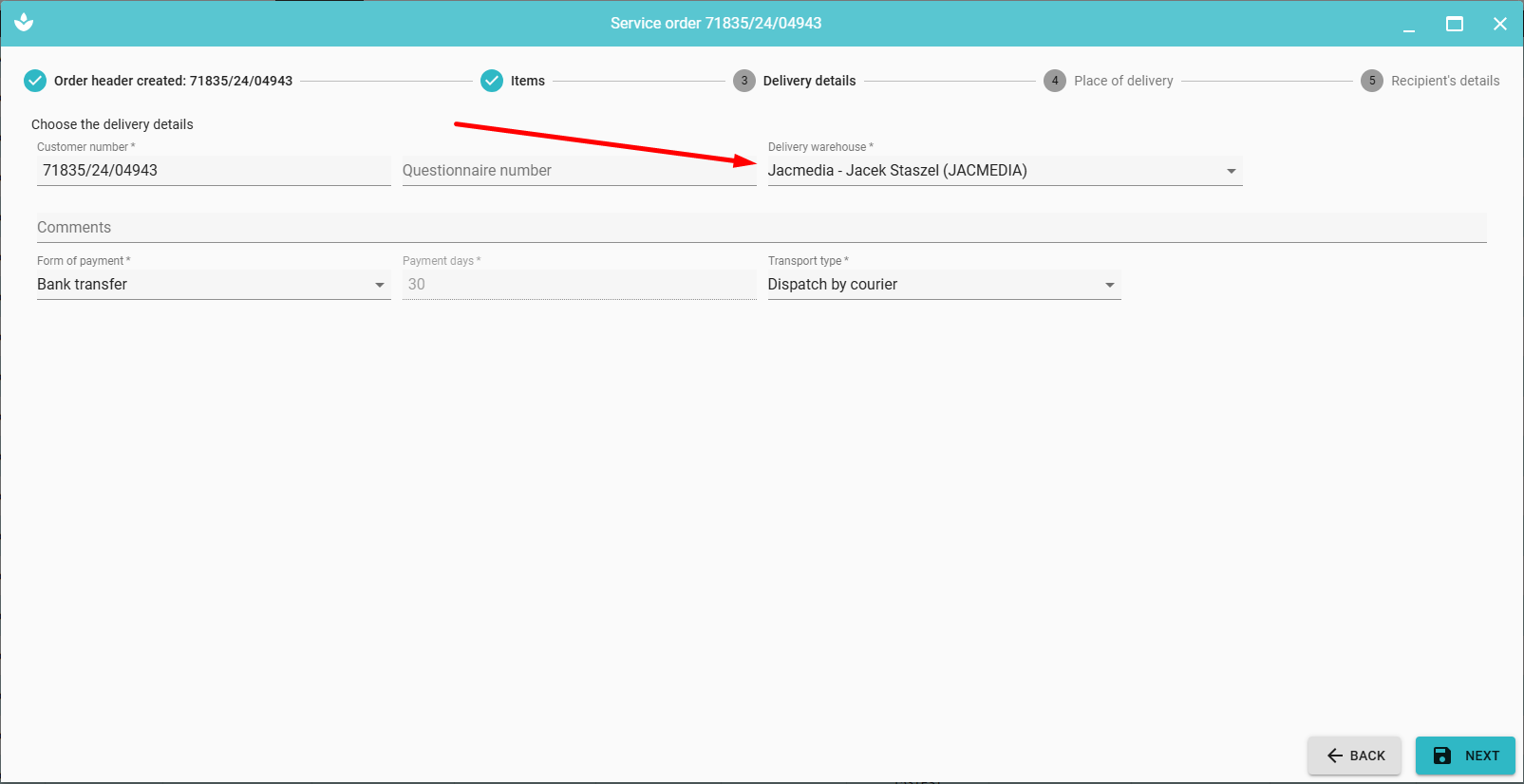
In the next step, we can select Delivery details (operation analogous to the tab Order delivery details).
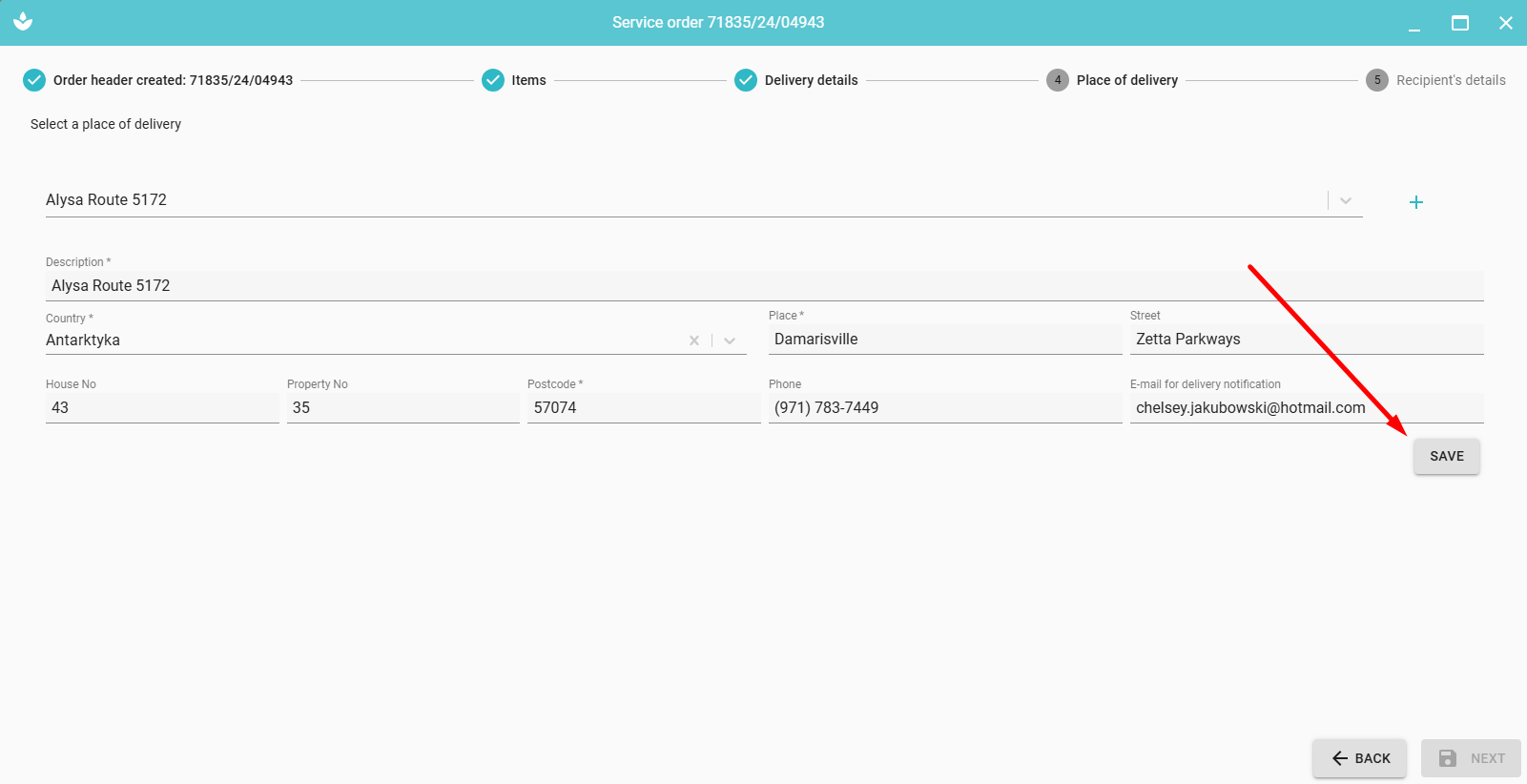
In the next step, we can complete or select from the list the Delivery Place (accept by clicking Save).
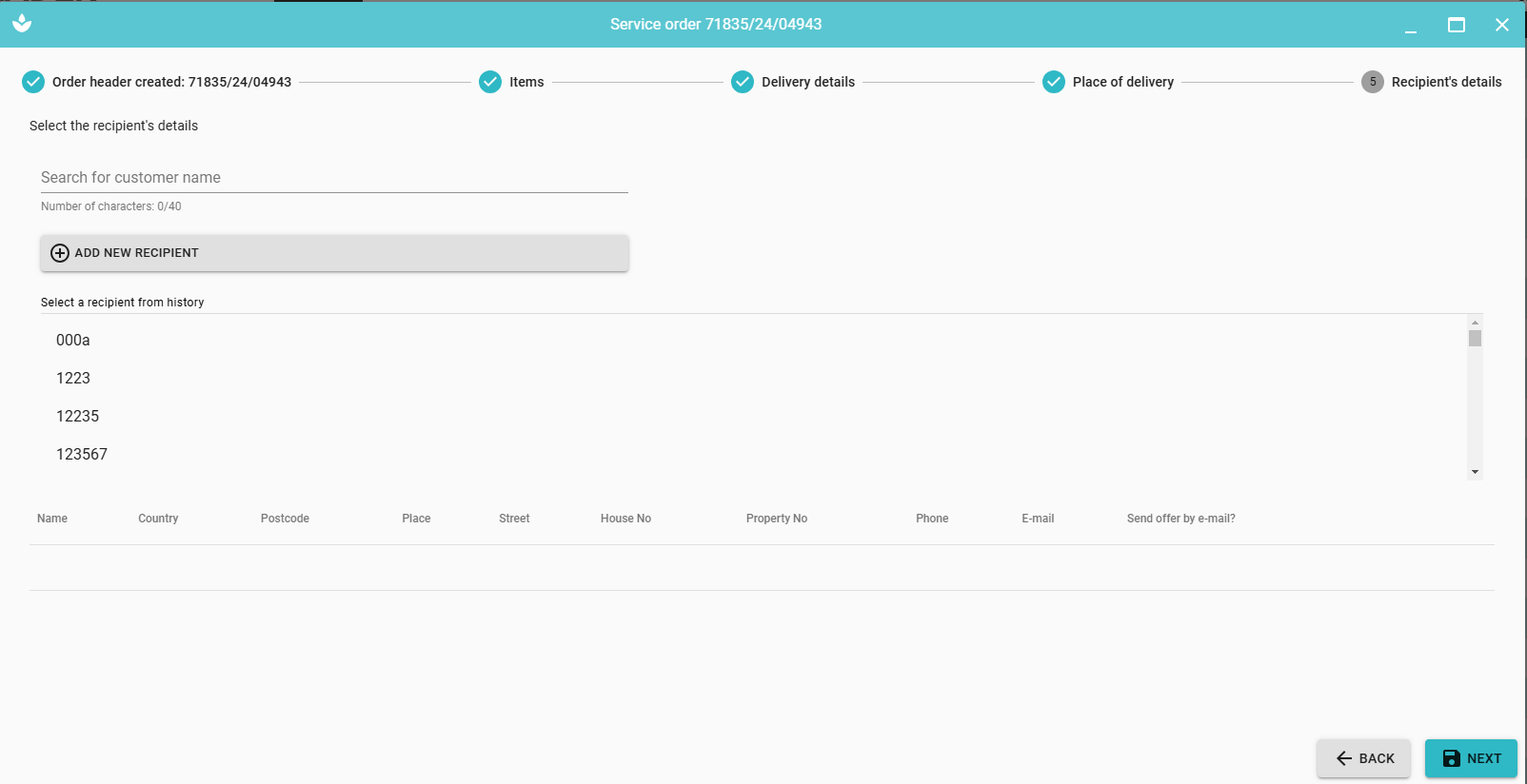
In the last step, we can select or add recipient details and delivery details (operation analogous to Stage 5 - Recipient details).
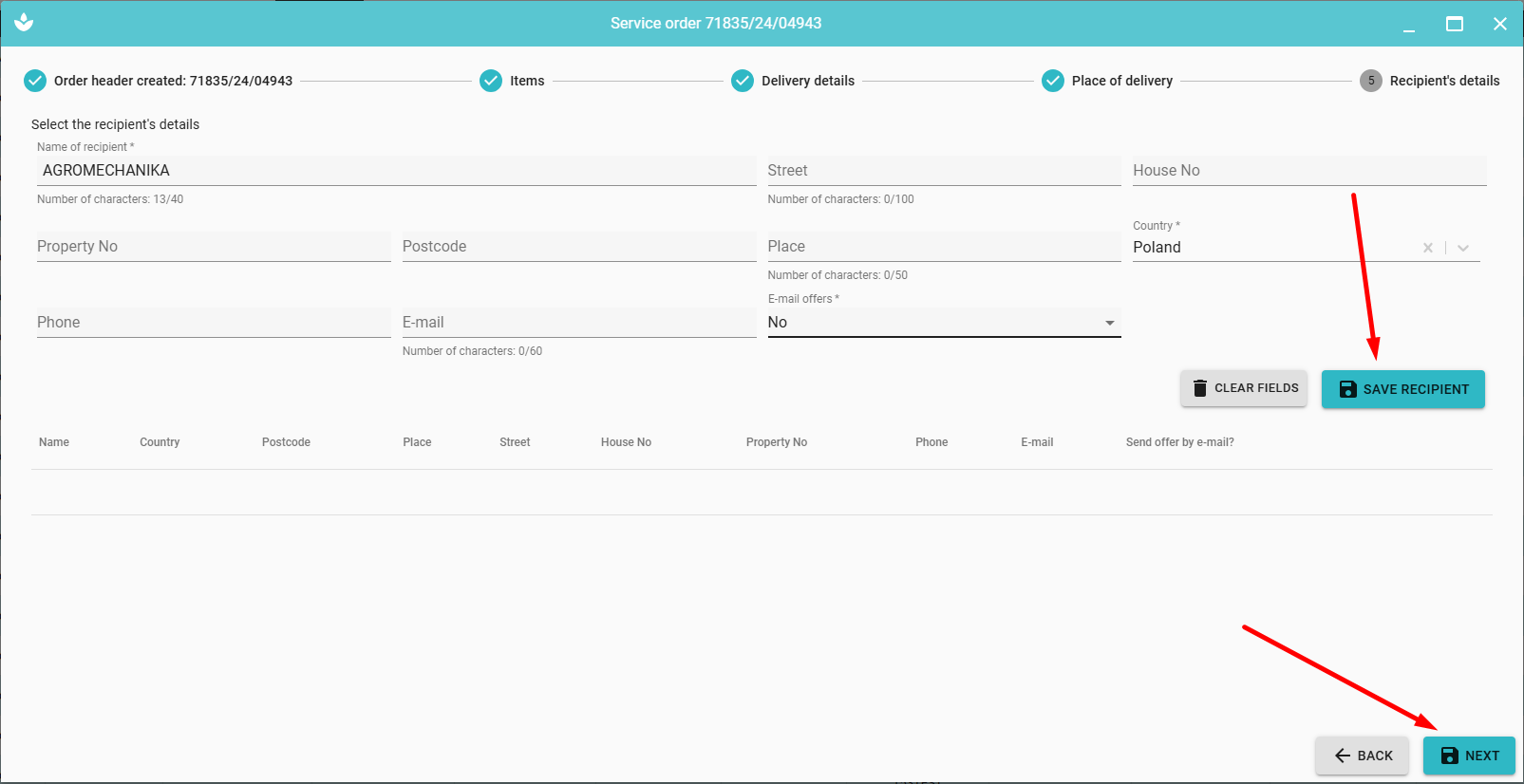
After clicking 'NEXT', the service order is saved and available on the list of orders.