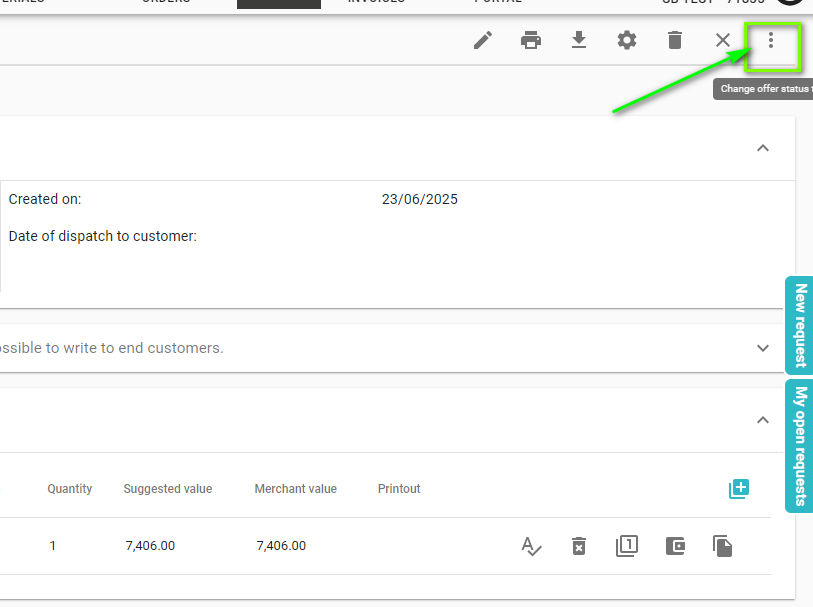
Once you have completed the design process, you need to generate an order from offer. To do this, click on the three dots icon in the top right corner.
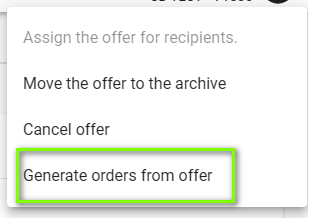
In the window that appears, select the Generate orders from offer option.
After the order generation step, the status - Order pending registration in PrefSuite - will appear in the Offers tab next to the previously created document.

After approximately 5 minutes, the order status will be changed to Order registered (not confirmed) in PrefSuite.

Once an order has been given the status of registered (Unconfirmed) in PrefSuite, it will be findable in the JOINERY ORDERS tab.

The item will be visible with a status of AU (Autoregistration)-this status does not yet mean that the order has been approved for production.

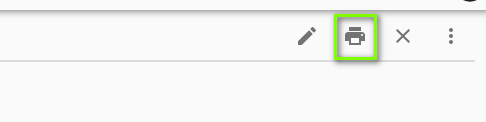
Such an order can also be printed from the item level. To print the order, click on the print icon
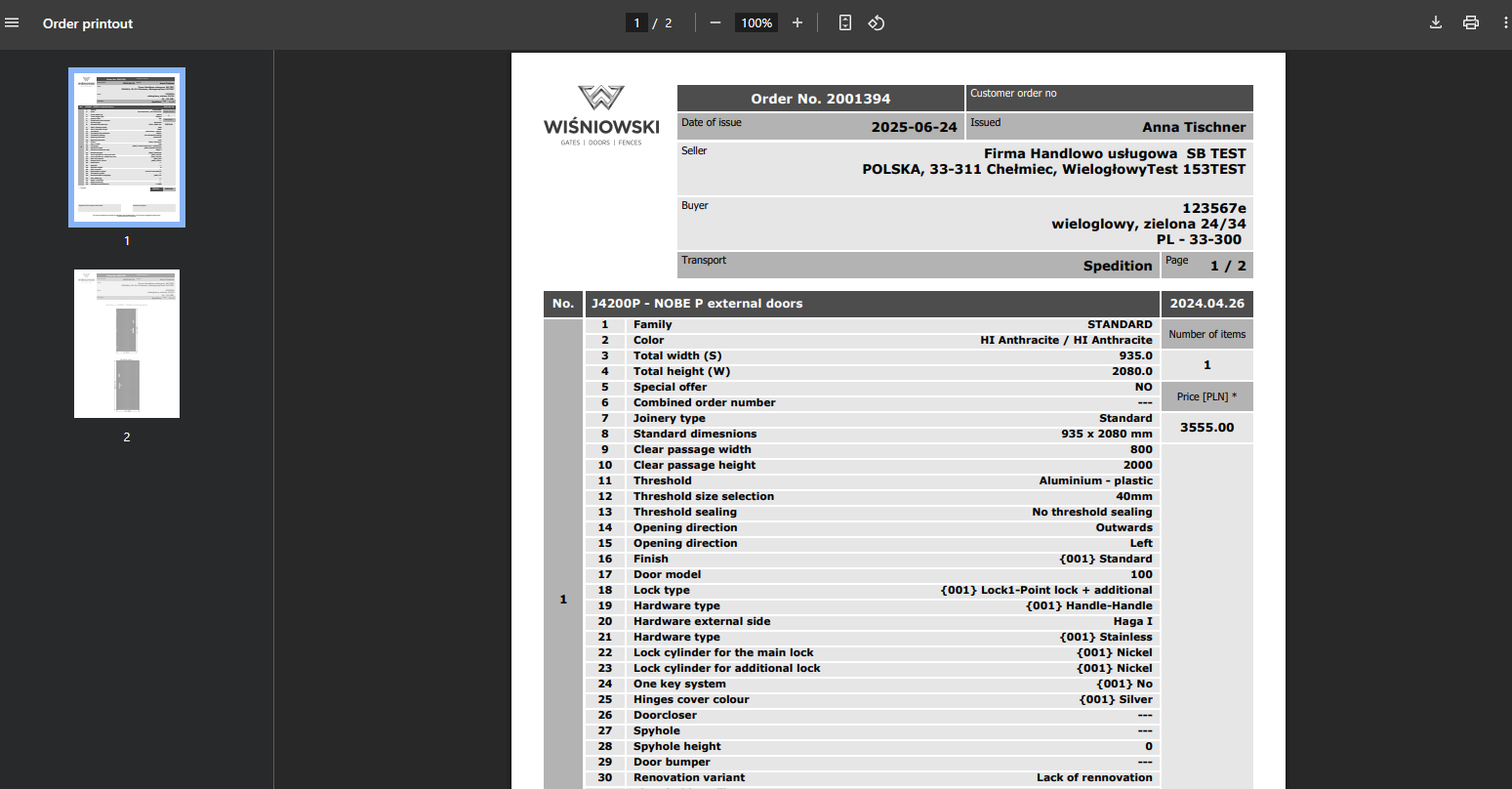
Before approving an order, we can fill in key information such as the Customer Number (this will also be visible on the product's transport label).
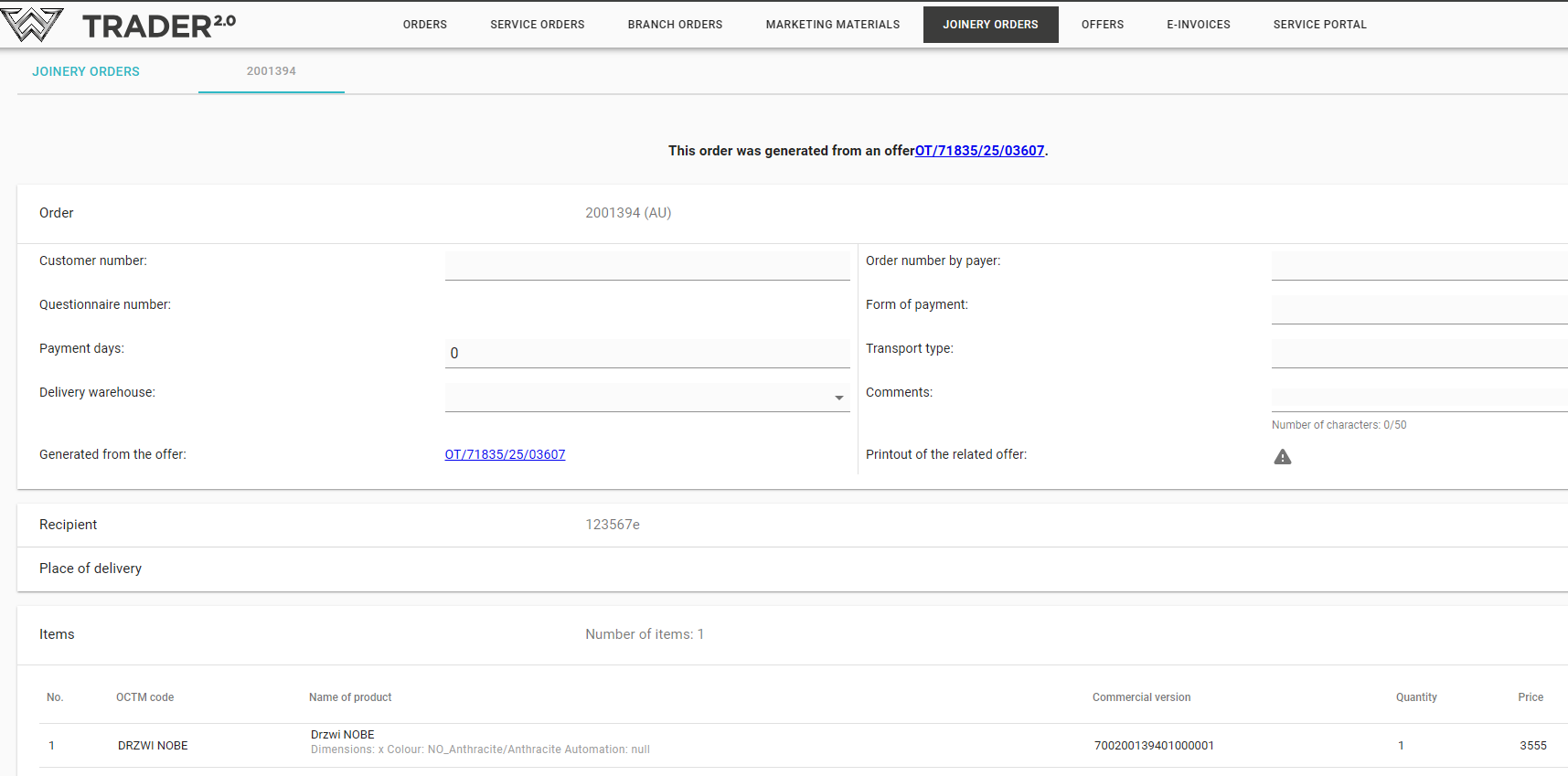
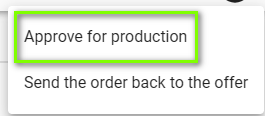
To approve an order for production, navigate to the order in question by clicking on the three dots icon in the top right corner as before. Then select the Approve for production option.
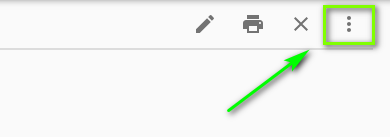
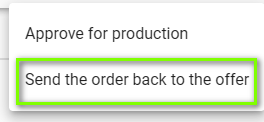
Another functionality is the possibility to undo an order to the offer. After this step, the order will disappear from the list of Joinery Orders.It will then be possible to edit it at the offer level, apply any changes and generate the order again from the offer.
The ZW status in the main view of Joinery orders means that the order has been approved for production, without the possibility of cancellation.

The ZP status means that the order already has an approved production date.