When preparing an offer at the product selection stage, we go to the JOINERY tab. Please note in particular that in the case of the NOVA and NOBE door quotation, we must always start the quotation process by creating an ‘offer’. For technical reasons, it is not possible to start the quotation from the order.
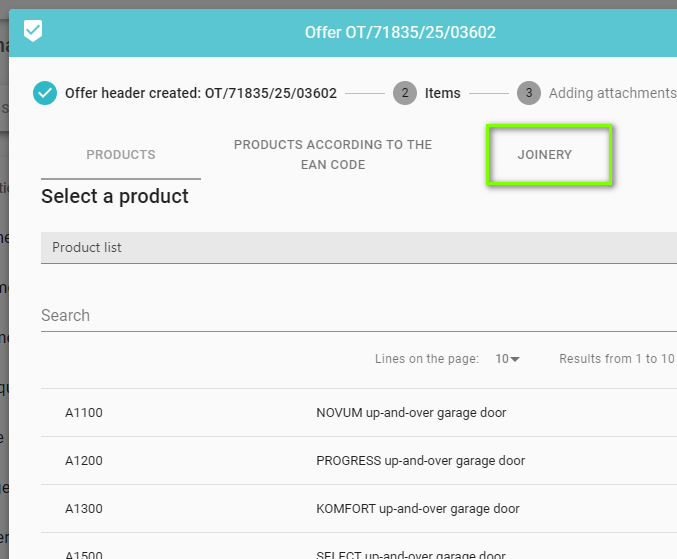
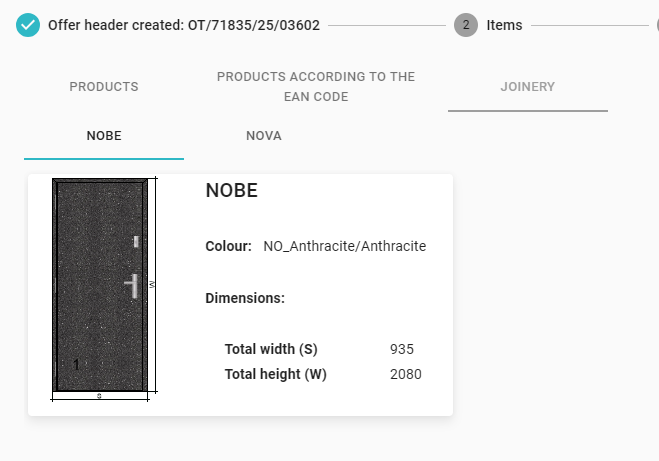
After selecting the joinery tab, the division into NOBE doors and NOVA doors appears in the line below.
The NOBE tab shows a list of available models.
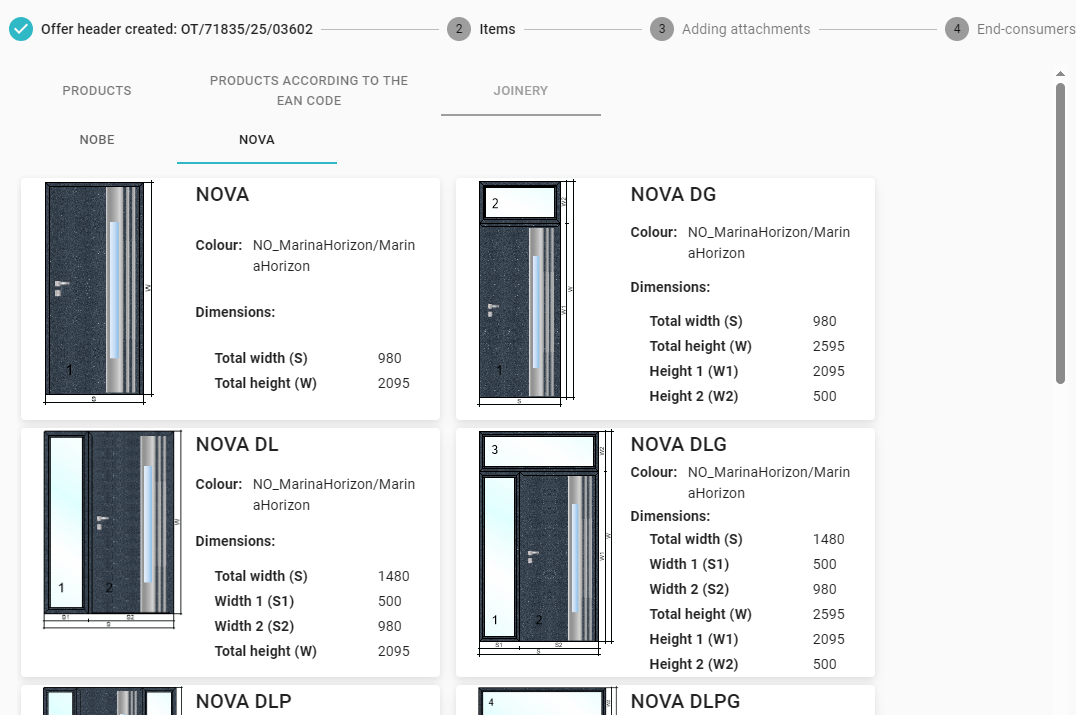
When you select the NOVA tab, a gallery of Nova door models will appear on the screen, together with the individual variants of the door set with side/toplight.
The gallery contains the following models:
- NOVA – door only, no side/toplight,
- NOVA DG – NOVA door with toplight,
- NOVA DL – NOVA door with left sidelight,
- NOVA DLG – NOVA door with left sidelight and toplight,
- NOVA DLP – NOVA door with left and right sidelight,
- NOVA DLPG – NOVA door with left and right sidelight and toplight,
- NOVA DP – NOVA door with right sidelight,
- NOVA DPG – NOVA door with right and left sidelight,
- NOVA NASWIETLE – bulk sidelight,
- POSZERZENIE NOVA – bulk door extension,
Once a specific model is selected, it will be added to the offer. To edit, click on the particular item. An editing window will open.
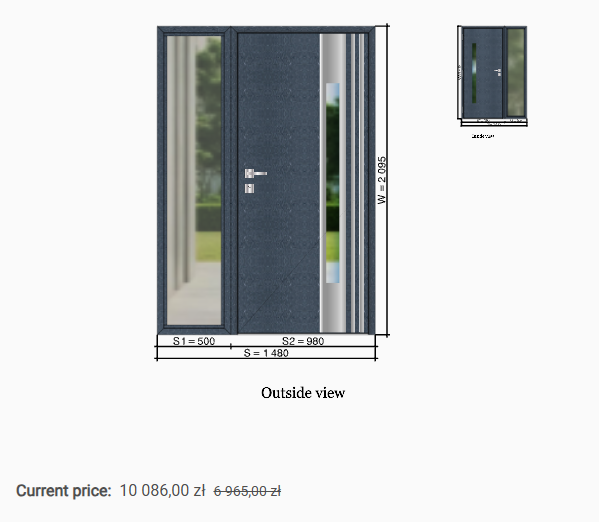
A visualisation of the door and the price of the product appears on the left-hand side. Please note that the price updates each time you change options (properties). This functionality allows you to easily check the price difference when changing individual items.
There are four main tabs on the right-hand side.
OPTIONS
Each door can be upgraded with additional options. Most of these will appear in the visualisation at
left. The availability and visibility of the options change automatically depending on the configuration you input.
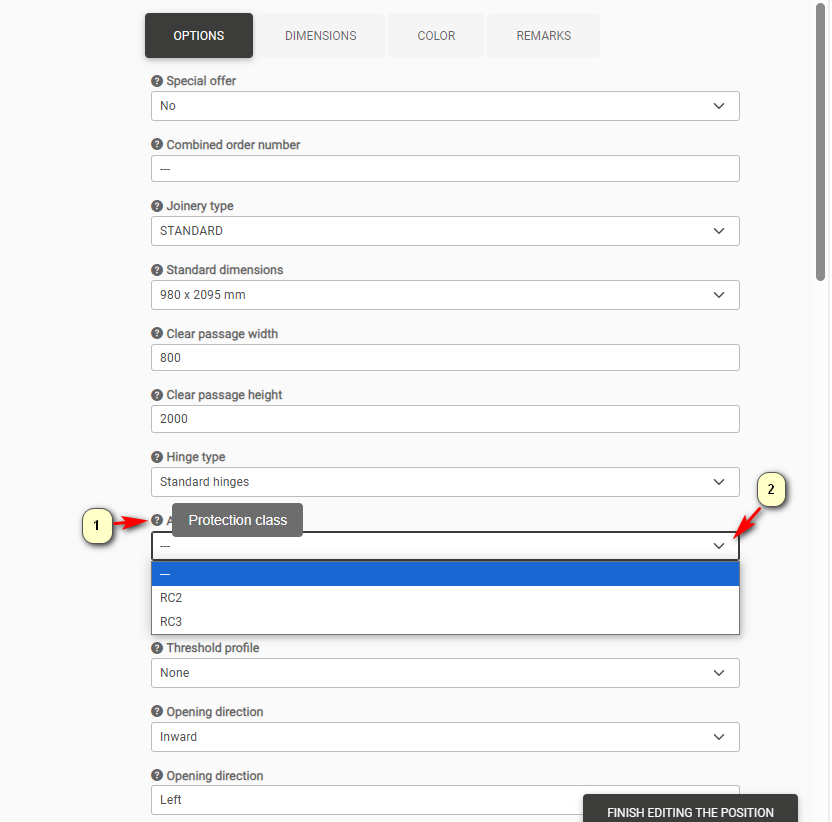
Ad 1 If you move the cursor over the question mark, you get the full name of the property
Ad 2 Options can be selected from the combobox
DIMENSIONS
In the dimensions tab, modify the door dimension in the case of non-standard dimensions and the dimensions of the side/toplight. The typical door dimension is configured at the option level.
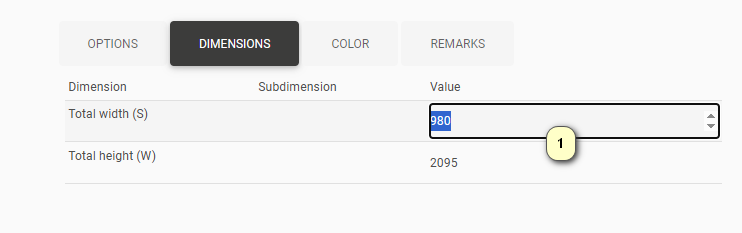
Ad1 To control the dimension, first set the Door type option to - Non-standard
COLOUR
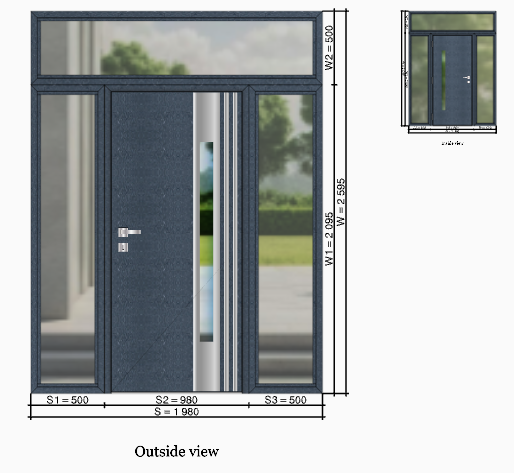
In the colours tab, the colour of the leaf and frame is selected (in the case of Duo-kolor, the colour of the frame is selected in the ‘Options’ tab). The colours are divided into families. Visualisations of the colours are visible on the left:
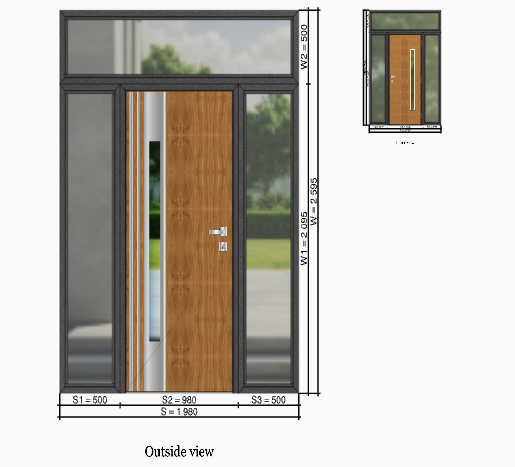
Example of a door visualisation with the DUO-colour option
REMARKS
In this tab, you can enter your notes, which will be forwarded to the person handling the
order at the company's head office. The notes relate to a given item of the order, while notes concerning
the entire order are to be filled in on the order header.
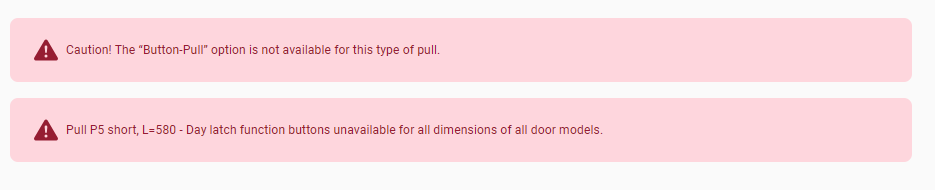
RESTRICTIONS
If you select an option that is not applicable, red errors will appear- restrictions. The error content includes information on what the problem is.
Once the offer is made, click on the Finish Editing button
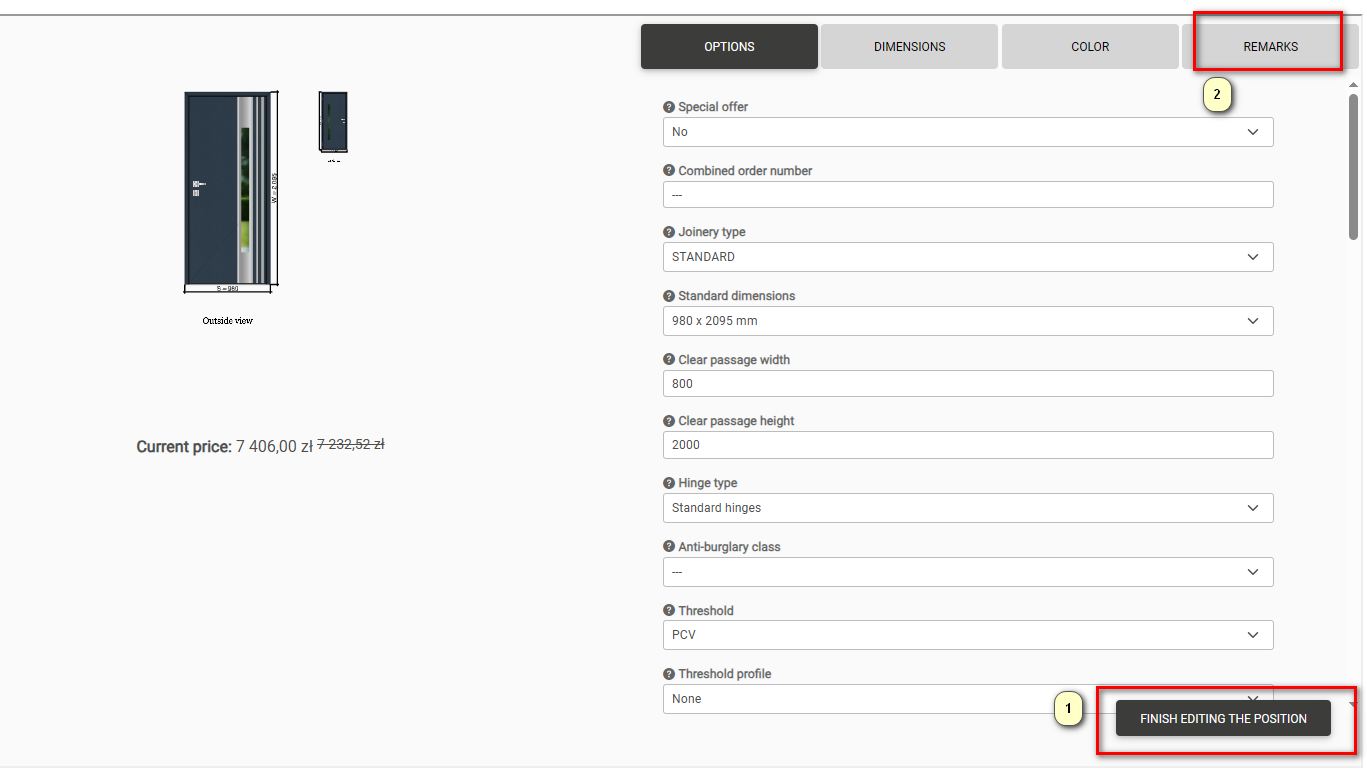
Ad1 Finish Editing button
Ad2 Previously mentioned Remarks on Order items
AT THIS STAGE THE OFFER, INCLUDING DRAWINGS, IS READY TO BE PRINTED
Functionalities such as Clone offer items or Clone offer work in analogy with the standard way of pricing.
If we’d like to make changes to an offer that has already been created, we must first go into the details of the offer:
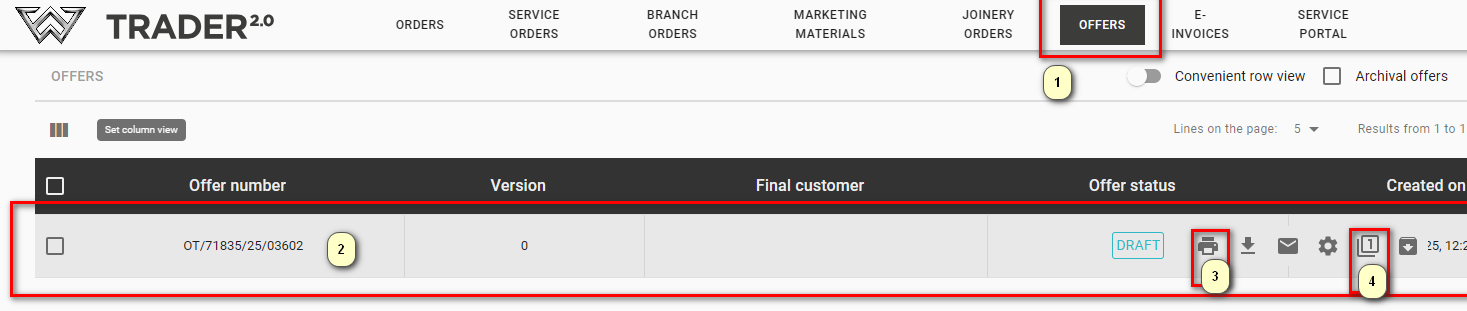
Ad1 Start the Offers tab
Ad2 Select the offer you are interested in
Ad3 Print the Offer
Ad4 Previously mentioned Clone the entire Offer.
Once the position of particular interest has been opened:
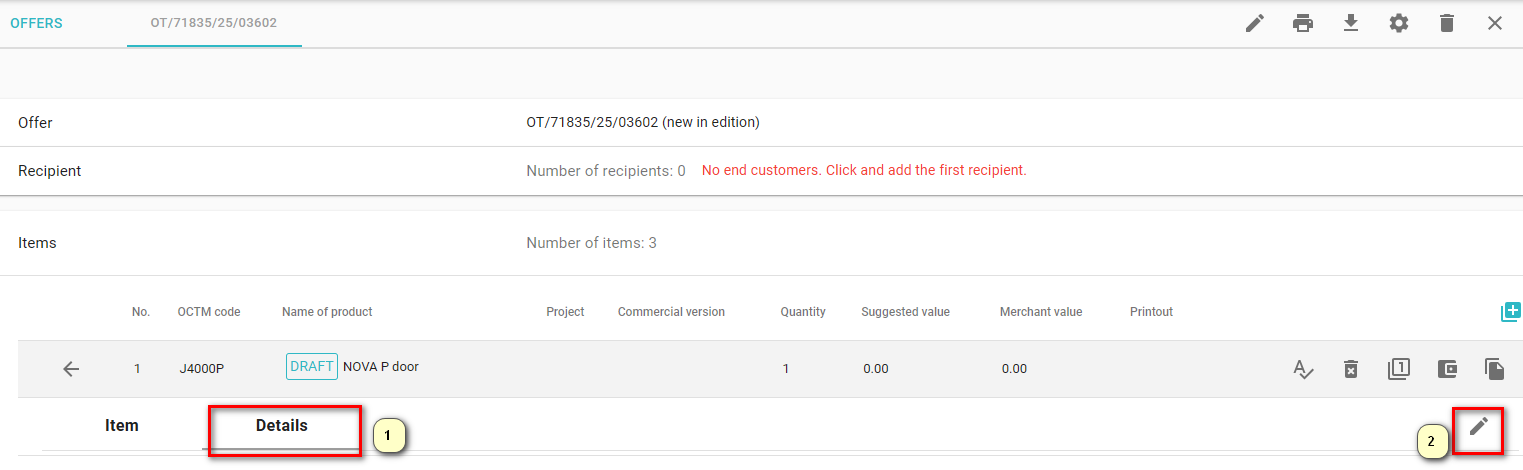
Ad1 We click properties
Ad2 Then the ‘pencil’ icon Edit Properties
This will allow us to go back to edit the offer (Please note that we can only go back to edit the order if we do not have a generated order from the offer )