Users of the AW Trader application are managed by the administrator of partner - an AW TRADER user with an assigned administrator role.
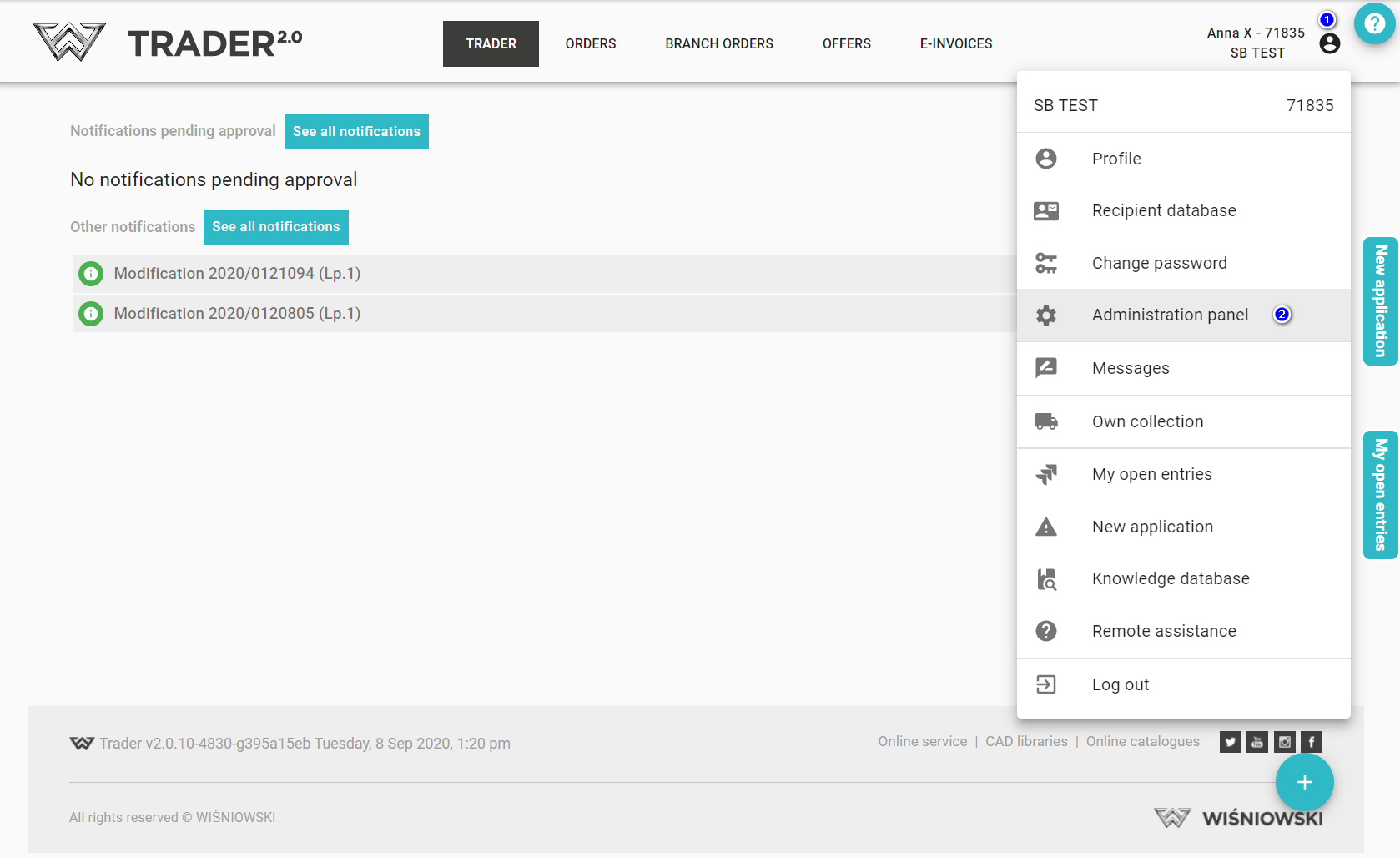
To access the administration panel, click on the user name (1) and select Administration Panel (2) or by going to the web page pa.wisniowski.pl.
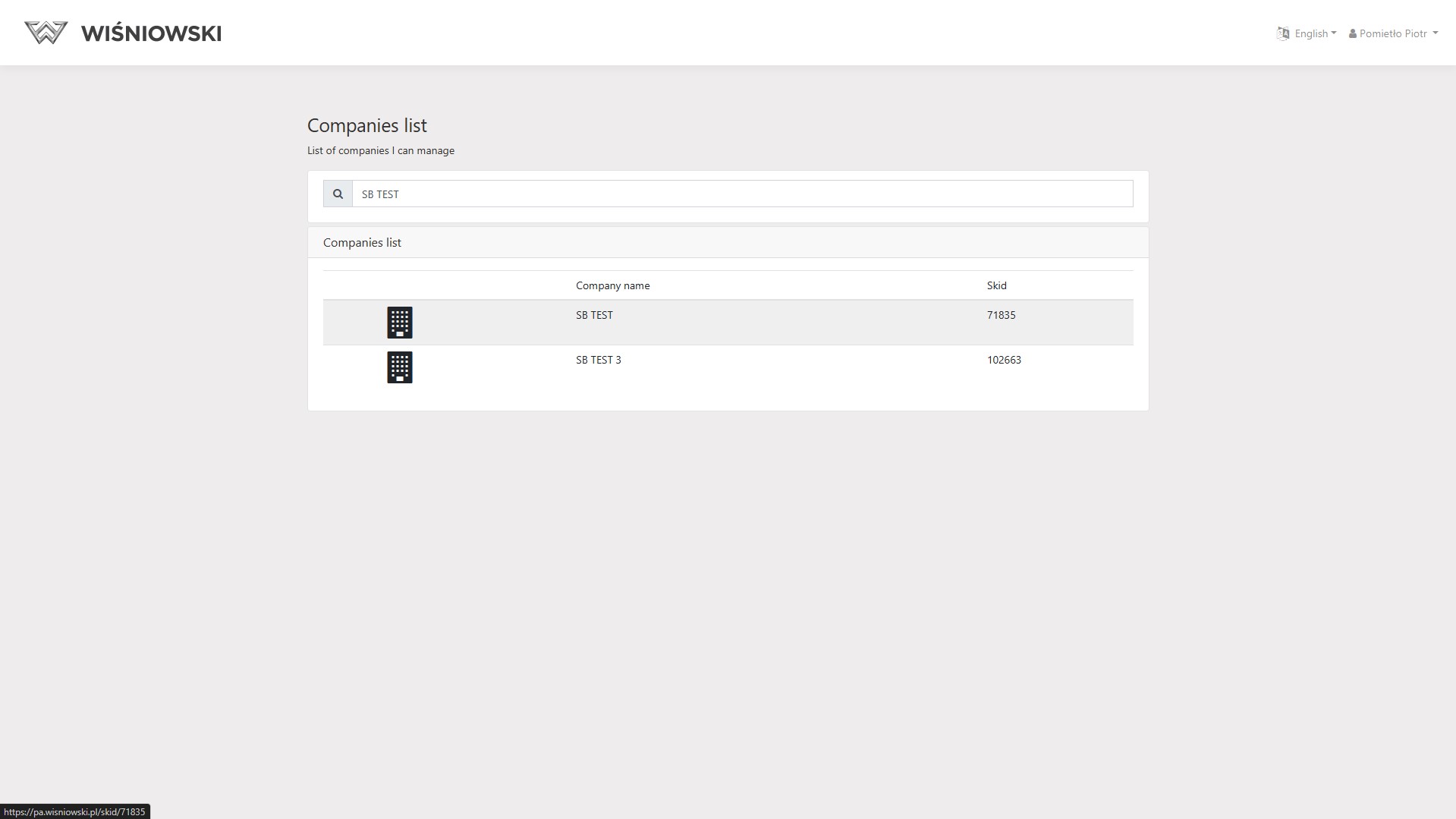
Once you have navigated to the administration panel page, you will see a list of companies. Select the company within the scope of which we will manage users and their roles.
User after login into Administration panel is able to:
Create a new user
To create a new user click "+"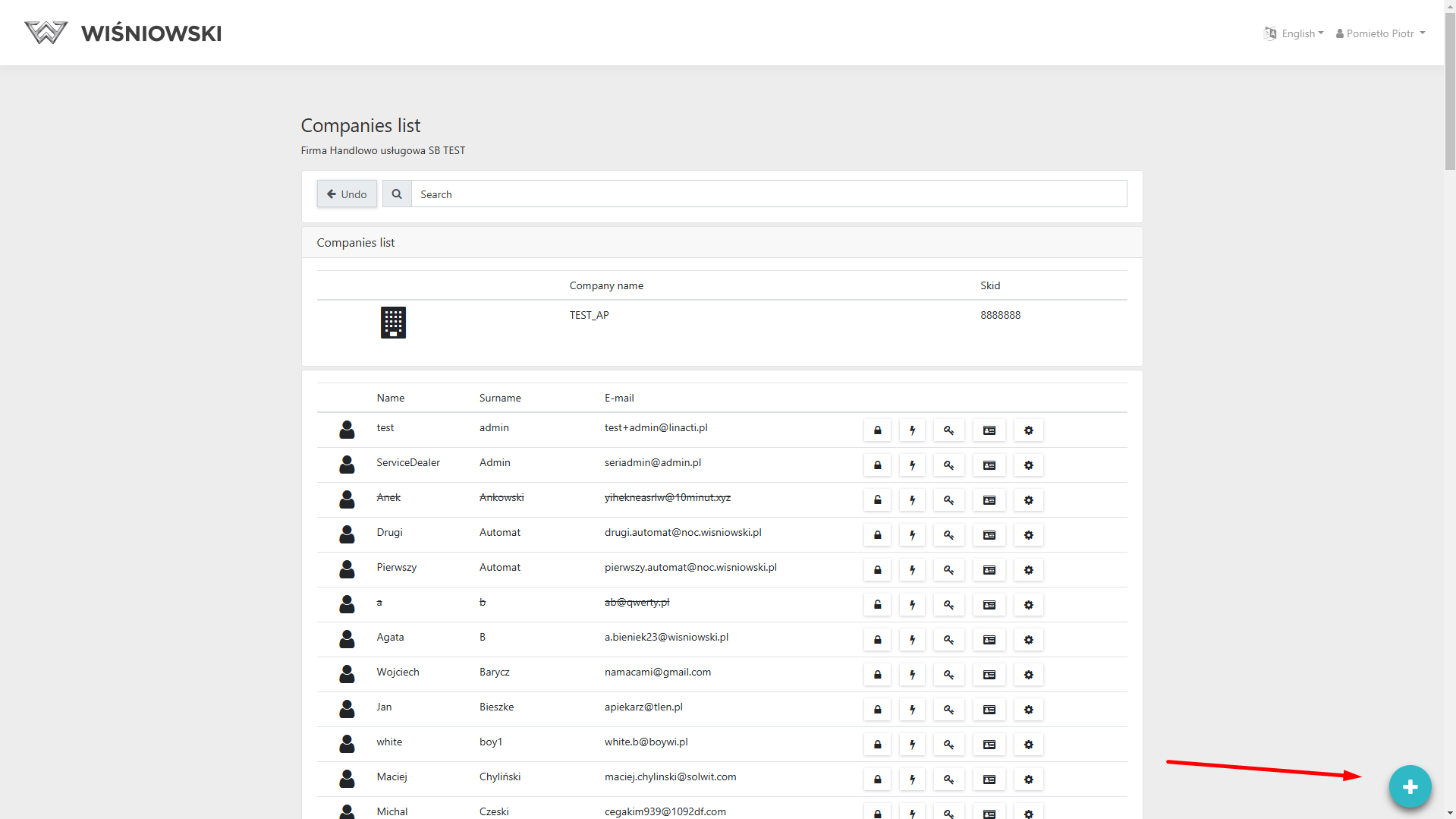
Complete the form and click Send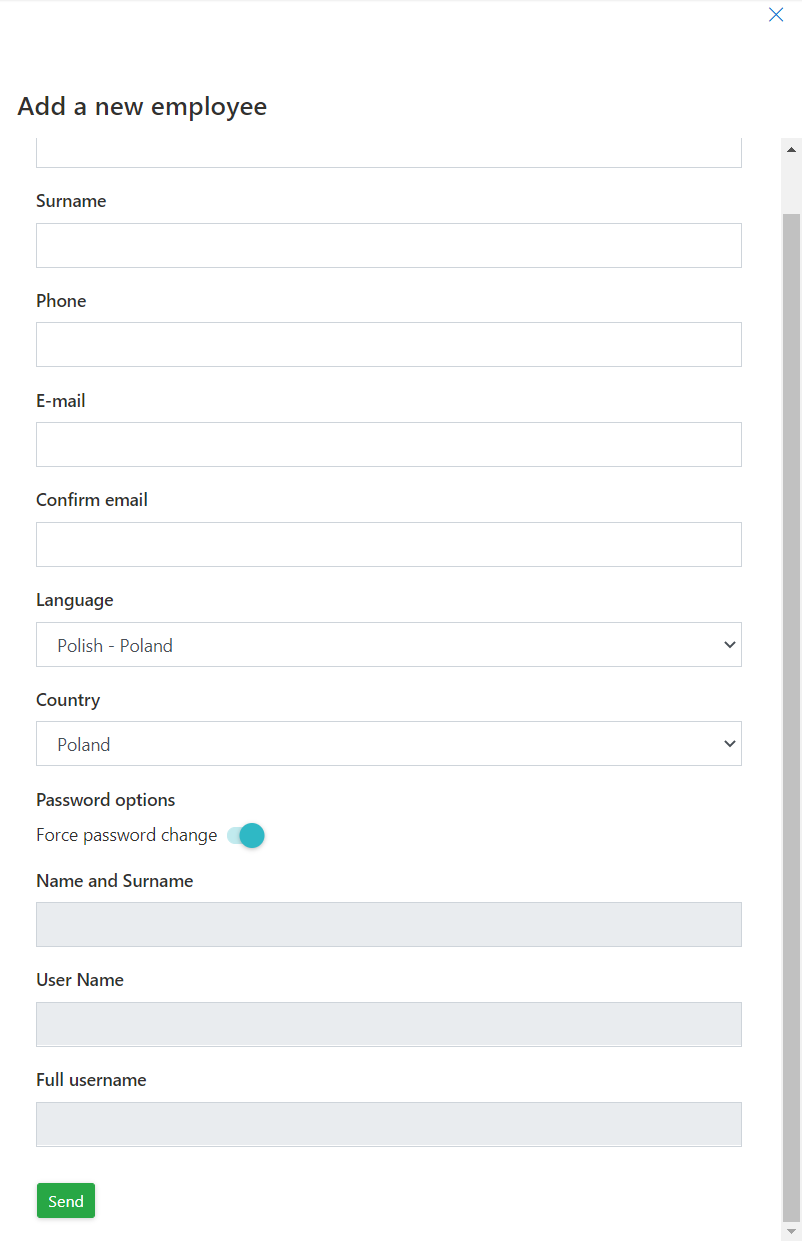
NOTE!!! Email must be unique! Several users cannot be assigned the same email address.-
Manage user roles

When creating a new user, you need to define his/her permissions in the application by adding/deleting the appropriate roles.
When you go to the roles management window, you can assign a group of permissions right away:
1 - Restricted user who can only create orders and offers, but cannot send them for processing. The user can only see orders and offers created by him/herself.
2 - Full user user can see all orders, can create and send orders for fulfillment and approve orders created by a user with limited rights.
3 - Give selected roles individually. The descriptions of the roles are located in the role management window.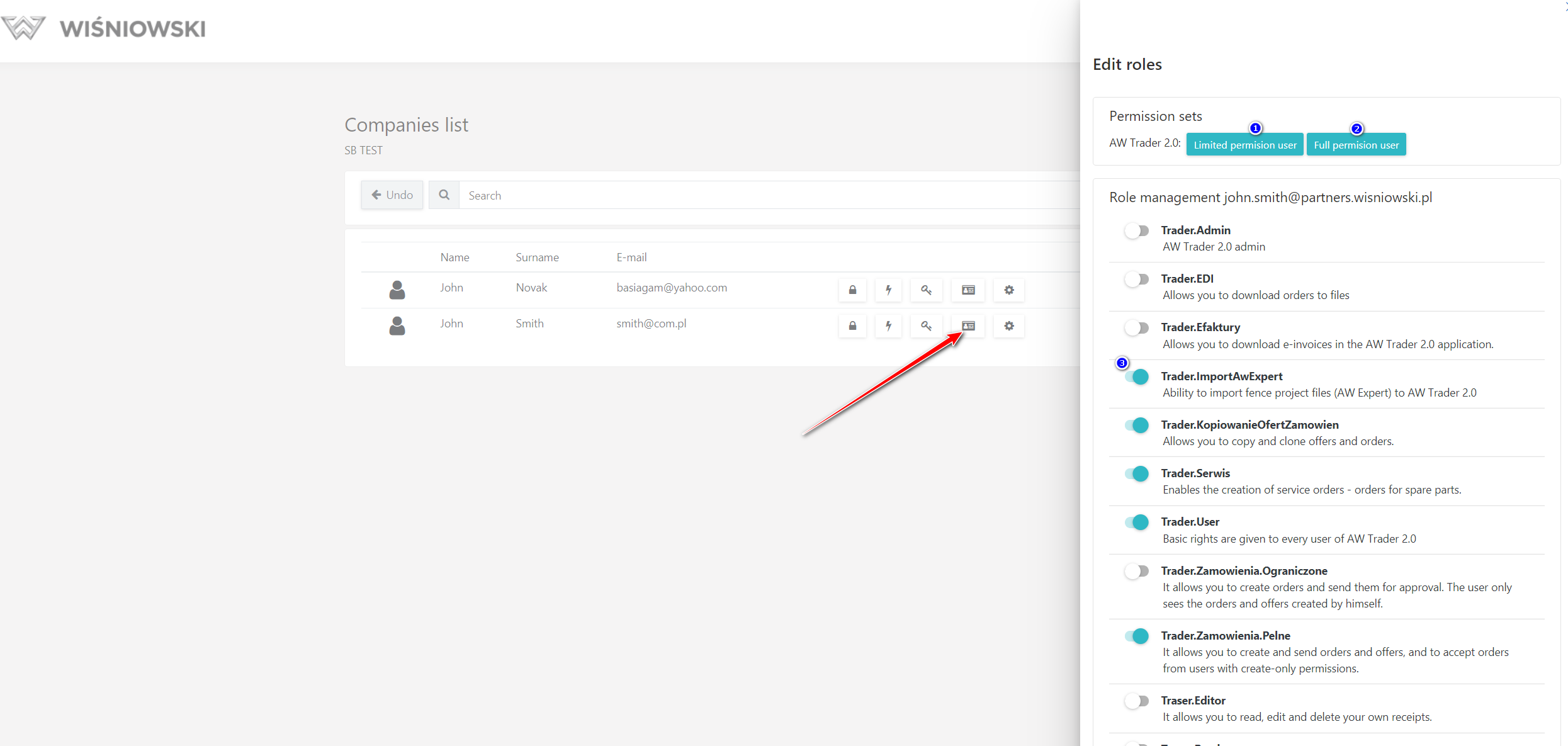
-
Edit user details.
You can edit selected user data by clicking the icon and correct selected data. The following data can be edited: Name, Surname, Display name, E-mail address and Application language..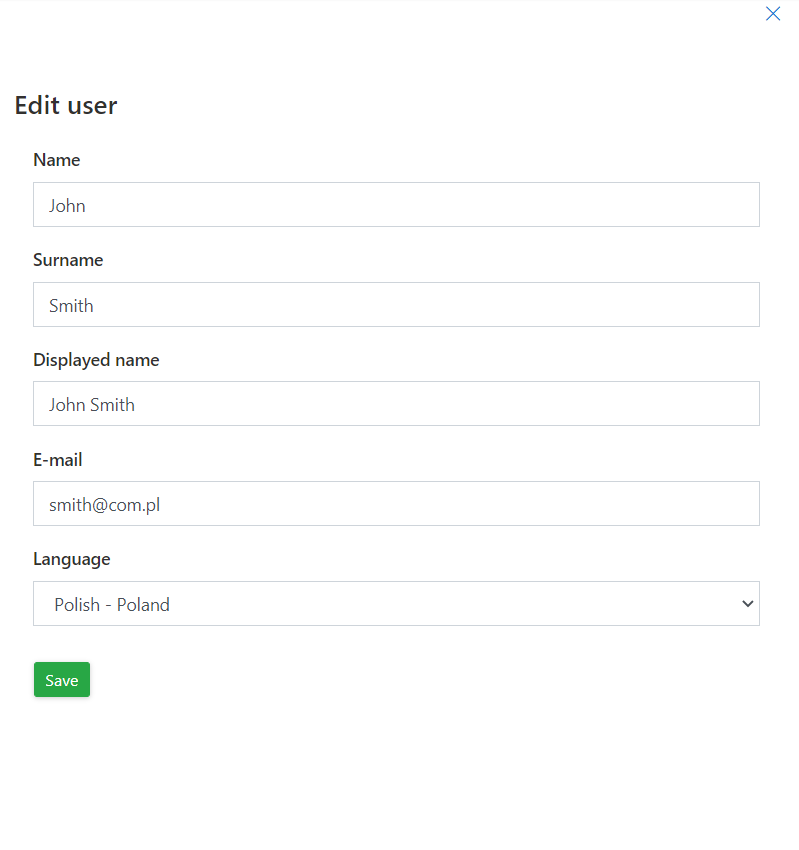
-
Changing user password.
To change the password of the selected user, click the icon and enter a new password in accordance with the security policy described in the password change window.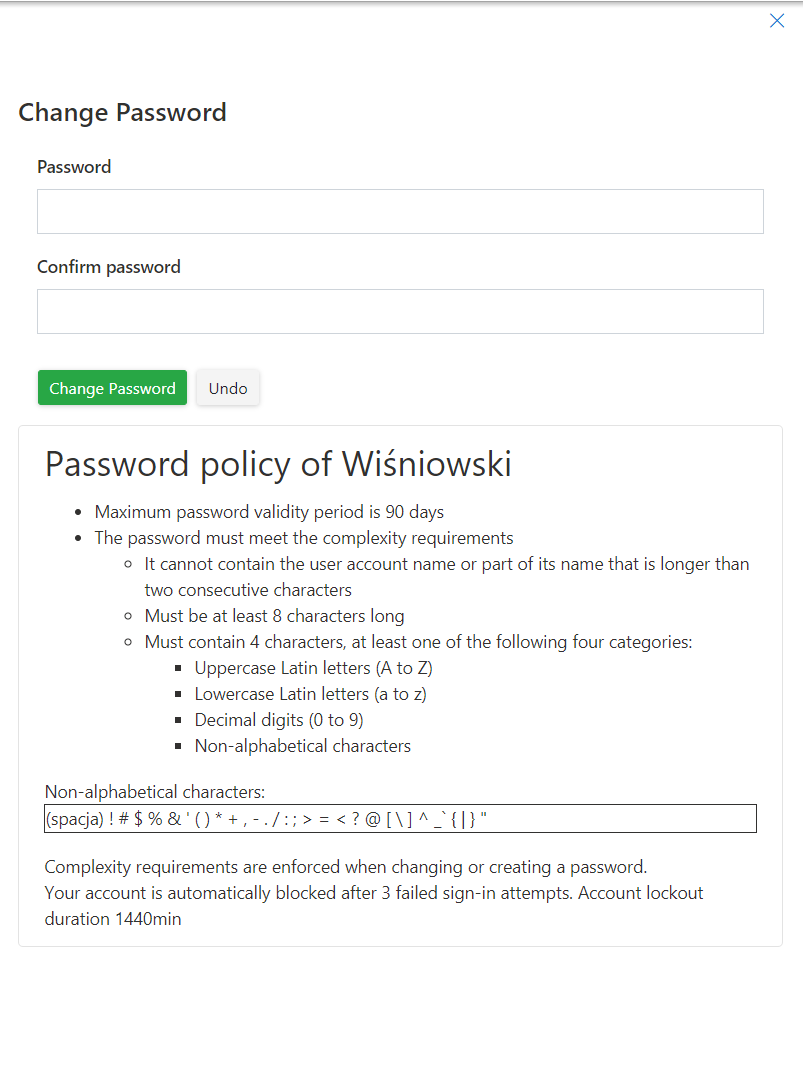
-
Force password change.
According to the security policy - the password needs to be changed every 90 days, however, the administrator can force the password to be changed manually using the icon . After logging in for the first time after being forced, the user will have to set a new password.
-
Block user access
In order to block access for the selected user, click the icon
After logging in, the blocked user will receive a message: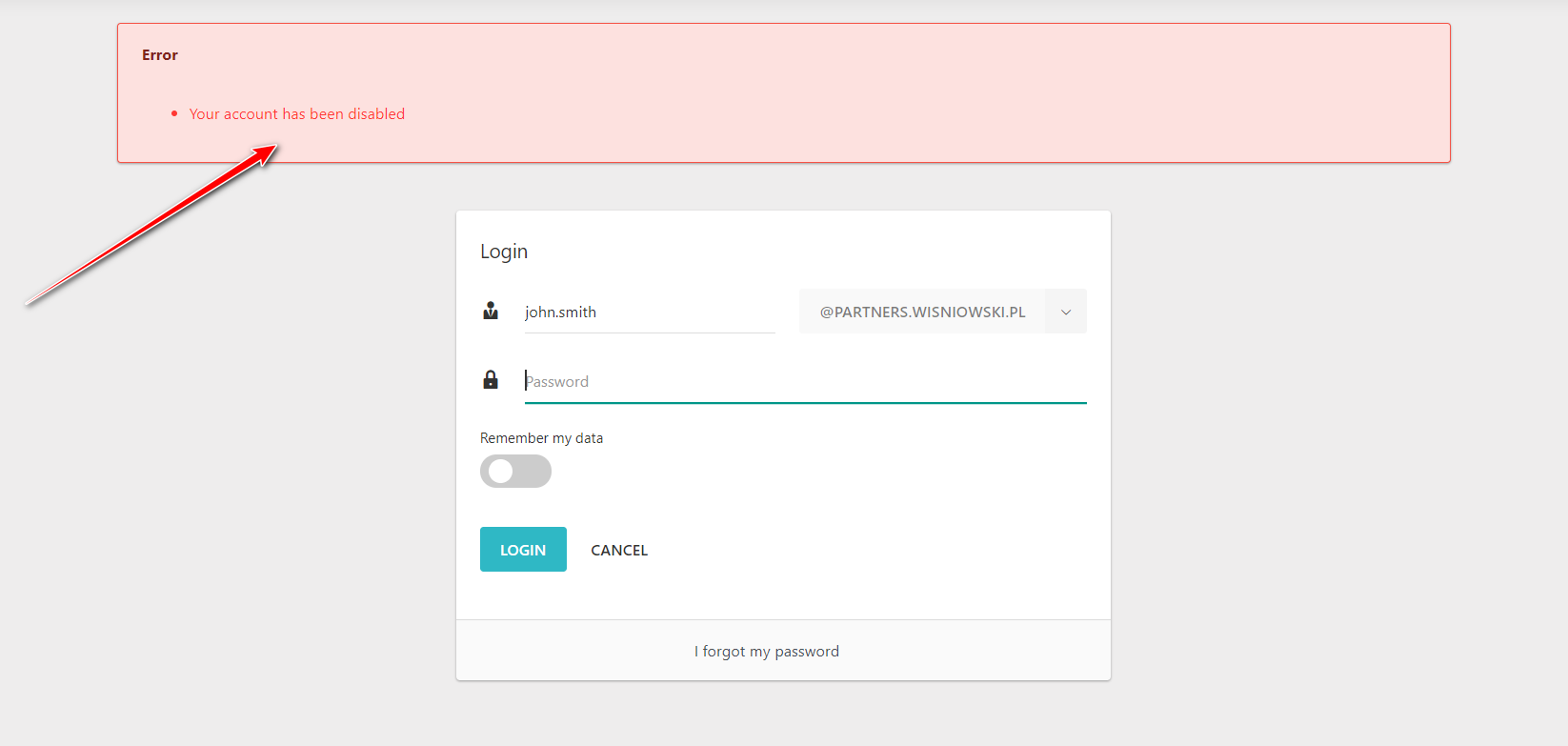
-
Unblock users
In order to unblock access for the selected user, click the icon