SEARCH FOR AN ORDER
1. Select in the side Menu: Routes → search order (Fig.1.).
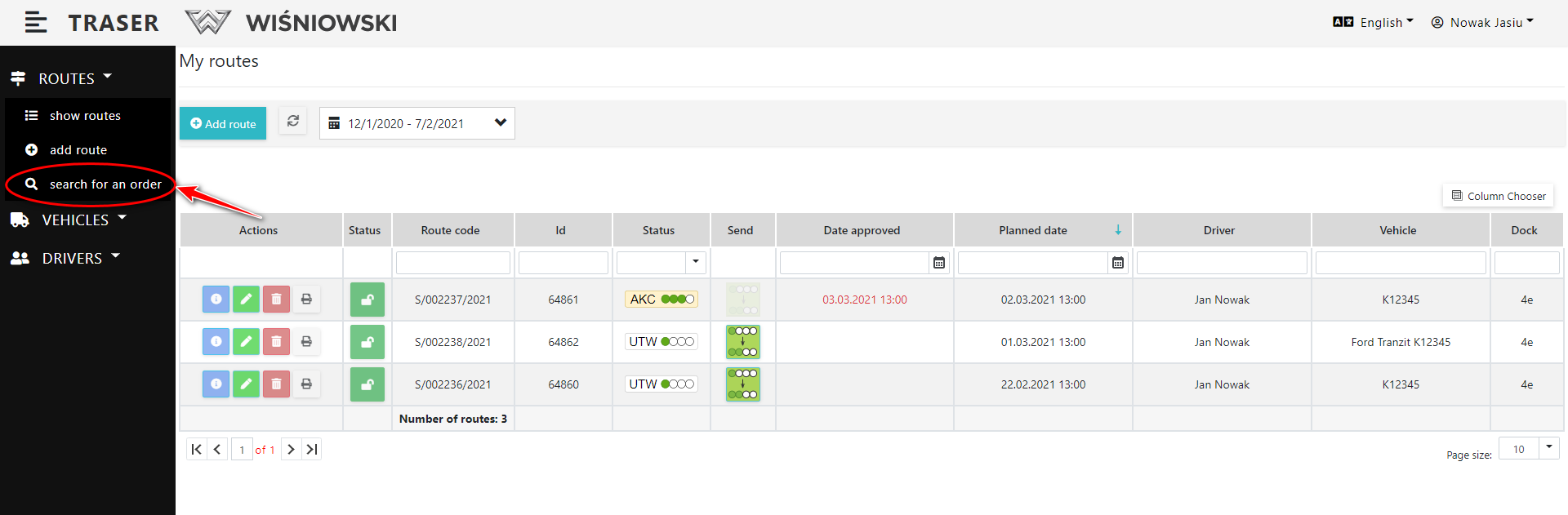
Fig. 1.Start searching for an order.
2. Enter the order number and click the "SEARCH" button (Fig.2.).
If you have entered the correct order number, a list of Items will be displayed.
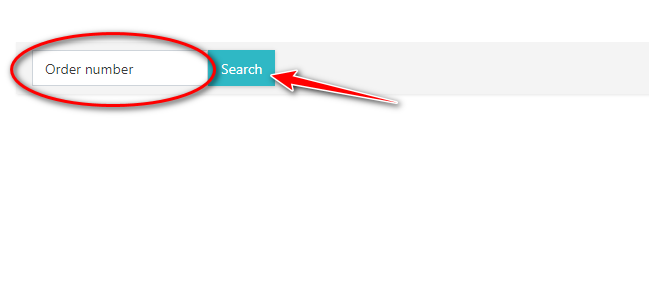
Fig. 2. Searched order.
3. If you want to finish searching for Orders, click the "X" button (Fig.3.).

Rys. 3. Finish searching for an order.
4. If you want to search for an Order while adding an Item to a Route, click on the tab "Find information about an order" (Fig. 4.).
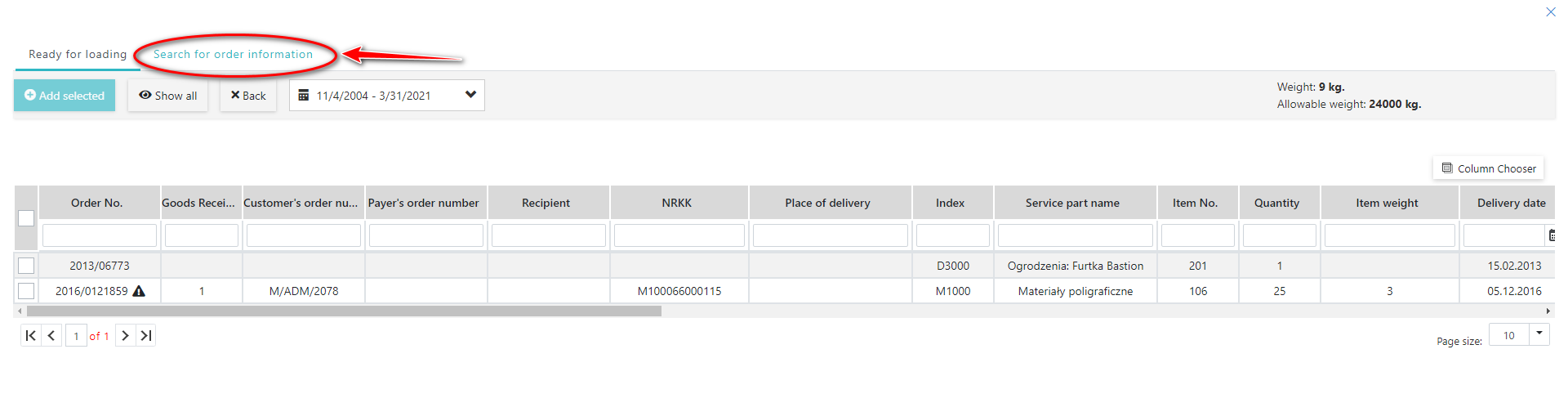
Fig. 4. Another way to search for an order.
PRINT ROUTE
1.Click the grey button with the printer icon next to the selected Route (Fig. 5).
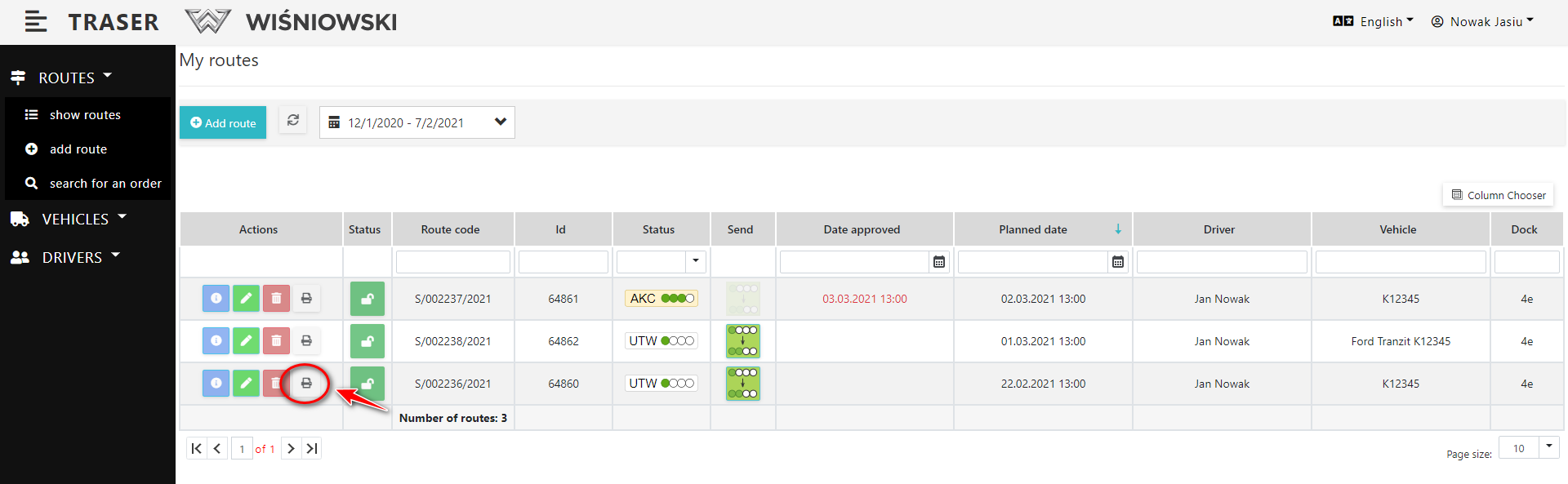
Fig 5. Przygotowanie wydruku Trasy.
2. Pdf file will open in a new browser window (Fig. 6.).
You can print it now or save it to disk.
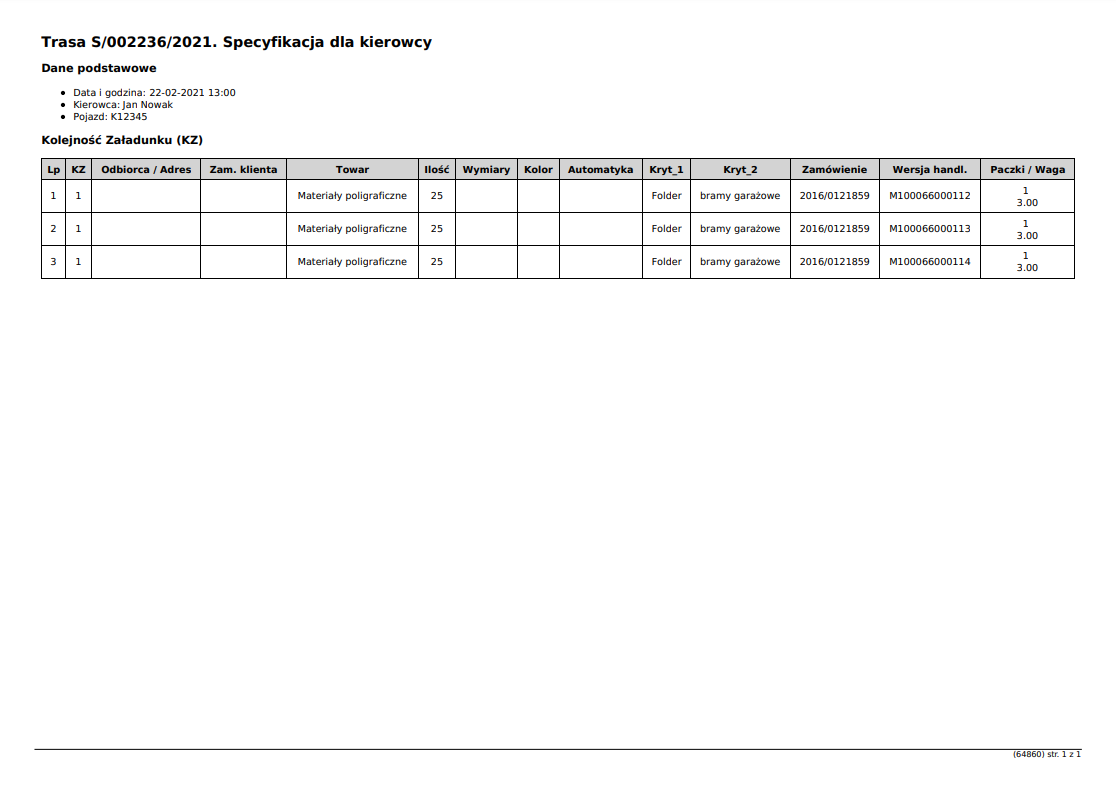
Fig. 6. Print Preview.