ADDING
1. Select in the side menu: Routes → show routes. A list of Routes should be displayed. Click the blue button with an information icon next to the appropriate Route (Fig. 1.).
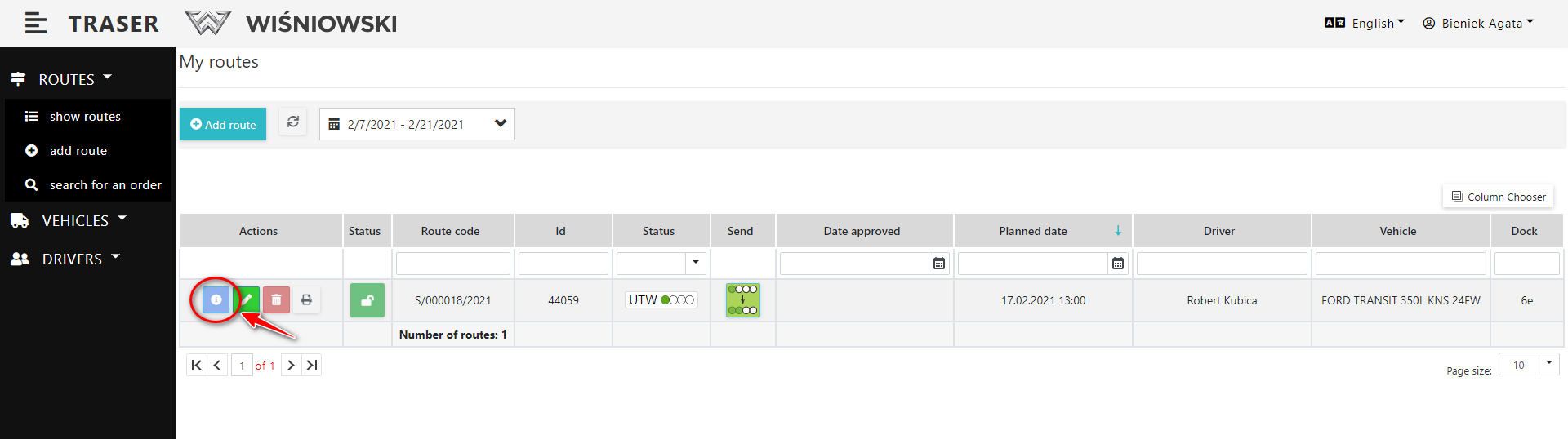
Fig. 1. Go to Route details.
2. Click the "Add Item" button (Fig. 2.).
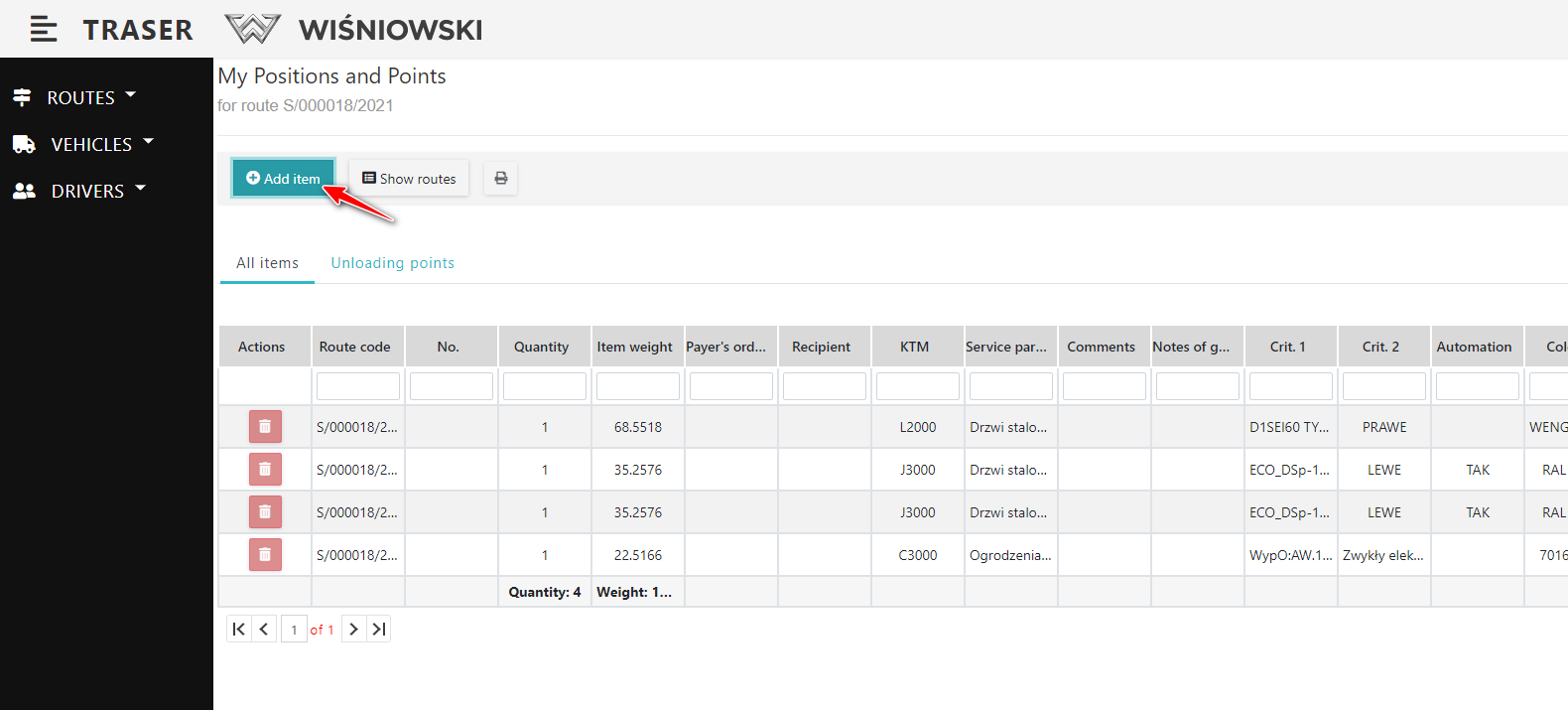
Fig. 2. Route details.
3. Select from the list the Items you want to add by checking them in the first column. Then click "Add selected" (Fig. 3.).
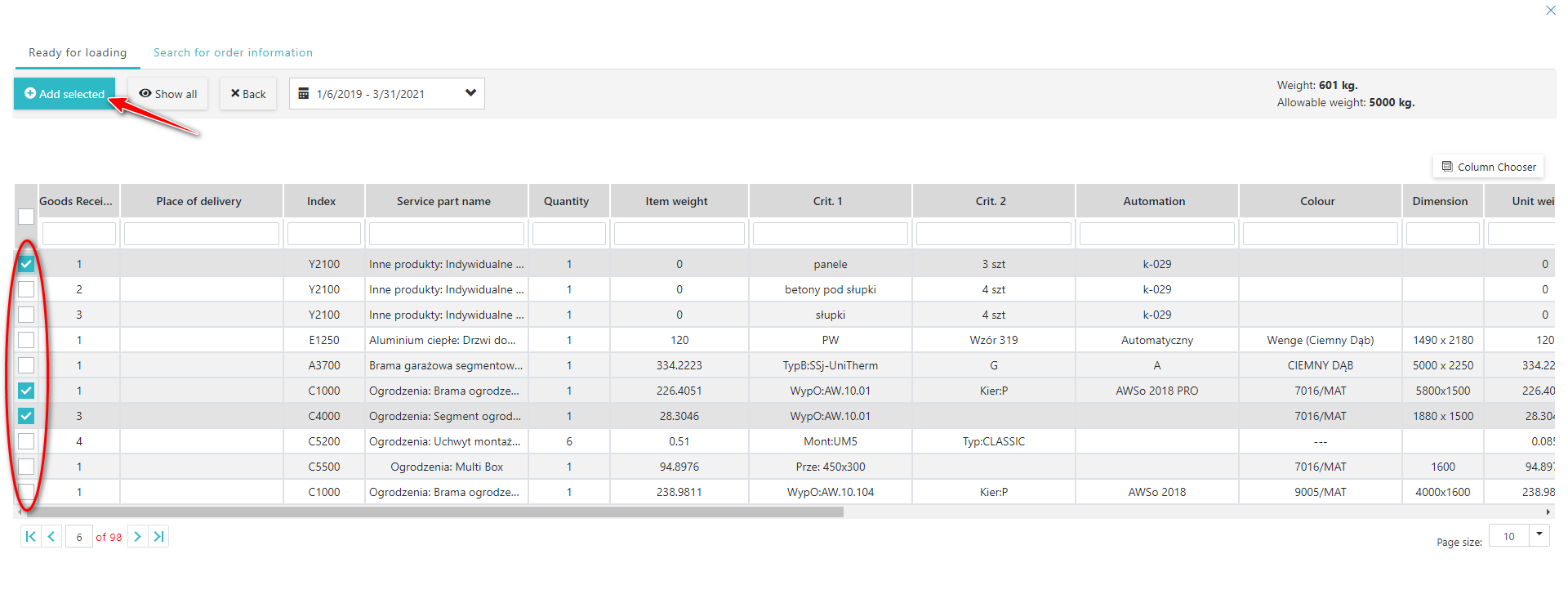
Fig. 3. Adding Selected Items to a Route.
REMOVING
1. Go to the Route details (Fig. 1.) and click the red button with a trash can icon next to the selected Item (Fig. 4.). Then confirm by clicking the "DELETE" button.
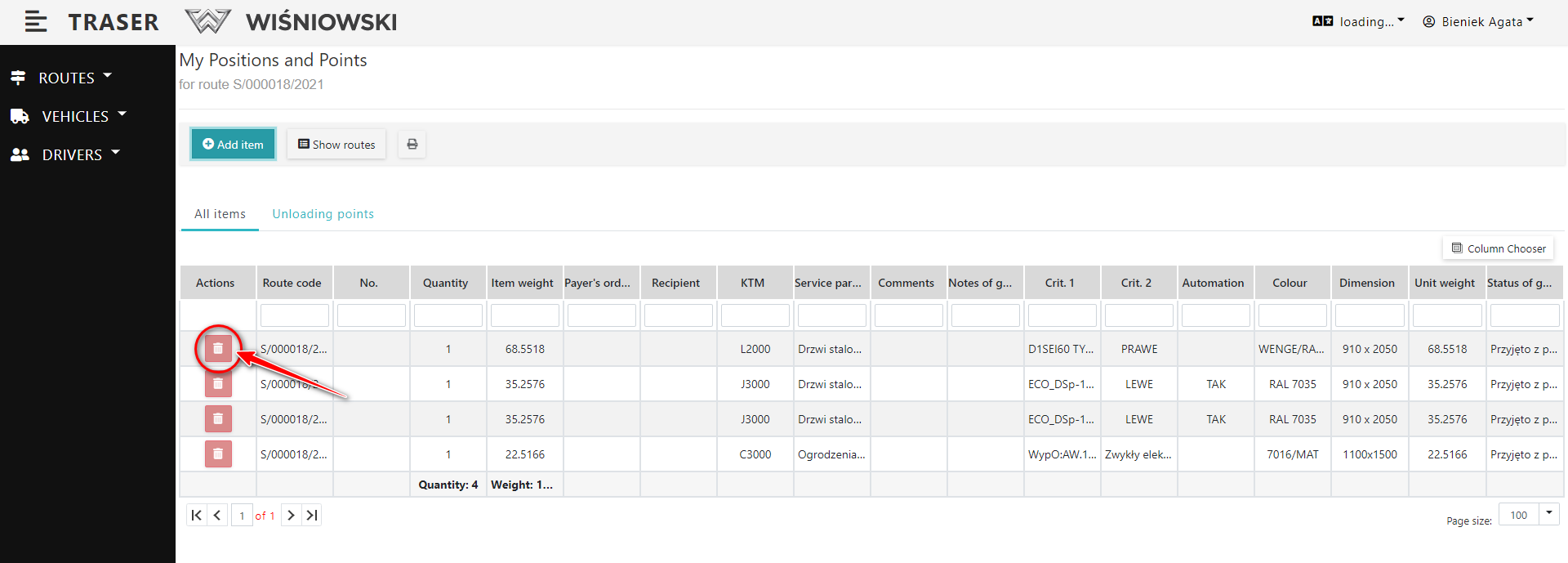
Fig. 4. Removing Items