ADDING
1. Select in the side menu: Vehicles → add vehicle (Fig. 1.). The right side panel will open.
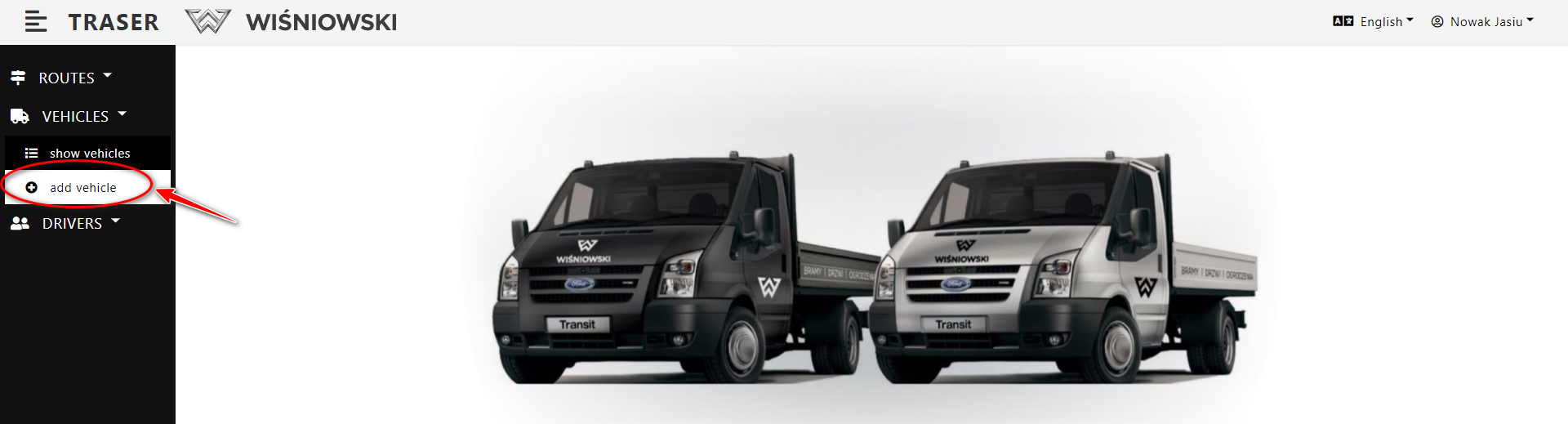
Fig. 1. Adding a Vehicle using the side menu.
2. On the side panel, complete all the required data and click the "Save" button (Fig. 2.)..
NOTE
The car types marked in the red oval define its load capacity and the time it takes on the canal. When adding our car, select the appropriate type, they are:
- lorry and passenger car = 2,000 kg of capacity, 30 minutes of loading slot occupancy
- lorry = 5,000 kg load capacity, 60 minutes of loading slot occupancy
- truck tractor = 24,000 kg load capacity, 90 minutes of loading slot occupancy
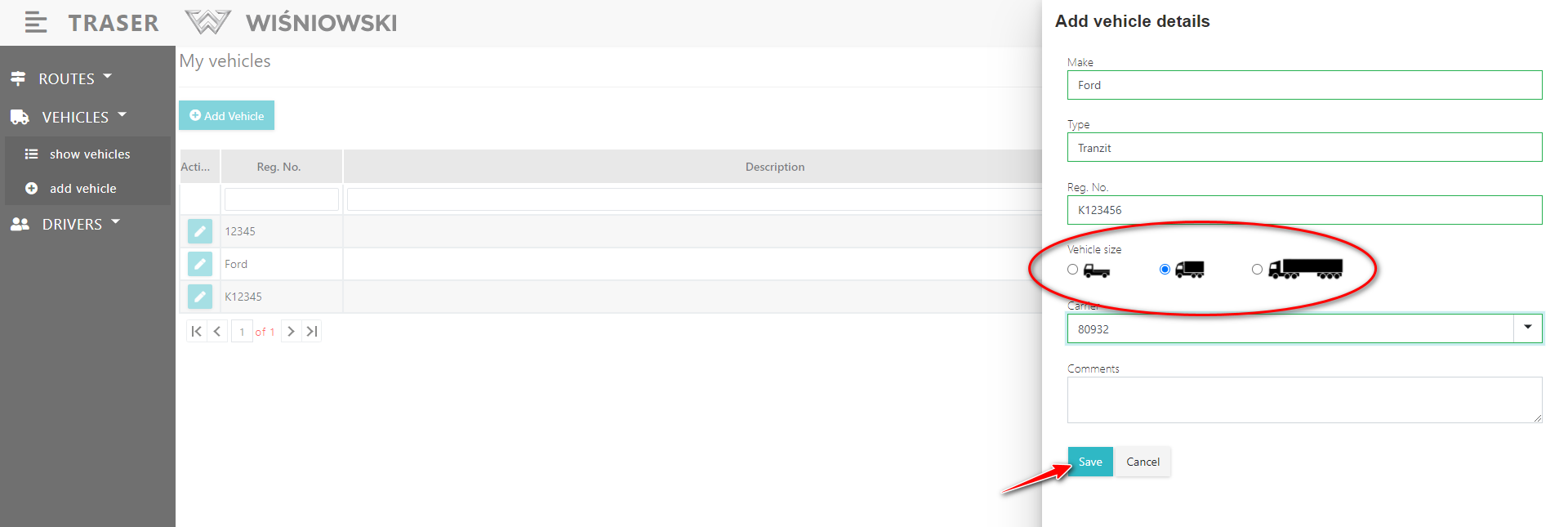
Fig. 2. Adding a Vehicle on the side panel.
3. If the Vehicle is created correctly, it will be displayed on the Vehicles list (Fig. 3.).
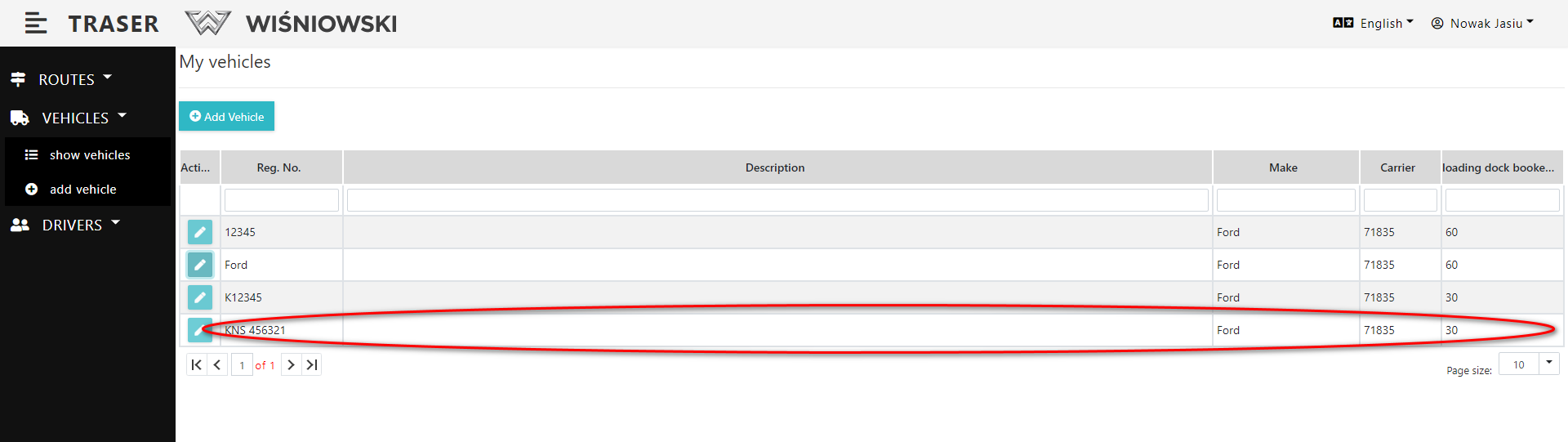
Fig. 3. Vehicles list.
ANOTHER WAY TO ADD A VEHICLE
1. Select in the side menu: Vehicles → show vehicles. A list of Vehicles should be displayed. Click the "ADD VEHICLE" button (Fig. 4.). Then proceed as in Fig. 2.
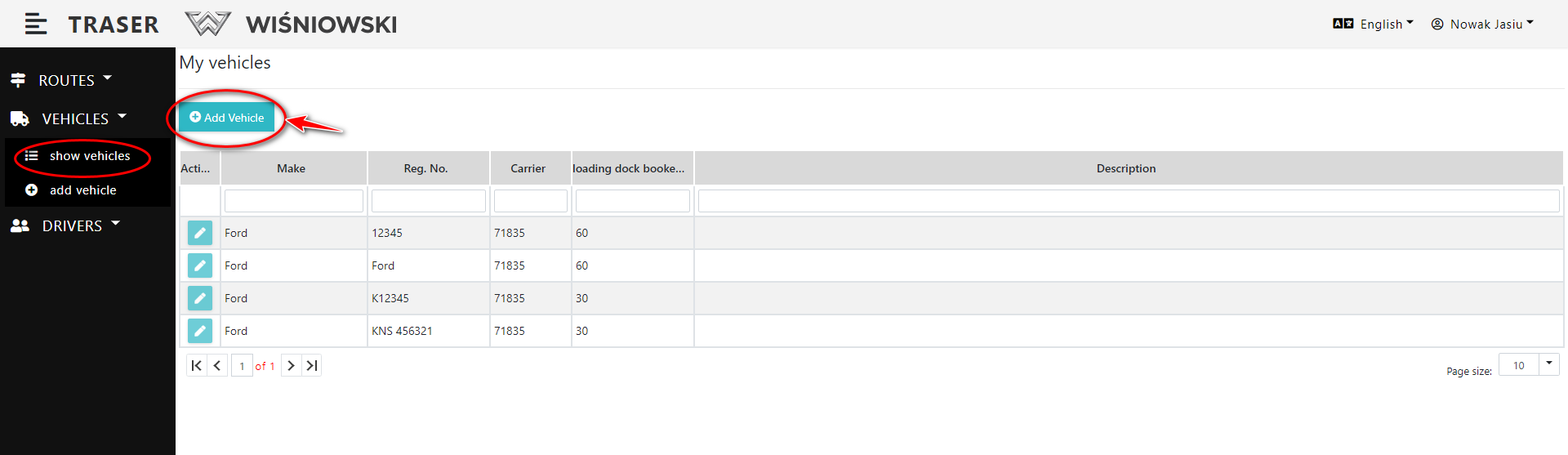
Fig. 4. Adding a Vehicle from the View in the Vehicle List.
EDITING
1. Select in the side menu: Vehicles → show vehicles. (Fig. 5.). A list of Vehicles should be displayed.
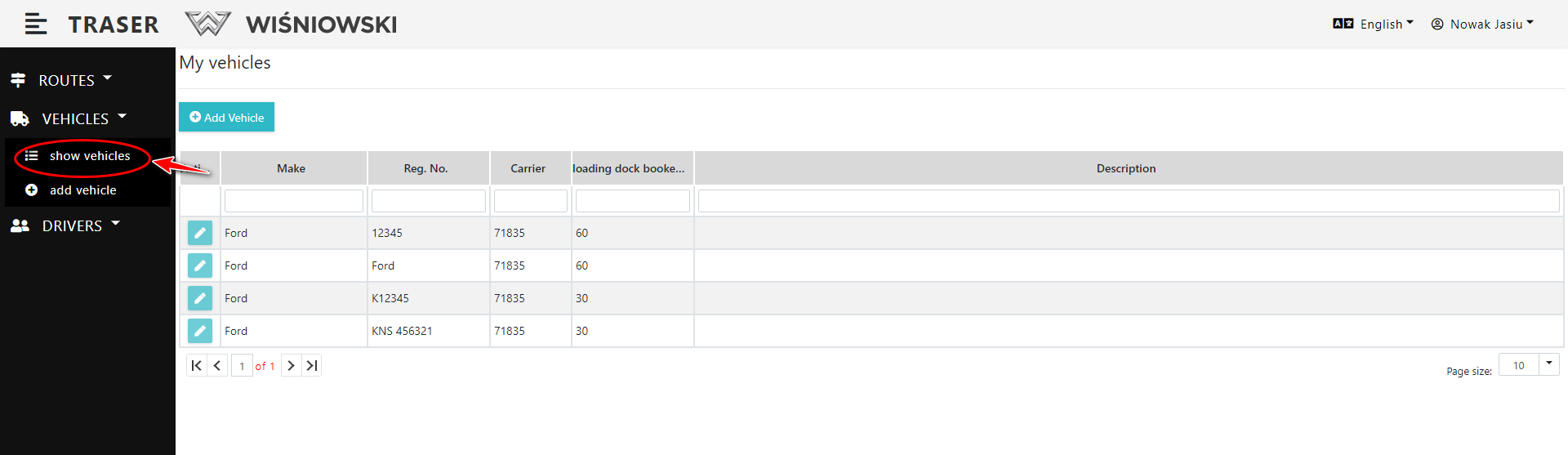
Fig. 5. Vehicles List.
2. Click the green button with a pencil icon next to the appropriate Vehicle (Fig. 6) to open the side panel for editing the Vehicle.
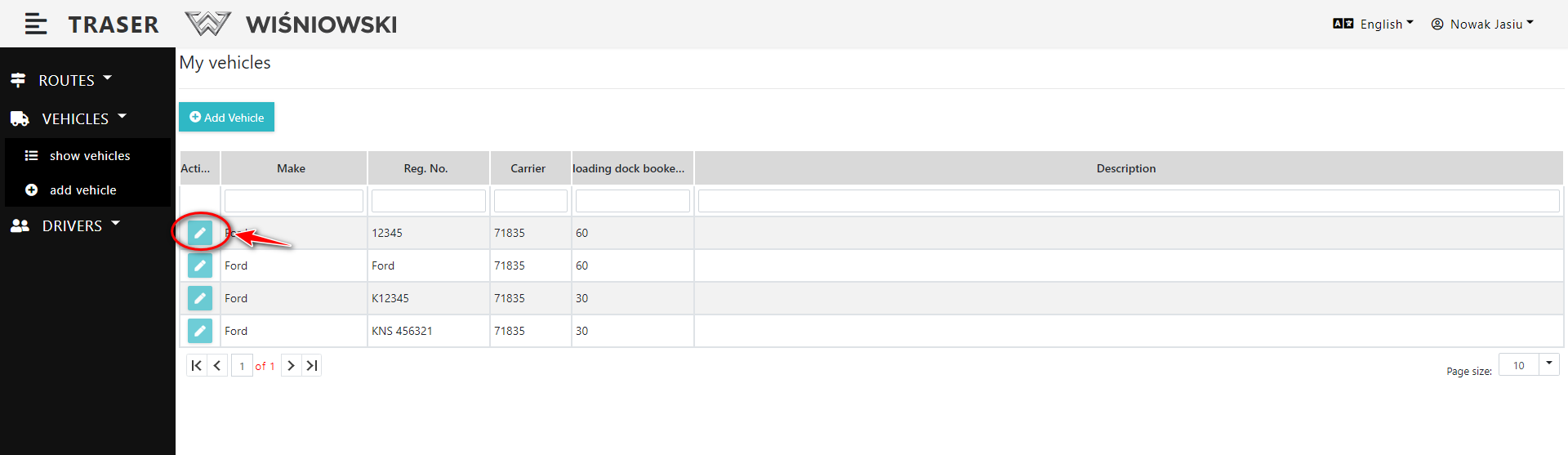
Fig. 6.Start editing the Vehicle.
3. Edit the Vehicle on the side panel and click the "SAVE" button (Fig. 7.). The Vehicle Registration Number cannot be edited.
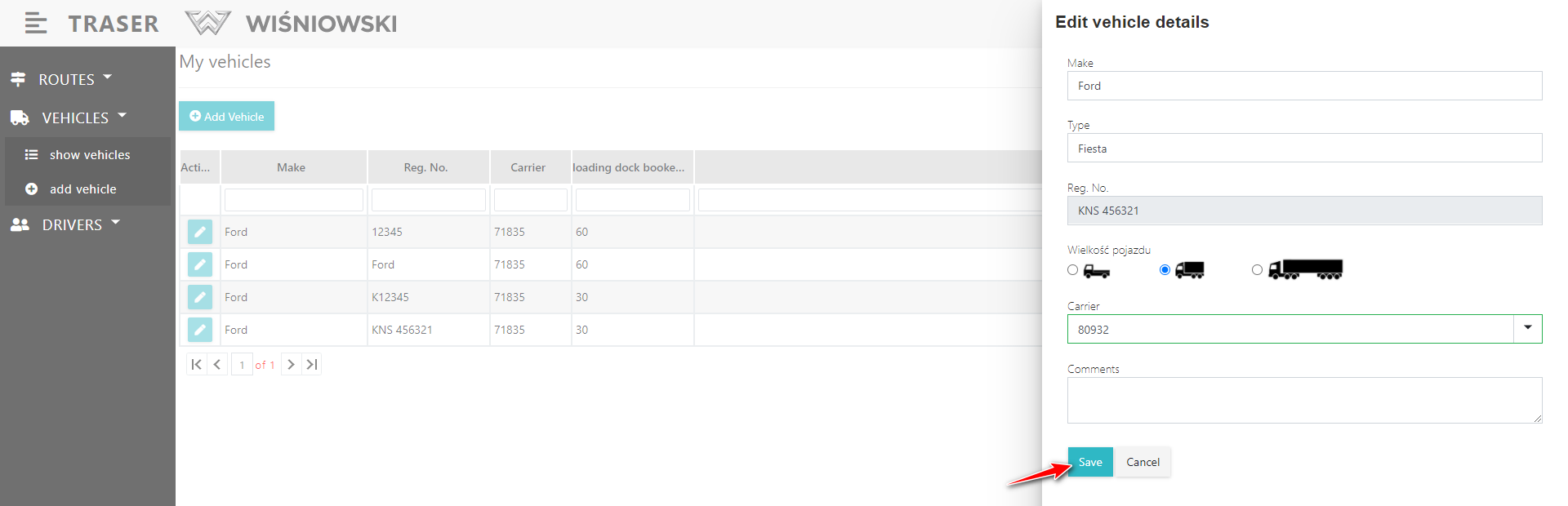
Fig. 7. Saving the Vehicle after editing.
REMOVING
Currently, it is not possible to remove the Vehicle.